
Creating components from templates: Bar Chart
With this template you can add a new Bar Chart component to your project. Bar Chart is a component intended to display bar diagrams. As such this widget is not suitable to be controlled by the user interactively.
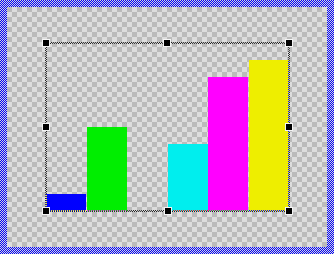
Components created with this template are intended to be adapted to your particular design expectations. After adding the new Bar Chart you should edit the component, change its appearance and if desired also its behavior. Once you have adapted the component, you can embed instances of this Bar Chart wherever you need in your GUI project. Because it serves as template, it is intentionally kept very simple. Nevertheless, Bar Charts created by the template are working widgets. If desired, they can already be used as they are. The following figure demonstrates the default appearance of the Bar Chart created by using the here described component template:
The approach with component templates has two functions. Primarily the templates should simplify the development of new components. Instead of creating the Bar Chart from scratch you can use the available template. The second function is more educative. The template implements fully working Bar Chart component you can investigate and learn about the corresponding programming aspects. The template is well documented. It contains annotations and inline comments with instructions helping you to understand how the component works and how it can be adapted to your particular needs.
This chapter provides an overview how the Bar Chart component template is used within your own application and how you adapt this component according to your particular needs. You will find here also further details concerning the internal implementation of the Bar Chart component.
The Bar Chart component internally manages multiple view instances (rectangle views, image views, or filled path views depending on your customization) to display the data. Each bar requires its own set of views, which means that the more bars you need to display simultaneously, the more memory and CPU resources are consumed. Therefore, this chart type is best suited for displaying a limited number of data values at once. The definition of "limited" depends on your target system's capabilities - devices with more CPU power and RAM can handle more complex charts with more bars.
For applications that need to display many data values (e.g., hundreds or thousands of data points), the Graph component template is a more efficient alternative as it uses a different rendering approach optimized for larger datasets. However, keep in mind that even the Graph component requires more CPU processing as the number of displayed values increases.
Add new Bar Chart component
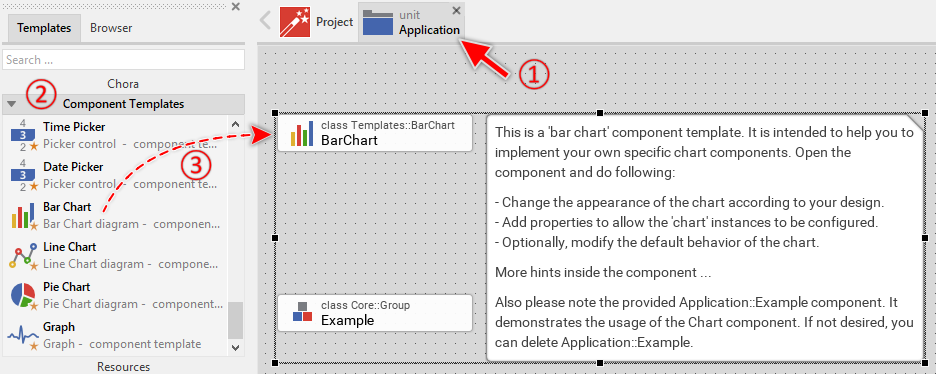
To create a new Bar Chart component from a template you simply Drag & Drop it between the Templates window and the Composer with an opened unit. This is important in that by using the component templates you add in fact a new class to your project. Classes, in turn, can exist within units only. The following are the typical steps to create a new Bar Chart component from a template:
★First switch to the Composer page for the respective unit, where you want to add the new Bar Chart component.
★Then ensure that the Templates window is visible.
★In Templates window switch to the folder Component Templates.
★In the folder locate the Bar Chart template.
★Drag & Drop the template into the Composer window:
In order to demonstrate the usage of the Bar Chart component, the template includes an Example component. This example demonstrates practical usage patterns including how to implement the data loading via OnLoadValue slot method and how to animate bar values using animation effects. It is recommended to study this example component before deletion to understand these important concepts. If not needed afterwards, just select and delete the Example class.
★Eventually name the new added component.
The new created Bar Chart component appears accompanied by annotation providing helpful tips how to proceed. If undesired, you can select and delete the annotation.
Use the Bar Chart component
Once you have created the Bar Chart component, you can use it to assemble more complex components. Technically seen, you embed an instance of the Bar Chart class in-place within some superior GUI component. At the runtime, the superior GUI component takes care of the correct initialization and the displaying of all embedded components, so they appear similarly as you have composed them at the design time.
Step 1. Add new Bar Chart instance
The following are the typical steps to create a new instance of an already existing Bar Chart component:
★First switch to the Composer page for the respective GUI component, where you want to add the new Bar Chart.
★Then ensure that the Browser window is visible.
★Within the Browser locate the class of the previously created Bar Chart. This can be done easily with Browser's own filter function.
★Select the found class in the Browser window.
★Drag & Drop the selected class into the Composer area.
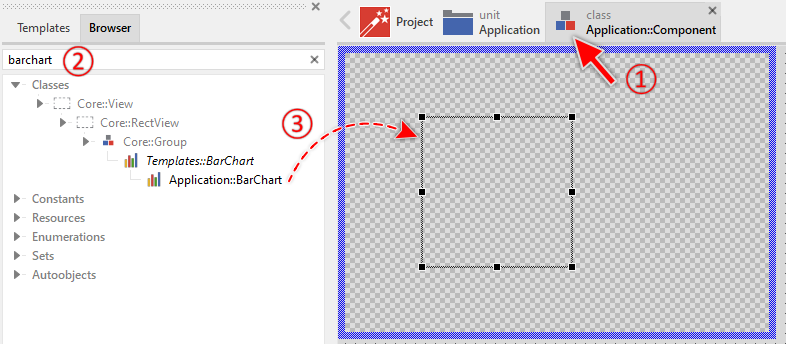
★Eventually name the new instance according to its function within the GUI component.
Component templates are intended to create widgets which can be modified and adapted to your particular design expectations. In the following sections you will learn how to do this. Originally, if not yet modified, the Bar Chart displays the values as vertical or horizontal bars filled with solid colors. Our intention is to keep the component templates as minimalistic as possible so they don't distract you with less important design details.
Please note, the just added bar chart is still empty (it does not contain any data). Therefore no bars are shown. To understand how to properly provide data to the chart, it is recommended to study the Example component which demonstrates the implementation of the OnLoadValue slot method and shows how to animate bar values.
Step 2. Inspect the Bar Chart instance
As long as the Bar Chart is selected you can inspect and modify its properties conveniently in the Inspector window as demonstrated with the property Bounds in the screenshot below. This is in so far worth mentioning as diverse features of the Bar Chart are controlled by the corresponding properties. If you are not familiar with the concept of a property and the usage of Inspector window, please read first the preceding chapter Compositing component appearance.
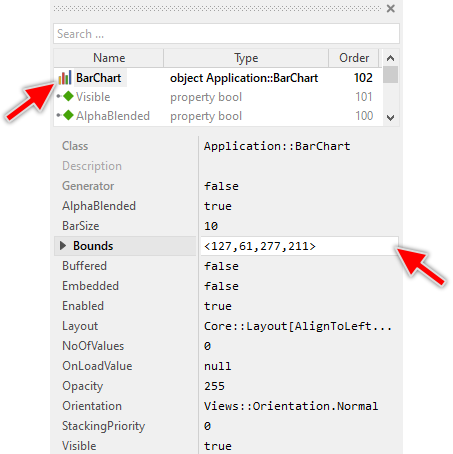
The Bar Chart component descends from the Mosaic class Core::Group. Consequently, most of the properties listed in the above screenshot are inherited from this base class. Particular to the Bar Chart are only few following properties:
Property |
Description |
|---|---|
BarSize |
The property BarSize stores the width (or the height in case of the chart being rotated by 90° or 270°) of a single bar expressed in pixel. |
NoOfValues |
The property NoOfValues stores how many bars are currently managed within the chart component. This value should correspond to the number of data entries the chart presents to the user. |
OnLoadValue |
The property OnLoadValue should refer to a slot method, which will be invoked by the chart component in order to load the data for a given bar. The slot method receives no parameters. Instead, within the slot method implementation you access the Index variable to identify which bar is being loaded, and set the Value and Color variables to specify the bar's data. When the referred property is modified by other widget or the application logic, the Bar Chart is automatically notified to remain in sync with the property. |
Orientation |
The property Orientation determines whether the chart should be displayed with normal or rotated orientation. |
Step 3. Arrange the Bar Chart within the superior component
Once added to the component, you can freely move the Bar Chart instance, or you simply grab one of its corners and resize it in this way. You can control the position and the size of the component also by directly modifying its property Bounds. If you want the Bar Chart to appear behind other views you can reorder it explicitly.
Step 4. Determine the number of bars and configure bar size
The Bar Chart is intended to display multiple bars representing individual data values. The number of bars is determined by the widget's property NoOfValues. By evaluating this property you can query how many bars are currently displayed in the affected widget. When you modify the property NoOfValues, the Bar Chart will automatically update to show the correct number of bars. For example:
// Query the current number of bars var int32 count = BarChart.NoOfValues; [...] // Change the number of bars to display 12 bars BarChart.NoOfValues = 11;
The width (or height, depending on the orientation) of each individual bar is controlled by the property BarSize expressed in pixel units. For example:
// Configure each bar to be 25 pixels wide BarChart.BarSize = 25;
The bars are arranged automatically within the chart area with equal spacing and are distributed evenly across the available space. The following left figure demonstrates a Bar Chart configured with NoOfValues set 11 and BarSize being 25 pixel. Please note, when the available space is not sufficient for all bars with the specified size, the bars will overlap as demonstrated in the right figure:
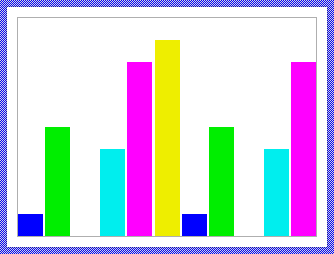
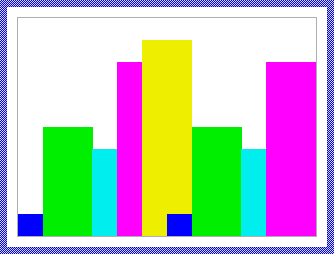
Ideally (and of course depending on your application case) you would configure the Bart Chart so that its width corresponds to the number of bars multiplied by the size of a bar. In this manner, the bars are displayed without gaps between them. You can calculate the width of the bar dynamically when the number of bars changes:
BarChart.NoOfValues = GetNoOfValues(); BarChart.BarSize = BarChart.Bounds.w / BarChart.NoOfValues;
Step 5. Provide data for the bars
The Bar Chart loads data dynamically at runtime through a callback mechanism. To provide the data (value and color) for each bar, you need to implement a slot method and connect it to the chart's OnLoadValue property. The chart will invoke this slot method automatically whenever it needs to load or reload data for a bar.
The data exchange between the Bar Chart and your slot method uses three variables that are members of the Bar Chart component:
Variable |
Description |
|---|---|
Index |
This variable identifies which bar is being loaded. The first bar has index 0, the second bar has index 1, and so on. Your slot method should read this variable to determine which data to provide. |
Value |
This variable should be set by your slot method to specify the height (or width) of the bar. The value ranges from 0.0 to 1.0, where 0.0 means an empty bar and 1.0 means a bar that fills the entire chart height (or width for rotated orientations). |
Color |
This variable should be set by your slot method to specify the color of the bar. |
The following example demonstrates a typical implementation pattern:
★First add a new slot method to your GUI component.
★Name the slot method according to its function, for example onLoadBarData.
★Implement the slot method to provide the data based on the Index variable:
// Determine which bar is being loaded var int32 barIndex = BarChart.Index; // Based on the index, provide the corresponding data // Here we access some data source (e.g., array, data model, etc.) var float barValue = GetDataValue( barIndex ); var color barColor = GetDataColor( barIndex ); // Assign the data to the Bar Chart variables BarChart.Value = barValue; BarChart.Color = barColor;
★In the Inspector window when configuring the Bar Chart instance, connect the slot method to the Bar Chart by assigning it to the OnLoadValue property.
A simpler example without external data sources could look like this:
var float val = 0.0; var color clr = #000000FF; // Provide data based on bar index switch ( BarChart.Index ) { case 0 : { val = 0.3; clr = #FF0000FF; } // Red bar at 30% case 1 : { val = 0.7; clr = #00FF00FF; } // Green bar at 70% case 2 : { val = 0.5; clr = #0000FFFF; } // Blue bar at 50% case 3 : { val = 0.9; clr = #FFFF00FF; } // Yellow bar at 90% default :; } // Assign the values BarChart.Value = val; BarChart.Color = clr;
When the underlying data changes and the Bar Chart needs to update its appearance, you must explicitly request the reload operation by calling the method InvalidateValues. This method accepts two parameters specifying the range of bars to reload:
// Reload all bars BarChart.InvalidateValues( 0, BarChart.NoOfValues - 1 ); // Reload only bars 3, 4, and 5 BarChart.InvalidateValues( 3, 5 ); // Reload a single bar (bar number 7) BarChart.InvalidateValues( 7, 7 );
After calling InvalidateValues, the Bar Chart will automatically invoke your OnLoadValue slot method for each affected bar to reload its data. This mechanism allows you to efficiently update only the bars that have changed, without needing to refresh the entire chart.
Step 6. Configure chart orientation
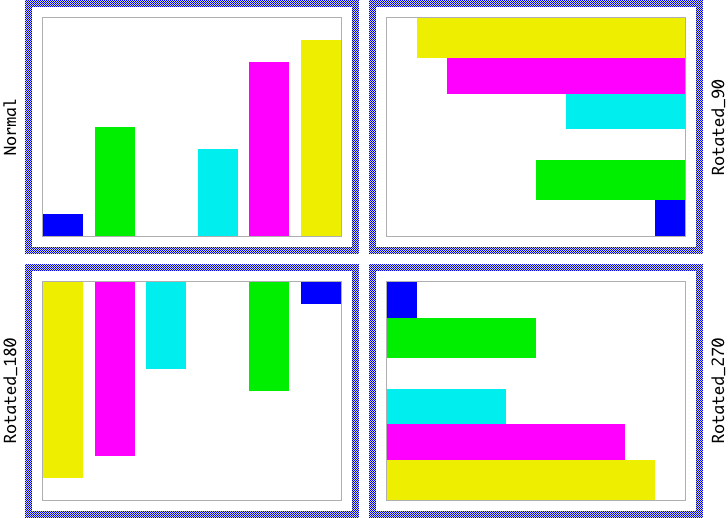
The Bar Chart can display bars in four different orientations controlled by the property Orientation. This property accepts values from the enumeration Views::Orientation:
Orientation |
Description |
|---|---|
Views::Orientation.Normal |
Bars grow upward from the bottom edge of the chart. The BarSize property determines the width of each bar. |
Views::Orientation.Rotated_90 |
Bars grow leftward from the right edge of the chart. The BarSize property determines the height of each bar. |
Views::Orientation.Rotated_180 |
Bars grow downward from the top edge of the chart. The BarSize property determines the width of each bar. |
Views::Orientation.Rotated_270 |
Bars grow rightward from the left edge of the chart. The BarSize property determines the height of each bar. |
You can configure the orientation in the Inspector window or programmatically:
// Display bars growing from bottom (vertical bars) BarChart.Orientation = Views::Orientation.Normal; // Display bars growing from left (horizontal bars) BarChart.Orientation = Views::Orientation.Rotated_270;
The following figure demonstrates the four different orientations:
Open the component for editing
Component templates are intended to create widgets which can be adapted and enhanced to your particular design expectations. For this purpose, once you have added a new Bar Chart component to your project, you can open the component class for editing. Thereupon the implementation of the component appears in a new Composer page:
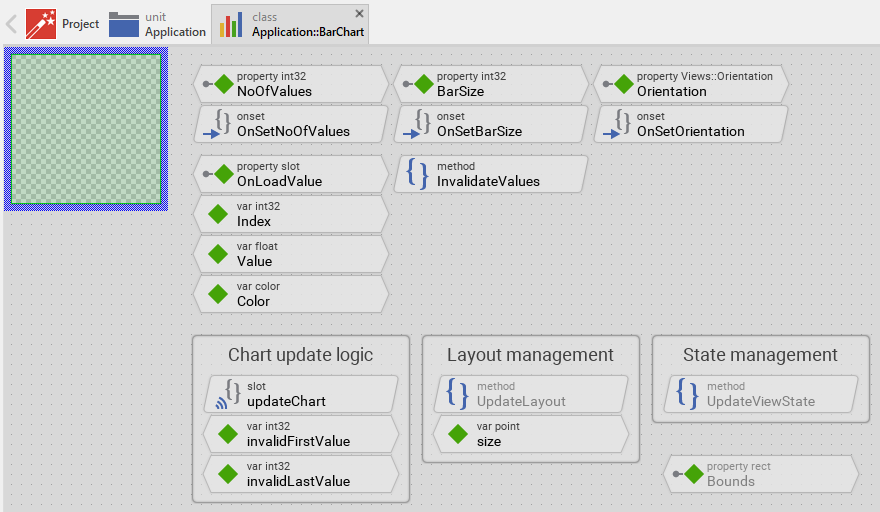
Originally, if not yet modified, the Bar Chart appears with an empty canvas area. The bars are created dynamically at runtime within an Outline view. Our intention is to keep the component templates as minimalistic as possible so they don't distract you with less important design details. The bars are displayed as Filled Rectangle views, each positioned and colored according to the data provided through the OnLoadValue callback mechanism.
This default functionality is implemented by following members belonging to the Bar Chart. These members are explicitly intended to be modified. Understanding this internal structure is thus the first step before you start to adapt the Bar Chart to your particular needs:
Icon |
Member |
Description |
|---|---|---|
|
NoOfValues |
The property NoOfValues stores how many bars are currently managed within the chart component. This value should correspond to the number of data entries the chart presents to the user. |
|
OnSetNoOfValues |
The onset method belongs to the property NoOfValues. Each time the value of the property is changed, the code implemented in the method is executed to schedule an update of all bars. |
|
BarSize |
The property BarSize stores the width (or height for rotated orientations) of a single bar expressed in pixels. |
|
OnSetBarSize |
The onset method belongs to the property BarSize. Each time the value of the property is changed, the code implemented in the method is executed to request an update of all bars. |
|
Orientation |
The property Orientation determines whether the chart should be displayed with normal or rotated orientation. |
|
OnSetOrientation |
The onset method belongs to the property Orientation. Each time the value of the property is changed, the code implemented in the method is executed to reload all bar data with the new orientation. |
|
OnLoadValue |
The property OnLoadValue can refer to any slot method that should be invoked to load the data for a bar. When the Bar Chart needs to load data, it will invoke this slot method. |
|
Index |
This variable identifies the bar which is about to be loaded by the external slot method OnLoadValue. The external slot method should read this variable to determine which bar's data to provide. |
|
Value |
This variable is intended to receive the value for the currently loaded bar. The external slot method OnLoadValue should set this variable. The value ranges from 0.0 to 1.0 corresponding to the bar's height or width. |
|
Color |
This variable is intended to receive the color for the currently loaded bar. The external slot method OnLoadValue should set this variable. |
|
invalidFirstValue |
This internal variable stores the index of the first bar which needs an update. Used internally by the update logic. |
|
invalidLastValue |
This internal variable stores the index of the last bar which needs an update. Used internally by the update logic. |
|
size |
This internal variable stores the previous size of the chart component. It is used to detect when the component is resized and needs a complete update of all bars. |
|
updateChart |
This internal slot method manages the creation, positioning, and updating of all bar views. It is invoked automatically when bars need to be loaded or reloaded. |
|
InvalidateValues |
This method forces the chart component to reload the data for one or more bars. It accepts two parameters specifying the range of bars to reload. |
|
Outline |
This Outline view serves as the container for all bar views. The Outline manages the bars. |
|
UpdateLayout |
This method is invoked automatically after the size of the component has changed. It detects size changes and triggers a complete reload of all bars. |
|
UpdateViewState |
This method is invoked automatically after the state of the component has changed. In case of the Bar Chart, this method can be used to update the chart's appearance based on state changes (enabled, focused, etc.). |


Understand the chart update logic
The Bar Chart component manages bars dynamically at runtime. Unlike static views that are defined at design time, the bars are created, positioned, and removed automatically as needed. This dynamic behavior is controlled by the above mentioned slot method updateChart and the method InvalidateValues.
The update workflow
The update workflow follows these steps:
★When the chart needs to reload data (triggered by property changes or explicit InvalidateValues calls), the variables invalidFirstValue and invalidLastValue are set to mark the range of bars that need updating.
★The updateChart slot method is scheduled for execution using postsignal.
★When updateChart executes, it processes all bars from index 0 to NoOfValues - 1.
★For each bar, the method checks if a Views::Rectangle view already exists. If not, it creates a new one.
★If the bar is within the invalidFirstValue to invalidLastValue range, the data is loaded by invoking the external OnLoadValue slot method.
★The bar's position and size are calculated based on the Orientation, BarSize, Value, and available space.
★The bar's color is updated from the Color variable.
★If NoOfValues was reduced, excess bar views are removed.
The following code snippet from the updateChart method demonstrates the core update logic:
// Search for already existing Views::Rectangle views var Views::Rectangle view = (Views::Rectangle)Outline.FindNextView( null, Core::ViewState[]); // Process all bars for ( i = 0; i < noOfValues; i++ ) { // Should this bar be reloaded? var bool reload = ( i >= invalidFirstValue ) && ( i <= invalidLastValue ); // Create new view if needed if ( !view ) { view = new Views::Rectangle; reload = true; view.Embedded = true; Add( view, 0 ); } // Load the data? if ( reload ) { // Query the data from external slot method Index = i; Value = 0.0; Color = #00000000; signal OnLoadValue; // Limit value to valid range if ( Value < 0.0 ) Value = 0.0; if ( Value > 1.0 ) Value = 1.0; // Update the view's color view.Color = Color; // Calculate and set the view's position // ... (position calculation code) } // Find next view view = (Views::Rectangle)Outline.FindNextView( view, Core::ViewState[]); } // Remove excess views if NoOfValues was reduced while ( view ) { var Core::View tmpView = view; view = (Views::Rectangle)Outline.FindNextView( view, Core::ViewState[]); Remove( tmpView ); }
Bar positioning algorithm
The position of each bar is calculated based on several factors:
Factor |
Description |
|---|---|
Orientation |
Determines whether bars grow upward, downward, leftward, or rightward. |
BarSize |
The width (for vertical bars) or height (for horizontal bars) of each bar. |
Value |
The normalized value (0.0 to 1.0) determining the bar's length. |
Available space |
The bounds of the Outline view, reduced by BarSize to ensure bars are fully visible. |
Bar index |
The position of the bar in the sequence, used to calculate spacing between bars. |
For example, with Views::Orientation.Normal orientation (bars growing upward from bottom):
var float x1 = bounds.x1 + ( ofsX * i ); // Left edge based on index var float x2 = x1 + barSize; // Right edge = left + bar width var float y2 = bounds.y2; // Bottom edge at bottom of outline var float y1 = y2 - ( bounds.h * Value ); // Top edge based on value view.Bounds = rect( int32( x1.round ), int32( y1.round ), int32( x2.round ), int32( y2.round ));
Selective updates with InvalidateValues
The InvalidateValues method allows efficient updates of specific bar ranges without reloading all bars:
method void InvalidateValues( arg int32 aFirstValue, arg int32 aLastValue ) { // Nothing to invalidate if ( aFirstValue > aLastValue ) return; // Remember the range - build union with previously invalidated values invalidFirstValue = math_min( invalidFirstValue, aFirstValue ); invalidLastValue = math_max( invalidLastValue, aLastValue ); // Schedule the update postsignal updateChart; }
This mechanism is particularly useful when animating individual bars or updating only a subset of the data. For example, in the Example component, only bar #2 is invalidated when the animation effect changes its value:
// Only reload bar #2 BarChart.InvalidateValues( 2, 2 );
Adapt the appearance of the component
Originally, if not yet modified, the Bar Chart displays bars as simple colored rectangles arranged within an Outline view. Our intention is to keep the component templates as minimalistic as possible so they don't distract you with less important design details. It's up to you to adapt the widget to have the expected appearance. The available possibilities are explained in the following sections. Please note, that you can combine the different approaches according to your application case:
1. Modify the Outline view
The Outline view defines the area where bars are displayed. You can adjust its size, position, and layout behavior:
★Select the Outline view in the Composer.
★Configure the view's property Layout to control how it resizes when the chart component itself is resized. See Configure the layout of the component for details.
2. Replace Rectangle views with other view types
In its default implementation, the Bar Chart uses Rectangle views to display bars. You can modify the updateChart method to use other view types instead, such as:
★Bitmap Frame for bars with bitmap decorations
★Wallpaper for bars with tiled patterns
★Image for bars represented by scaled bitmaps
★FillPath for bars with custom vector shapes
To replace the view type, follow these steps:
★Open the slot method updateChart for editing.
★Replace all occurrences of Views::Rectangle with your desired view class name. For example, to use frame views:
// OLD: var Views::Rectangle view = (Views::Rectangle)Outline.FindNextView( null, Core::ViewState[]); // NEW: var Views::Frame view = (Views::Frame)Outline.FindNextView( null, Core::ViewState[]);
★Also replace the view creation code:
// OLD: view = new Views::Rectangle; // NEW: view = new Views::Frame;
★Replace the view casting in the cleanup loop:
// OLD: view = (Views::Rectangle)Outline.FindNextView( view, Core::ViewState[]); // NEW: view = (Views::Frame)Outline.FindNextView( view, Core::ViewState[]);
★Adapt the property assignments to match the new view type. For example, if using Views::Frame, you might want to set the Bitmap property refering the desired image to display in the view:
// Set the frame bitmap: view.Bitmap = SomeFrameBitmap;
★If necessary, add new variables to store additional attributes. See Extend the data loading mechanism for details.
3. Customize the bar positioning algorithm
The default positioning algorithm distributes bars evenly across the available space. You can modify this behavior in the updateChart method to implement custom layouts. For example, instead of even distribution, you can use fixed pixel spacing:
// Calculate position with fixed 5-pixel gaps between bars var int32 spacing = 5; var float x1 = bounds.x1 + ( i * ( barSize + spacing )); var float x2 = x1 + barSize;
Or you can implement grouping by adding extra spacing at certain indices:
// Add extra gap every 3 bars var int32 groupSize = 3; var int32 extraGap = 10; var int32 groupGaps = i / groupSize; var float x1 = bounds.x1 + ( i * ( barSize + spacing )) + ( groupGaps * extraGap );
4. Add decorative views to the chart
You can enhance the Bar Chart by adding decorative views such as backgrounds, grid lines, axis labels, or legends:
★Add the desired views to the Bar Chart component. For example, add Text views for labels or Line views for grid lines.
★Name the added views according to their function (e.g., GridLineHorizontal, AxisLabelX, LegendBackground).
★Arrange and configure the views in the Composer.
★Configure their Layout property to control resizing behavior.
★If the views should update dynamically based on chart data, modify the UpdateViewState or UpdateLayout methods to update their properties.
For example, to add a background grid:
★Add multiple Views::Line views for grid lines.
★In the UpdateLayout method, calculate and set their positions based on the current chart size:
// Position horizontal grid line at 50% height GridLine50.Point1 = point( Outline.Bounds.x1, Outline.Bounds.y1 + ( Outline.Bounds.h / 2 )); GridLine50.Point2 = point( Outline.Bounds.x2, Outline.Bounds.y1 + ( Outline.Bounds.h / 2 ));
Configure the layout of the component
The initial size of the Bar Chart is determined by the thick blue border surrounding the Canvas area. It corresponds to the size that all instances of this Bar Chart component will have by default. If desired, you can adjust the Canvas area and change this default size accordingly. For this purpose you click and drag the edges of the surrounding border (see also Resize the Canvas area). Once the size is changed, you can then adapt (move, resize) the views existing within the component, particularly the Outline view. For example, to make the Bar Chart taller you adjust its bottom edge:
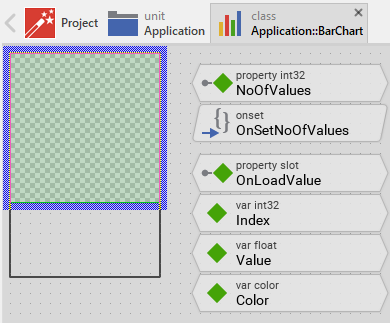
The resulting size of the Bar Chart, however, is not necessarily fixed. It can be adjusted for each component instance individually when the instance is arranged within a superior GUI component or it can change dynamically at the runtime. The GUI application can thus contain multiple instances of the Bar Chart, each with another size. From this arises the question, how the Bar Chart will react to its size alternation?
In case of the Outline view existing per default in the Bar Chart template, the view is automatically adjusted to fill the area of the widget. All other views you have eventually added later to the Bar Chart are not adjusted automatically.
To control the adjustment you have to explicitly configure for each view its Layout property. (see also Configure component layout). Let's assume, in order to display a background decoration you have added a Rectangle view to the Bar Chart. Then you have arranged the view within the Canvas area according to your design expectation. If you want now that the view grows and shrinks according to size changes of the Bar Chart, you enable in the property Layout of this view following settings:
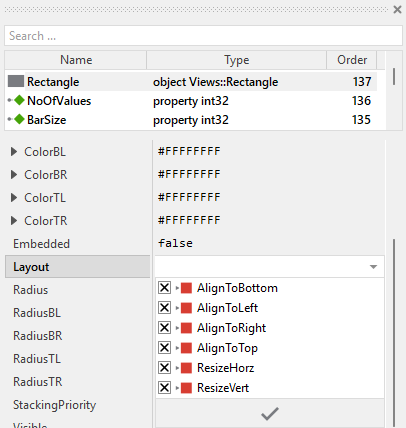
Now the Bar Chart knows how to react to its size changes. Each widget instance can have individual size and the enclosed views are automatically arranged within the available area.
When the Bar Chart component is resized, the UpdateLayout method is invoked automatically. This method detects the size change and triggers a complete reload of all bars by calling InvalidateValues. This ensures that the bars are repositioned correctly to fill the new available space:
// If size changed, force update of all bars if ( size != aSize ) { InvalidateValues( 0, NoOfValues ); size = aSize; }
If you add views that should update their position or size when the chart is resized, you can extend the UpdateLayout method with your own calculations as alternative approach to configuring the view's property Layout. For example, to position a text label at the bottom center of the chart:
// Position caption at bottom center CaptionText.Bounds.origin = point(( aSize.x - CaptionText.Bounds.w ) / 2, aSize.y - 30 ); // Update bars if size changed if ( size != aSize ) { InvalidateValues( 0, NoOfValues ); size = aSize; }
Implement the interface of the component
When creating your own Bar Chart component you should ensure that instances of the widget can be configured to control all the features implemented in it. For example, if you have enhanced the component to display some caption text or a legend, you should allow this text to be specified individually for each instance. In this way several Bar Chart instances can exist at the same time, each displaying another caption or having different visual characteristics.
To control the features in your component you use properties. A property can be understood as variable where the corresponding setting is stored, e.g. the caption text to display in the Bar Chart or whether a grid should be visible. When the value of the property changes, the component can react to it and update its appearance accordingly. The properties reflect thus the settings within your widget. Together they form the interface of the component.
Usually, each particular setting within a component is represented by the corresponding property. Thus, a Bar Chart where caption and grid visibility can be configured will require two properties: one for the caption text and one for the grid visibility flag. In its original version, the Bar Chart contains already four properties NoOfValues, BarSize, Orientation and OnLoadValue. These allow the component instance to configure the number and size of bars, their orientation, and the data source. In order to enhance this interface by your own properties, following steps are necessary:
★Add a new property to the Bar Chart component.
★Name the property according to the setting it should represent. For example, the property intended to store the caption text could be named Caption.
★Determine the data type of the property. For example, the property intended to store the caption text will store a string. A property controlling grid visibility would store a bool.
★Determine the initialization value of the property. This value should correspond to the widget's default state. For example, the property intended to store the caption text should be initialized with exact the string the widget will display if no other text is specified (e.g. "Chart").
★The property is accompanied by its onget method. Except particular cases, this method is not needed and can be deleted now.
★The property is accompanied by its onset method. Open this method for editing.
★Adapt the implementation of the onset method so it updates the Bar Chart according to its new value. For example, in case of the property intended to store the caption text, you will probably update some Text view where the caption is displayed:
// The value doesn't change - nothing to do. if ( pure Caption == value ) return; // Remember the property's new value. pure Caption = value; // Update the view to display the just modified caption. CaptionText.String = value;
Another example: if you have added a property to control the visibility of a background grid:
// The value doesn't change - nothing to do. if ( pure ShowGrid == value ) return; // Remember the property's new value. pure ShowGrid = value; // Update the grid lines visibility GridLine1.Visible = value; GridLine2.Visible = value; GridLine3.Visible = value;
That is all. Now when you deal with instances of the Bar Chart component, you can evaluate and modify the properties similarly to how you access variables. Especially, when an instance is selected, you see in Inspector window the property and can change it there. The modification is immediately visible in the Composer window:
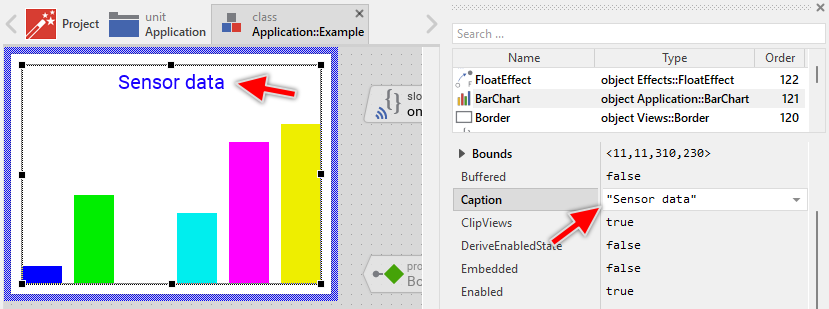
If desired, the properties can also be modified at the runtime of your application. The caption, for example, can be adapted to provide useful information for the user concerning the displayed data. For this purpose you access and modify the affected property directly within Chora code:
var string sensorName = ... // Let the Bar Chart display concrete details about the data source. BarChart.Caption = "Sensor: " + sensorName;
Extend the data loading mechanism
In its original implementation, the Bar Chart loads only two attributes for each bar: the Value (determining the bar's height or width) and the Color. These attributes are stored in the corresponding variables and are set by the external OnLoadValue slot method during the data loading process. If your application requires more sophisticated bar representations, you can extend this mechanism by adding additional variables to store extra attributes.
Common scenarios for extending the data loading mechanism include:
★Individual bitmaps for each bar (when using Views::Frame or Views::Image views)
★Text labels to display on or near each bar
★Gradient colors or patterns
★Custom opacity values per bar
★Individual tooltips or status information
Adding new data attributes
The following steps demonstrate how to add a new attribute to be loaded for each bar. As an example, we will add support for gradients in the displayed bars. In this manner each bar can be configured with two colors, color at the upper and another color at the bottom edge of the bar:
★Add a new variable to the Bar Chart component.
★Rename the variable according to the attribute it should store, e.g. Color2.
★Configure the data type of the variable to match the attribute type. For a color value, use color.
★Open the updateChart slot method for editing.
★In the section where the external slot method OnLoadValue is invoked, initialize your new variable with a default value before calling the slot method:
// Load the data? if ( reload ) { // Query the data from external slot method Index = i; Value = 0.0; Color = #00000000; Color2 = #00000000; // <-- Initialize the new attribute signal OnLoadValue; // ... rest of the code }
★After the OnLoadValue slot method returns, use the new variable to configure the bar view. The exact code depends on the attribute and view type you're using. For a rectangle view displaying a gradient:
// Update the view's color view.ColorTL = Color; view.ColorTR = Color; view.ColorBL = Color2; view.ColorBR = Color2;
★The external OnLoadValue slot method should now set this new variable. Modify your slot method implementation accordingly:
var float val = 0.0; var color clr1 = #000000FF; var color clr2 = #000000FF; // Provide data based on bar index switch ( BarChart.Index ) { case 0 : { val = 0.3; clr1 = #FF0000FF; clr2 = #FF000000; } case 1 : { val = 0.7; clr1 = #00FF00FF; clr2 = #00FF0000; } case 2 : { val = 0.5; clr1 = #0000FFFF; clr2 = #0000FF00; } case 3 : { val = 0.9; clr1 = #FFFF00FF; clr2 = #FFFF0000; } default :; } // Assign the values BarChart.Value = val; BarChart.Color = clr1; BarChart.Color2 = clr2;
Using bitmaps for individual bars
If you want each bar to display a different bitmap (useful when using Wallpaper or Bitmap Frame views), add a variable of type Resources::Bitmap:
★Add a new variable named BarBitmap with type Resources::Bitmap.
★Initialize it with null in the updateChart method before calling OnLoadValue:
Index = i; Value = 0.0; Color = #00000000; BarBitmap = null; signal OnLoadValue;
★Use the bitmap in the view configuration (assuming you're using Views::Wallpaper instead of Views::Rectangle):
view.Bitmap = BarBitmap;
★In the external slot method, provide the bitmap:
var Resources::Bitmap bmp = null; // Select bitmap based on bar index switch ( BarChart.Index ) { case 0 : bmp = Icons::RedBar; case 1 : bmp = Icons::GreenBar; case 2 : bmp = Icons::BlueBar; default :; } BarChart.Value = ...; BarChart.BarBitmap = bmp;
Managing multiple view types per bar
If your bars consist of multiple views (e.g., a rectangle for the bar itself and a text view for the label), you need to manage both view types in the updateChart method. The simplest approach is arrange the views pairwise (e.g. Rectangle1, Text1, Rectangle2, Text2, Rectangle3, Text3, ...). This approach requires the loop to be modified to search for views of the common type (Core::View or Core::RectView if all your views are rectangle-based), and then check each view's actual type. Since each bar manages two views, you need to call FindNextView twice per iteration.
Here's the general pattern for managing pairwise views:
// Start with the first view in the Outline var Core::View view = Outline.FindNextView( null, Core::ViewState[]); // Process all bars for ( i = 0; i < noOfValues; i++ ) { var bool reload = ( i >= invalidFirstValue ) && ( i <= invalidLastValue ); var Views::Rectangle barView = null; var Views::Text labelView = null; // Process the first view (should be the bar Rectangle) if ( view != null ) { barView = (Views::Rectangle)view; // If typecast succeeded, this is a Rectangle view. Then move to the next view if ( barView != null ) view = Outline.FindNextView( view, Core::ViewState[]); } // If no Rectangle view exists, create one if ( barView == null ) { barView = new Views::Rectangle; barView.Embedded = true; Add( barView, 0 ); reload = true; } // Process the second view (should be the label Text) if ( view != null ) { labelView = (Views::Text)view; // If typecast succeeded, this is a Text view. Then move to the next view if ( labelView != null ) view = Outline.FindNextView( view, Core::ViewState[]); } // If no Text view exists, create one if ( labelView == null ) { labelView = new Views::Text; labelView.Embedded = true; labelView.Font = Resources::FontSmall; Add( labelView, 0 ); reload = true; } // Load the data if needed if ( reload ) { // Query the data from external slot method Index = i; Value = 0.0; Color = #00000000; Label = ""; signal OnLoadValue; // Limit the resulting value to the range 0.0..1.0. if ( Value < 0.0 ) Value = 0.0; if ( Value > 1.0 ) Value = 1.0; // Update the bar view's color barView.Color = Color; // Calculate bar position based on orientation var float x1; var float y1; var float x2; var float y2; // ... (calculate position as shown in previous sections) // Arrange the bar view barView.Bounds = rect( int32( x1.round ), int32( y1.round ), int32( x2.round ), int32( y2.round )); // Update the label view's text labelView.String = Label; labelView.Color = #000000FF; // Position the label (e.g., aligned at bottom edge of the respective bar). // The labels are 30px height. labelView.Bounds = rect( int32( x1.round ), int32( y2.round ) - 30, int32( x2.round ), int32( y2.round )); } } // Remove excess views if NoOfValues was reduced // Since each bar has 2 views, we need to remove pairs while ( view != null ) { var Core::View tmpView = view; view = Outline.FindNextView( view, Core::ViewState[]); Remove( tmpView ); }
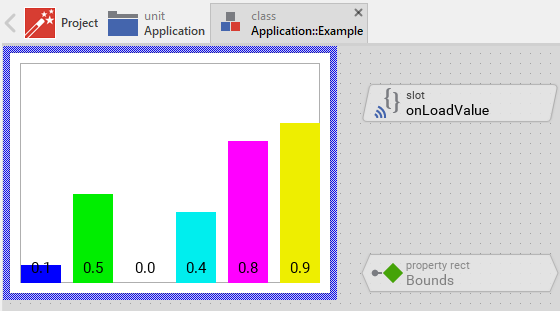
The following figures show the result of this adaptation assuming the OnLoadValue slot method provides for each value the corresponding string, e.g. "0.5":
Enable scrolling of large Bar Chart contents
When your Bar Chart needs to display a large number of bars that exceeds the available screen space, the recommended approach is to embed the entire Bar Chart component within an Outline view. This allows users to scroll through all the chart content interactively.
★Enlarge the Bar Chart component to be large enough to display all bars correctly. For example, if you want to display 100 bars each 25 pixel wide, configure the Bar Chart to have the width of 2500 pixel.
★In your superior GUI component (containing the Bar Chart instance), add an Outline view that defines the visible area (viewport) for the chart.
★Reorder the Outline view behind the existing Bar Chart.
★Set the property Embedded of the Bar Chart instance to true. In this manner the instance will be controled by the Outline Box lying beind it. See also Put a view under the control of the Outline Box.
★Add a Slide Touch Handler to enable interactive scrolling through touch gestures.
★Assign the Slide Touch Handler to Outline's property SlideHandler.
★Configure the Slide Touch Handler's properties (SlideHorz or SlideVert) according to the chart orientation.
When implemented this way:
★The Outline view acts as a scrollable viewport that clips the Bar Chart to its boundary area.
★The Slide Touch Handler detects touch gestures and updates the Outline's ScrollOffset property.
★The entire Bar Chart component (with all its bars) moves within the Outline viewport, allowing users to scroll and view all bars.
★The Bar Chart itself remains unchanged - all its internal logic for bar positioning and updates works exactly as before.
Configuration notes
★For vertical bars (Normal or Rotated_180 orientation):
★Configure the Bar Chart width to: NoOfValues * BarSize
★Set SlideHorz = true on the Slide Touch Handler
★The Outline viewport width determines how many bars are visible at once
★For horizontal bars (Rotated_90 or Rotated_270 orientation):
★Configure the Bar Chart height to: NoOfValues * BarSize
★Set SlideVert = true on the Slide Touch Handler
★The Outline viewport height determines how many bars are visible at once
Additional customization
You can enhance the scrolling behavior by configuring the Slide Touch Handler:
★Configure friction and acceleration to control the scrolling physics and inertia effects.
★Configure snap positions to make scrolling stop at specific bar positions for better alignment.
★Configure rubber band behavior to control what happens when scrolling reaches the boundaries.
For detailed information about the Outline view and its scrolling capabilities, please refer to the Outline documentation.