
Working with Embedded Wizard: Before you start
Evidently, you are new to Embedded Wizard. We would like to welcome you! Before you start discovering our technology, please note the hints in the sections below. Additionally, if you have not done it yet, we recommend you to read first the chapter Basic concepts. It gives you a short overview of the ideas behind the technology of our Embedded Wizard.
Install Embedded Wizard Studio
In the first step make sure that Embedded Wizard Studio is installed on your desktop PC. If this is already the case, you can skip over this section. The installation is done from a setup application.
★To download Embedded Wizard Studio, please visit Embedded Wizard.
★Once you have downloaded the setup application, start the setup and follow the instructions.
IMPORTANT
You can install Embedded Wizard Studio on a desktop PC running Microsoft Windows 10 or higher. If you are working on a Linux or macOS machine, we would recommend you to install Embedded Wizard Studio within a virtual machine (e.g. VMWare or Parallels Desktop). When using Embedded Wizard Studio with an activate license, a permanent Internet connection is required to contact our license management servers.
TIP
In case of Linux operating system we have adapted Embedded Wizard Studio to be able to run with the WINE environment. Thus if you have no possibility to setup a virtual machine containing Windows, it could be worth to setup a WINE environment and run Embedded Wizard with it. The section Run Embedded Wizard Studio with WINE on Linux describes the steps as well as needed workarounds.
Internet Connection
If you are using Embedded Wizard Studio with an activate license, please note that it requires a permanent Internet connection to contact our license management servers. Furthermore, network connection is helpful to access our Download Center and the documentation found in this Knowledge Base.
License key
Embedded Wizard Studio can be used with or without a license key:
★If you are evaluating or using Embedded Wizard Studio for small projects, no license key is necessary. You can skip over this section and use the Studio with its complexity limitations.
★For professional projects without limitations, we will provide you with a license key after purchase.
★Once you have installed Embedded Wizard Studio and received the license key, please follow the instructions to activate the license.
Start Embedded Wizard Studio
You can start Embedded Wizard Studio directly from the Windows Start Menu.
Run Embedded Wizard with WINEHQ on Linux or macOS
Embedded Wizard Studio 15 as well as CHORAC command line compiler are applications developed for Windows 10 - they depend on the Windows own API. By using WINEHQ environment you can install and run Embedded Wizard 15 directly on Linux and macOS. In such case you don't need to setup any virtual machines nor Windows PCs. Following are the necessary steps:
★Ensure your system contains the WINEHQ environment. For Linux, WINEHQ can be installed using your distribution's package manager. For macOS on WINEHQ can be installed using tools like Homebrew. For Apple Silicon Macs (ARM64), WINEHQ requires additionally Rosetta 2 for x86-64 emulation.
★To download Embedded Wizard Studio, please visit Embedded Wizard.
★CHORAC is a separate tool that requires a separate installation. It is not bundled with Embedded Wizard Studio and is available exclusively for licensed customers in our Download Center.
★On your system open the Terminal.
★In the Terminal window using winecfg tool configure the version of the emulated Windows to be at least 10.
★In the Terminal window execute the command wine msiexec /i <file-name> in order to start the Embedded Wizard Studio or CHORAC Setup. Instead of <file-name> use the path to the downloaded setup:
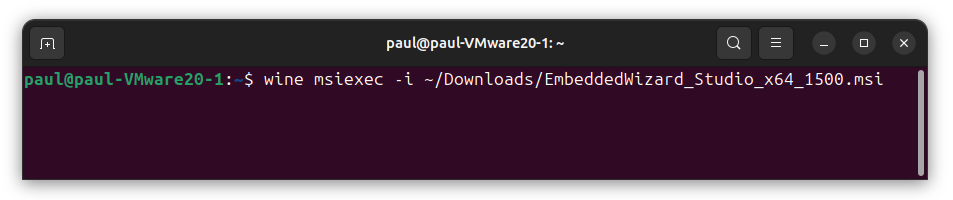
★Eventually WINEHQ will report errors because of missing components and ask you to download them. Follow the steps in such case.
★To start Embedded Wizard Studio execute a wine command in the Terminal window (please note the correct Embedded Wizard version number, e.g. 15):
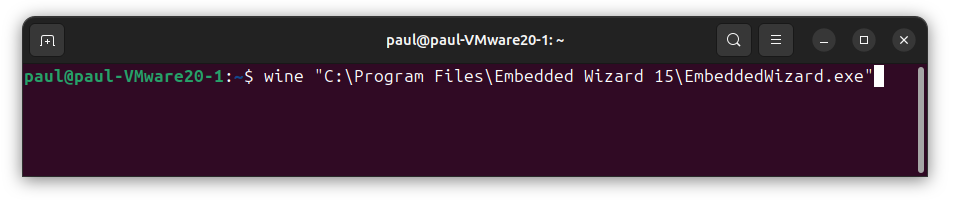
Embedded Wizard 15 has been specifically adapted to work as good as possible with the WINEHQ environment. The Studio and CHORAC command line compiler have been optimized for WINEHQ's peculiarities, ensuring that Embedded Wizard appears and functions largely the same under WINEHQ as it does on a native Windows system.
Tips for Working with Embedded Wizard under WINEHQ
★Using the Host File System: WINEHQ exposes a drive Z: that represents the entire file system of the host operating system. To save Embedded Wizard projects or generate code in a host directory, use the directories under Z:. This allows for convenient work with Embedded Wizard under WINE.
★HiDPI Configuration: If your host system is configured for HiDPI, WINEHQ applications may appear scaled down. You can configure higher DPI settings using winecfg. It is recommended to use the same DPI values as your host system for optimal display.
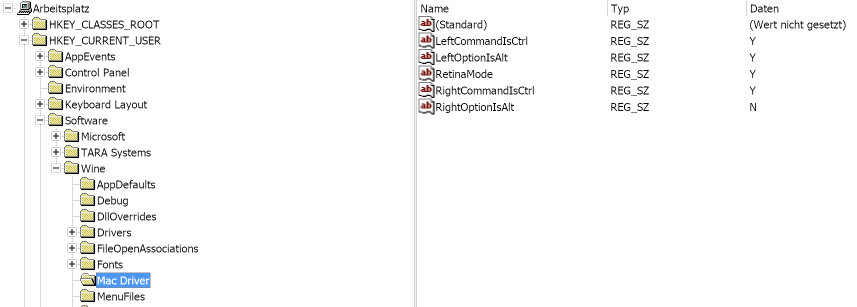
★macOS Keyboard Configuration: On macOS, there is a complication regarding keyboard usage. macOS uses the OPTION and CMD keys differently than Windows. Fortunately, under WINEHQ you can reconfigure these keys. To do this, use wine regedit.exe and configure the settings as shown below. This configuration ensures that the macOS CMD key functions like the Windows CTRL key, and the left ALT key functions like the Windows ALT key. The right ALT key remains available for macOS to enter special characters:
Known Issues and Limitations
While Embedded Wizard 15 has been significantly improved for WINEHQ compatibility, some limitations remain:
★Mouse pointer: The mouse pointer is not always updated as expected. Especially during longer tasks, the pointer does not always show the hourglass symbol.
★Runtime error messages: If Embedded Wizard Studio is performing a longer task, Linux displays sometimes a message like "Embedded Wizard Studio is not responding". In such case ignore the message.
★Dark Mode Appearance: When Embedded Wizard Studio is used in 'Dark Mode', the colors of scrollbars and file dialogs may not match. These typically appear in the standard Windows light colors. Possible workarounds include: installing a dark theme for regular (non-WinRT) applications in winecfg, or setting the theme to 'No Theme' in winecfg and then configuring the colors for individual window elements. Note that these settings must be carefully considered and coordinated, as they affect all WINEHQ applications globally. To make window title bars appear dark, the WINEHQ window manager must be disabled, which then allows you to configure colors for these window elements in the dialog mentioned above.
★macOS Key Release Detection: Under WINEHQ on macOS, the release of modifier keys (SHIFT, OPTION, CTRL) is not always detected. WINEHQ may continue to believe the key is still pressed. This affects application operation. Details: If a user holds down a key (e.g. SHIFT) in a WINEHQ application and then clicks on a different macOS window, the system switches to the corresponding macOS application as expected. However, when the user releases the key, WINEHQ does not register this event. Upon returning to the WINEHQ application, the SHIFT key is still considered pressed, causing user interactions to not execute correctly.
★HiDPI Setup Dialog Display: When WINEHQ is configured for HiDPI, setup dialogs may be clipped.
★AI Console Screenshot Functionality: The screenshot functionality in AI Console is disabled when running under WINE. Instead, a dedicated message is displayed. Users must use other host-specific tools to capture screenshots and provide them as image file attachments to AI Console.
★AI Console Special Characters: In AI Console, special characters are not displayed correctly under WINE. They appear as empty rectangles.
★Dockable Windows: The ability to tear off dockables (Gallery, Inspector, Log Window, Code Editor) is partially restricted under WINEHQ. The dockables remain firmly docked within the Embedded Wizard Studio IDE. However, this restriction to prevent floating dockables under WINE now depends on the WINEHQ configuration. If WINEHQ is configured to not use OS-native title bars, the restriction is automatically deactivated. This has been tested with WINE 10. To configure this mode, disable both 'Window Manager...' options in winecfg.
★Custom Intrinsic Modules: User-defined Prototyper Intrinsic Modules still need to be compiled with Visual Studio C++ compiler. Using GCC for this purpose is not possible.
IMPORTANT
We have extensively tested Embedded Wizard 15 on Ubuntu Linux (Intel) and macOS (Intel) with WINE 9.0 and WINE 10.0. For Apple Silicon Macs (ARM64), WINEHQ with Rosetta 2 emulation should theoretically work but has not been officially tested. Nevertheless, due to the large number of Linux distributions, macOS versions, WINEHQ versions, and internal issues in WINEHQ, we cannot guarantee that Embedded Wizard Studio will work as expected in every setup case. If you observe a problem, please report it to us. Alternatively, you always have the possibility to install a virtual machine and run Embedded Wizard inside it.
Context sensitive help
If you are new to Embedded Wizard Studio, you will surely have thousands of questions how to work with it and why are some things so and not so. Please use our context sensitive help. Every time you press the key F1 Embedded Wizard Studio will search for documentation describing the editor windows and components you are currently working with.
Tutorial videos
On our YouTube channel you can find various videos demonstrating the workflows with Embedded Wizard Studio. These can help you to get familiar with our technology. We plan to expand successively the set of available tutorial videos.