
Release notes: Embedded Wizard 15
Version 15 contains the following changes and improvements:
Adaptation to our new Business Model
With version 15 we have restructured our business model to offer more flexibility for our customers. The main changes include:
★New subscription- and royalty-based business model. Previously, customers could only buy perpetual licenses. Now users can subscribe to Studio licenses for as long as they need them. Commercial Platform Package licenses are now also offered on a royalty-based model.
★Originally, we had two separate setups for Embedded Wizard Studio Free and Embedded Wizard Studio Pro. The Free Edition was primarily intended for evaluation purposes and was limited regarding project complexity. Now a single Embedded Wizard Studio setup is available. If the user does not have a valid license, the complexity limitation known from the Free Edition applies. With a valid license, the usage is not limited. For more details, please visit the Embedded Wizard Studio product page.
★Originally, the CHORAC command line compiler was part of Embedded Wizard Studio Pro. Now it is a separate setup and can be acquired independently. More information can be found on the Embedded Wizard ChoraC CLI product page.
★With version 15, the licenses are no longer node-locked. They are floating licenses, which makes the workflow with Embedded Wizard Studio more flexible. In particular, you can install Embedded Wizard Studio on multiple PCs and use them with the same license key – of course not simultaneously.
★The ASK Embedded Wizard Forum is no longer maintained and will be switched off soon. Product support is now provided exclusively to customers who have subscribed to our Product Support offering. Other users are asked to use our Knowledge Base. For more details on how to subscribe, please visit the Embedded Wizard Product Support page.
★We have introduced the new Embedded Wizard Community License. When using a Platform Package under this license, no watermarks are displayed anymore. This simplifies the use of Embedded Wizard technology for students, makers, open-source projects, or even for small commercial projects. Please note our new Embedded Wizard Community License (EWCL) describing the conditions under which you are permitted to use Embedded Wizard technology for such projects.
Dark Mode
Embedded Wizard Studio was originally implemented for the Light Mode. Now we have enhanced it to also appear in Dark Mode. By default Light Mode is used. To switch the mode use the new command Switch dark/light mode... added to the menu.
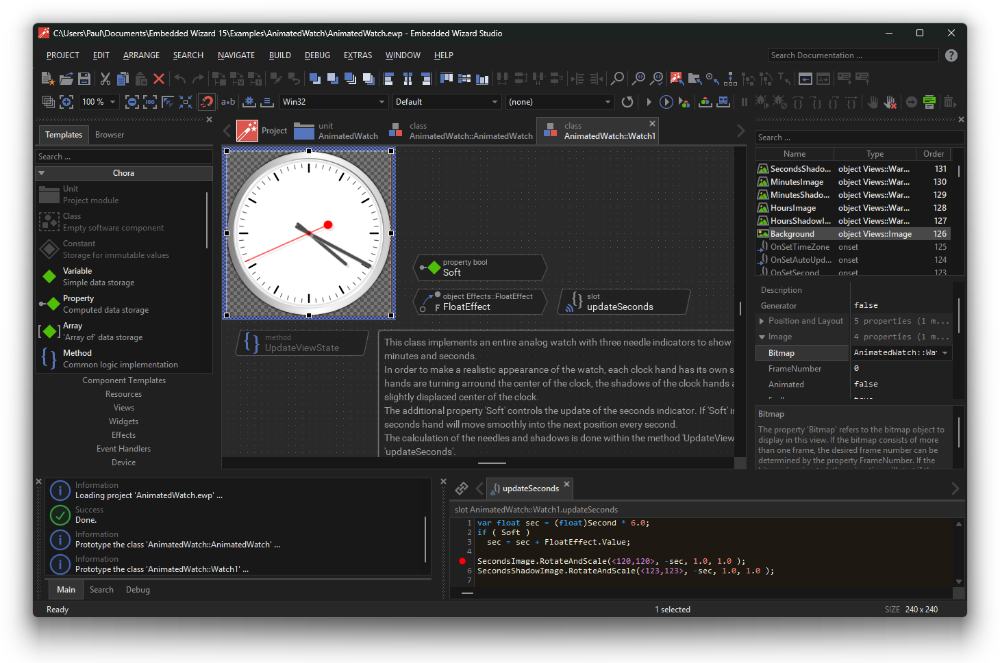
Embedded Wizard Studio in Dark Mode
★Support for two sets of default Code Editor configurations: Dark and Light. Depending on the Dark/Light selected mode, the corresponding configuration is used. When user modifies the configuration (e.g. specifies other colors), the modification affects this configuration only.
AI Integration
With version 15 we have integrated the Anthropic Claude AI Assistant in Embedded Wizard Studio. In this manner your projects can be evaluated and modified by AI.
To interact with the AI Assistant a new window AI Console is implemented. The window is by default not visible. To show it use the new menu command from the menu . In the AI Console window you enter prompts asking AI to perform tasks. The AI has access to Chora and Mosaic documentation and it can evaluate and modify your project. Also, it can perform web searches and create local files. You as user can provide to AI files, images and screenshots as attachments to your prompts.
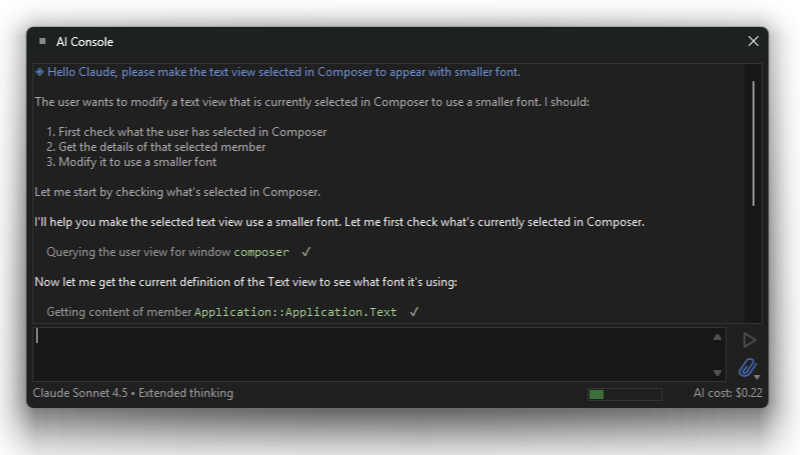
The new AI Console window allows direct interaction with Claude AI Assistant
The Log window context menu has been enhanced by new commands and . The commands appear when you select an error or warning in the Log window:
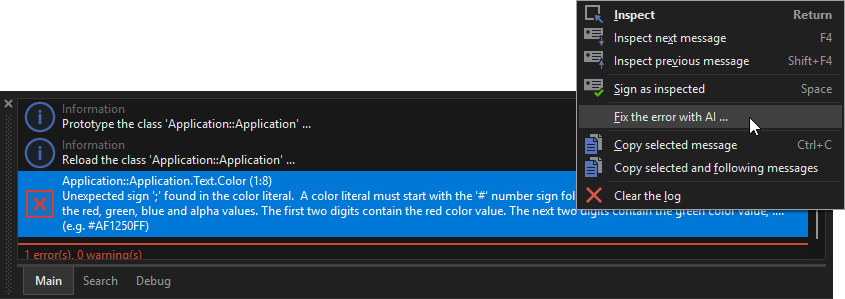
Context menu in Log window with AI-assisted error fixing commands
IMPORTANT
The usage of AI Console requires a dedicated Anthropic account and produces costs for the user.
Early Access Feature: The AI Console is currently provided as an early access feature. It already offers powerful assistance for GUI development tasks, but the AI assistant can still make mistakes - for example, by generating incorrect code, misinterpreting requirements, or suggesting suboptimal solutions. We therefore recommend that you always review and test AI-generated changes before using them in production and keep regular backups of your project. We are convinced of the potential of AI-assisted GUI development and are actively working on further improving and extending this feature.
64-Bit and HiDPI
With version 15 the both tools: Embedded Wizard Studio and CHORAC command line compiler have been ported to 64-bit Windows and actual development tools. The memory limits known from the older 32-bit version are past. From now only 64-bit version is available. 32-bit development ended with Embedded Wizard version 14.
★Embedded Wizard has been successfully ported to Intel 64-bit (x64) and ARM64. For the moment we limit to deploy the Intel version.
The porting to 64-bit required the menu and window management of Embedded Wizard Studio IDE being newly implemented. This results in some changes for the user:
★Dockables have now fixed associated locations where they are docked inside the IDE. The Inspector window, for example, is always docked at the right edge. Docking the Inspector at the left edge as it was possible in version 14, is not possible in version 15.
★To undock a docked window (to make it floating) the user has to double click on the caption of the window. Clicking on the caption and dragging the mouse does not work anymore. To dock again a floating window the user has again to double click on the caption of the floating window.
★The porting to 64-bit also affected how selection works in Inspector window. Now selected members appear highlighted with full rows. Selecting members by dragging a selection frame around the members (rubber band selection) in Inspector is not available anymore.
★Embedded Wizard Studio has been optimized to better work on HiDPI systems. The still opened issue affects icons which may appear blurry on HiDPI. Distances, borders, etc. however should appear now correctly on HiDPI.
IMPORTANT
If you have implemented intrinsic modules, you will need to recompile them for x64 target. Using 32-bit intrinsic modules in 64-Bit Embedded Wizard is not possible. Trying to do that reports a dedicated error message.
WINE Support
Embedded Wizard 15 has been reworked and adapted to better function in a WINEHQ environment when running on Linux or macOS Intel. It now appears and functions largely the same under WINE as under Windows. This has been extensively tested under Linux Ubuntu and macOS (Intel) with WINE 9.0 and 10.0. For more details see Run Embedded Wizard with WINEHQ on Linux or macOS. This section also provides few hints and mentions known issues with WINEHQ.
Other usability Improvements
★The Filter feature in Inspector improved to evaluate the type of the members and not only their names.
★Improvement of the sorting of items in Inspector Assistant windows. The local items are promoted to appear first. Sorting is case insensitive. Data type of an item does not affect the sorting anymore. The modification also affects Code Editor Assistant windows.
★Navigation bars in Composer and Code Editor enhanced by new command to close all tabs to the right of the actual tab in Composer or in Code Editor. The respective context menus in Composer and Code Editor as well as the main menu have been enhanced by corresponding commands.
★Improvement of the Composer Zoom with mouse wheel. Originally when using mouse wheel with CTRL key pressed changed the ZOOM factor only. Now, mouse pointer position is taken into account as center position for the ZOOM operation. In other words the content is zoomed around the mouse pointer. See also Zoom setting
★The menu has been enhanced by new command Show selection, Shortcut CTRLK. By using this command, Composer automatically scrolls its content so that the selected members are in visible area of the Composer. If the selected members are larger than the Composer window, the ZOOM factor is reduced. Also new tool button in Extras Toolbar added.
★In Log window, the command has been renamed to . Originally activating copied all messages from the window. Now activating copies only the actually selected message.
★Log window enhanced by a new command . With this command the user can copy a range of messages. See also Copy messages.
Runtime Environment
Runtime Environment has been enhanced by function EwGetExistingAutoObject() (_GetExistingAutoObject() in case of WebGL). This function works similarly to EwGetAutoObject(). However, it does not instantiate the autoobject if it is not existing in the moment. This function is therefore intended for middleware implementation where middleware events, etc. are fed to UI only, when UI maintains the corresponding autoobject alive.
Chora
★Add HSL color space calculation to the color data type. The data type color has been enhanced by three new instant properties: hue, saturation and luminance. The new properties can be read and modified. Internally the color information is still stored as RGB value. The new properties only convert between RGB and HSL.
★The data type color has been enhanced by new instant constructors named color_hsl. This allows the creation of color operands from HSL parameters.
★Embedded Wizard Studio has been adapted to display the new HSL values wherever appropriate (in Inspector, Debugger windows and relevant Scope Assistant windows).
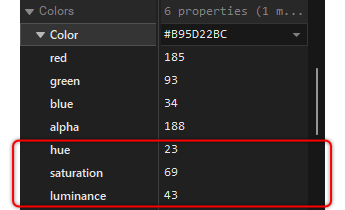
HSL color properties in Inspector window
★Embedded Wizard has been optimized to be less restrictive concerning the Chora syntax. In particular the $version directive can be omitted now. In such case Embedded Wizard assumes the Chora code has the current version of Embedded Wizard. Previously, when $version was omitted, the very first Embedded Wizard version 1.0 was assumed. After more than 20 years this is irrelevant.
Mosaic
★Attributed Text view (Mosaic class Views::AttrText) enhanced to report overflow warnings analog to how Text view has been enhanced in version 14. When the text is too large to display within the boundary area of the Attributed Text view, the warning is reported. For more details please see Detect and handle text overflows.
★Enhancement of the Vertical List (Mosaic class Core::VerticalList) to allow items be wider than the list boundary area. The content of the list can then be scrolled horizontally. To specify the width of the items and the horizontal scroll offset, the list has been enhanced by new properties ItemWidth and ScrollHorzOffset. For more details please see Enable horizontal scrolling for wide items.
★Enhancement of the Horizontal List (Mosaic class Core::HorizontalList) to allow items higher than the list boundary area. The content of the list can then be scrolled vertically. To specify the height of the items and the vertical scroll offset, the list has been enhanced by new properties ItemHeight and ScrollVertOffset. For more details please see Enable vertical scrolling for tall items.
★Enhancement of the Vertical List (Mosaic class Core::VerticalList) by the possibility to animate gaps between items. This is useful when insertion/removal of items should be animated. For more details see Animate the insertion and removal of items.
★Enhancement of the Horizontal List (Mosaic class Core::HorizontalList) by the possibility to animate gaps between items. This is useful when insertion/removal of items should be animated. For more details see Animate the insertion and removal of items.
★Enhancement of the Outline Box (Mosaic class Core::Outline) by a new property Alignment permitting the user to configure the Outline Box how embedded items should be aligned within the area of the box. For more details see Use Outline Box to arrange the views in rows and columns.
★Add shadow configuration for Text view (Mosaic class Views::Text). New properties ShadowRadius, ShadowColor and ShadowOffset are available. By using the properties, a shadow for the text can be configured. The shadow appears behind the text and is not limited by the Bounds-Area of the Text view. With appropriate configuration, the shadow can also be used to simulate text outline. This is of course not a substitute for the real text outline, can however be sufficient in many use cases to achieve similar effects. See also Display text with shadow effect.
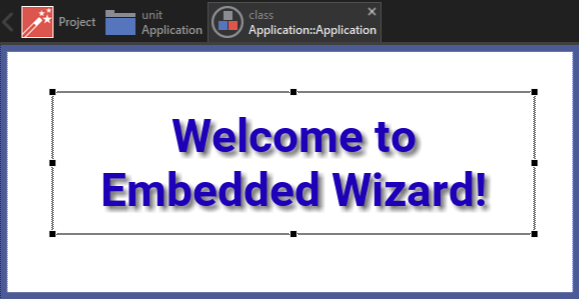
Text view with shadow configuration
IMPORTANT
The text shadow is currently NOT SUPPORTED on WebGL Platform Package.
Bug fixes
★Fix for WINEHQ issue with incorrect value returned by emulatred Win32 function when running on macOS WINEHQ version. This caused Embedded Wizard Studio to crash on WINEHQ macOS during Prototyping.
★Diverse issues with Inspector window on WINE fixed: slow loading Inspector contents, invalid updates of Inspector, ...
★Improvement of double-click on list view header edges (e.g. in Inspector window). Now the affected column is correctly adjusted to correspond to the widest item text.
★When running Embedded Wizard Studio on Windows 11, some dialogs clipped the texts. Consequently the dialogs have been redesigned to not appear incomplete.
★Colors of selection/rubber/... borders in Composer window were not visible when the background was dark gray. New algorithms for border color calculation implemented.
★Scroll range in Composer was incorrectly calculated, so that the scrollable area of Composer depended on the Zoom Factor selected actually in Studio.
★Very bad performance in Code Editor fixed when the edited text was longer. For example, with 700 LOC the editor update took > 1 sec. on Windows 11.
★Navigation commands like were enabled even if multiple members were selected. These operations are now enabled only when exact one member is selected.
★Add error case detection if during a vector graphic operation more buffer was used than originally allocated. This could occur when compiling code for ARM/GCC. We observed that ARM/GCC optimizes floating point calculation, which results in slightly different results of mathematical equations. Additional error detection added to issue buffer management.
★parse_int32(), parse_uint32(), parse_int64() and parse_uint64() functions modified to respect integer limits.
★When using mouse scroll wheel in an Assistant window, the content of the window might scroll unexpectedly.
★Crash on WINEHQ when entering UNIX like path.
★Drag-Drop from Browser window ignored the ALT key.
★In SVG files the rgb() function did not work correctly. The issue also affected the url() function. In case of rgba() the opacity value was incorrectly evaluated.
★Disable diverse warnings reported when compiling RTE/GFX/Generated Code with latest C compilers.
★Fix for the crash when closing Assistant window by double click on an item.
★Example 'Virtual Keyboard' corrected.
★Fix for warnings caused by optimization of generated code.
★Warning with not existing session file when reloading a unit removed.
★Not correctly placed "" when starting external processes. Interpreting of the command line in case of Export/Import has been adapted to be equal to PostProcess.
★Bug-Fix for incorrectly converted external process output and error contents if the contents started with a BOM (Byte-Order-Mark). In fact, the outputs are always interpreted as UTF8. The BOM is optional.
★REDO after deleting a member activates the RENAME mode if Inspector has the focus. The automatic activation of the RENAME operation in Inspector after inserting new members is suppressed now. To rename a member after adding it, use F2 explicitly.
★A constant member initialized with an expression involving other constants of type 'color', 'rect', 'point', 'string' reported compiler errors. Now, expressions found in initialization of a constant are evaluated completely as constant expressions. Eventual references to other constants are replaced by their values.
★Chora built-in functions (e.g. math_max) were not evaluated in initialization of constants although their operands were constants. This resulted in a compiler error.
★The search status in Code Editor was not correctly updated. The status text in the right area of the search panel showed '0 matches' if there was exact one match and the occurrence is actually selected.
★Error with s command in SVG Path in WebGL target. When s command is used with multiple arcs, the outputs were incorrect.
★Error when saving unit in a not existing directory fixed.
★Push Button using only an icon without associated appearance object caused runtime errors.
★Unhandled exception when optimizing code with an incorrectly inherited property.
★Incorrect behavior of Slide Touch Handler connected to a Horizontal or Vertical List without content.
★Issue with invocation queue reporting error 442. Queue index overflow corrected.
★Outline Box not working if PaddingBottom >= Height of the Outline Box. In this case the automatic arrangement of embedded views was disabled.
★ command disabled in Log window. Originally the command was still handled in Composer causing confusion.