
Working with Embedded Wizard: Extracting project documentation
Embedded Wizard is able to automatically extract from your project the available documentation and to store it as a set of *.HTML files. This feature is as such a useful supplement if you want to share your development with other members of your team or your customer expects the software being delivered with the corresponding documentation.
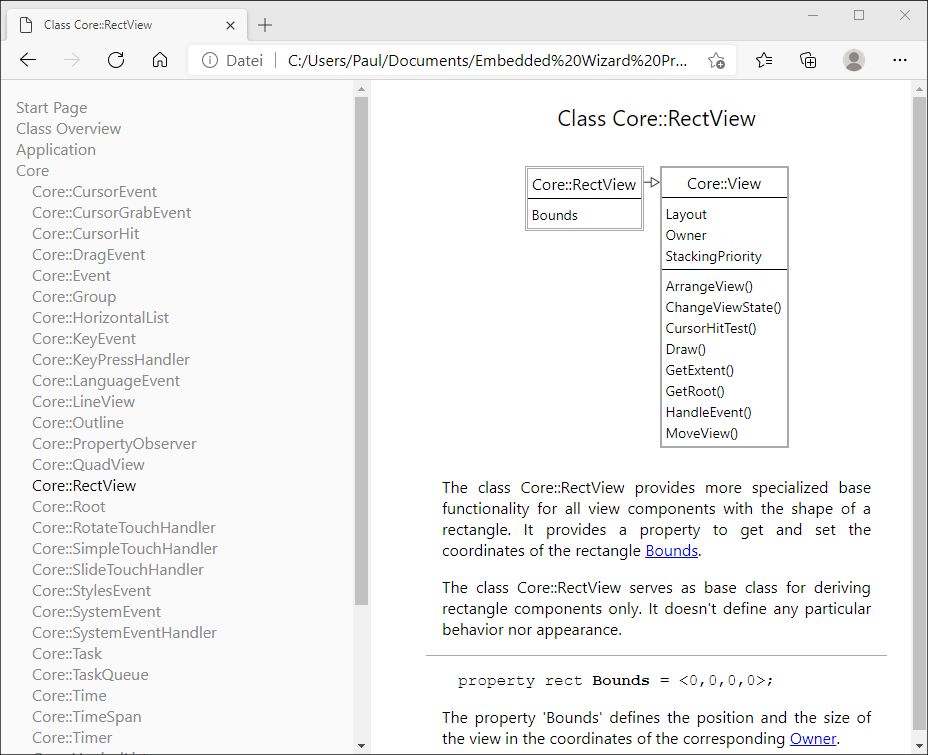
During the documentation extraction Embedded Wizard evaluates your project and the dependencies between all project members. Knowing this information and the description you have eventually specified for the members, Embedded Wizard generates chapters describing individual project members as well as the relations between them presented in inheritance and class diagrams. Hyperlinks permit the user to navigate conveniently in the resulting document. The following screenshot demonstrates how the generated documentation looks like:
Description attribute
The resulting documentation is built from the relations existing between project members and the individually specified member description. Almost every project member exposes the attribute Description. The text you enter in this attribute is automatically taken over into the resulting document. Thus it is essential to provide description for your project members in order to obtain documentation with reasonable quality.
Start documentation extraction
To start the documentation extraction select in the menu Build the command . Thereupon the Extract documentation dialog appears where you can configure and start the operation.
View and deploy the documentation
To view the generated *.HTML files you can use any WebBrowser. If you have enabled the option Include navigation area, the Log window additionally provides a message to directly open the just generated documentation in a WebBrowser. You can simply double-click on this message:
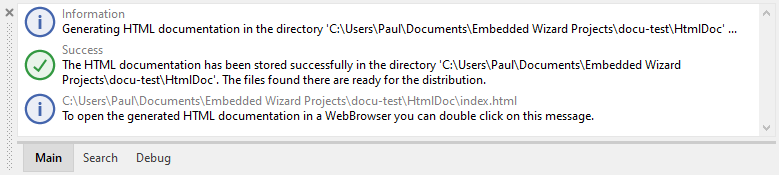
Also possible, by using the Windows File Explorer you can navigate to the destination directory and copy or see the generated HTML files individually.
Customize the appearance of the generated documentation
The appearance (fonts, colors, etc.) of the generated documentation is controlled by a _stylesheet.css file found in the directory where all related *.HTML files are stored. If desired, you can modify this CSS file.
Use the CHORAC command line compiler
For licensed users, the CHORAC command line compiler provides the ability to start the documentation extraction directly from the Windows command line. This approach is ideal if you have to trigger the documentation extraction in an automatic batch job. Opening your project in Embedded Wizard Studio is not necessary in such case.
CHORAC is a separate tool that requires a separate installation. It is not bundled with Embedded Wizard Studio and is available exclusively for licensed customers in our Download Center.
To start the documentation extraction from the Windows command line, please use the tool CHORAC.EXE found in the installation directory of Embedded Wizard. The tool automatically loads your project and generates the resulting documentation - exact as if you had started the documentation extraction in Embedded Wizard Studio. The tool CHORAC.EXE expects two parameter: the path to the affected project file (the EWP file) and the parameter -doc:
chorac -docewp‑project‑file
The following example demonstrates the usage of the tool to generate documentation from one of our example projects. Please note the cd command to change the working directory. You can of course use absolute paths to address the project file:
cd "C:\Users\Paul\Documents\Embedded Wizard 13\Examples\CoffeeMachine" "C:\Program Files (x86)\Embedded Wizard 13\chorac" -doc CoffeeMachine.ewp
The parameters for the documentation extraction are taken over from the project. To modify the parameter it is necessary to open the project in Embedded Wizard Studio and change the parameters in the dialog Extract documentation.
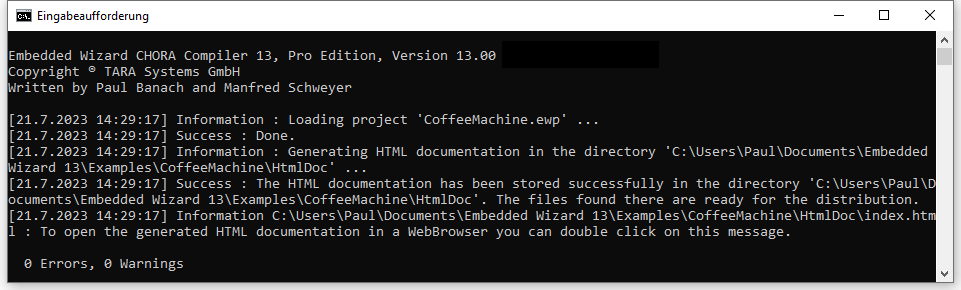
During its runtime the CHORAC.EXE tool reports information messages, or if there is a problem in your project, warnings and errors:
IMPORTANT
CHORAC command line compiler requires a valid license. You must first download and install CHORAC separately from Download Center (available for licensed users only).
If you are using both Embedded Wizard Studio and CHORAC on the same PC with the same license key, you can activate the license in Embedded Wizard Studio and CHORAC will use the same activation.
If you are using CHORAC only (for example on a remote build server), you can provide the license key directly as a parameter in the invocation of CHORAC.exe. For more details see the section Activate the license for CHORAC command line compiler.