
Build Environments: Getting started with Android™
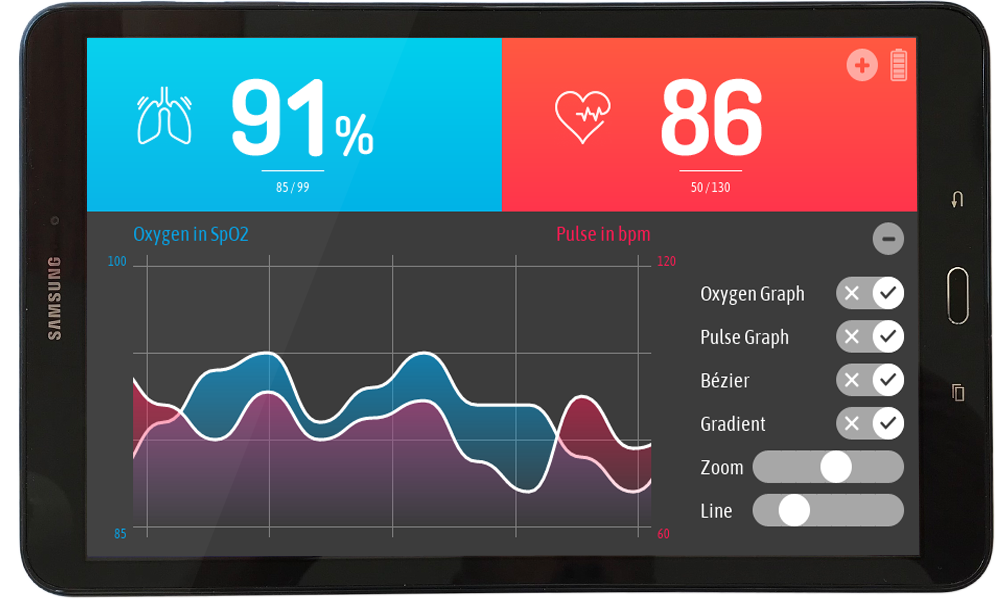
Android device.
The following article explains all necessary steps to create an Embedded Wizard UI application suitable for an Android device.
Please follow these instructions carefully and step by step in order to ensure that you will get everything up and running on your target. In case you are not familiar with Embedded Wizard, please read first the chapter basic concepts and the Quick Tour tutorial to understand the principles of Embedded Wizard and the GUI development workflow. Moreover, this article assumes that you are familiar with Android.
Prerequisites
First, make sure you have all of the following items:
Hardware components
★Android device
★USB cable to connect the board with your PC
Software components
★Embedded Wizard Studio
You can download Embedded Wizard Studio directly from the following link:
 EmbeddedWizard_Studio_x64-V15.00.msi
Customers can also find all their licensed software packages in the Embedded Wizard Download Center (login required).
★Embedded Wizard Build Environment for Android
You can download the suitable Build Environment from the following link:
Android-BuildEnvironment-V15.00.00.00.zip
Customers can also find the latest version of the Build Environment and their licensed Platform Package source codes in the Embedded Wizard Download Center (login required).
Installing Tools and Software
★Step 1: Install the latest version of Embedded Wizard Studio.
★Step 2: Unpack the provided Embedded Wizard Build Environment for Android into a new directory, e.g. C:\Android.
★Step 3: Install the Oracle JDK.
★Step 4: Unpack the Android SDK command line tools for Windows (commandlinetools-win-xxxxx.zip) to C:\AndroidSdk.
★Step 5: Open the file devenv.cmd from the subdirectory \Android\Application\Project of the Build Environment (step 2) with a text editor and adapt the path settings of JAVA_HOME and ANDROID_HOME according to your installations (step 3 and 4).
Exploring the Build Environment
The provided Embedded Wizard Build Environment for Android contains everything you need to create, compile and link an Embedded Wizard UI application for Android devices. After unpacking, you will find the following subdirectories and files:
•\Application - This folder contains a ready-to-use project to compile and link an Embedded Wizard generated UI application. It is used for all provided examples and it can be used to build your own UI applications.
•\GeneratedCode - This folder is used to receive the generated code from an Embedded Wizard UI project. The template project is building the UI application out of this folder. You can create your own UI project and generate the code into the subdirectory \GeneratedCode without the need to adapt the project.
•\Project - This folder contains the prepared gradle project.
•\Source - This folder contains the Android main application and the file ewmain.c. There you will find the initialization of the system and the main loop to drive an Embedded Wizard GUI application. The file ewconfig.h contains general configuration settings for the target system, like memory ranges and display parameter and configuration settings for the Embedded Wizard Graphics Engine and Runtime Environment.
•\Examples\<ScreenSize> - These folders contain a set of demo applications prepared for a dedicated screen size of 800x480 pixel and 1280x720 pixel. Each example is stored in a separate folder containing the entire Embedded Wizard UI project. Every project contains the necessary profile settings for the Android target. For a complete overview and detailed descriptions of all available examples, including their features and usage, see Examples.
•\MasterDemo - This folder contains the apk of the Embedded Wizard Master Demo. It combines a variety of examples within one huge demo application. It can be used for presentations and showcases.
•\PlatformPackage - This folder contains the necessary source codes and/or libraries of the Android Platform Package: The Graphics Engine (in the subdirectory \RGBA8888) and the Runtime Environment (in the subdirectory \RTE).
•\TargetSpecific - This folder contains all configuration files and platform specific source codes. The different ew_bsp_xxx files implement the bridge between the Embedded Wizard UI application and the underlying Android hardware drivers in order to access the display (via EGL) and the touch driver.
Preparing the Android device
★Connect your Android device to your PC via USB.
Starting the Embedded Wizard build console
★Call StartGradleBuildEnvironment.bat from the root folder of the Android Build Environment.
★At first start of the Embedded Wizard build console some Android SDK components have to be downloaded and installed. Please confirm the different licenses.
★If all prerequisites are fulfilled, the Embedded Wizard build console is ready to build one of the Embedded Wizard GUI examples.
Creating the UI Examples
For the first bring up of your system, we recommend to use the example 'HelloWorld':
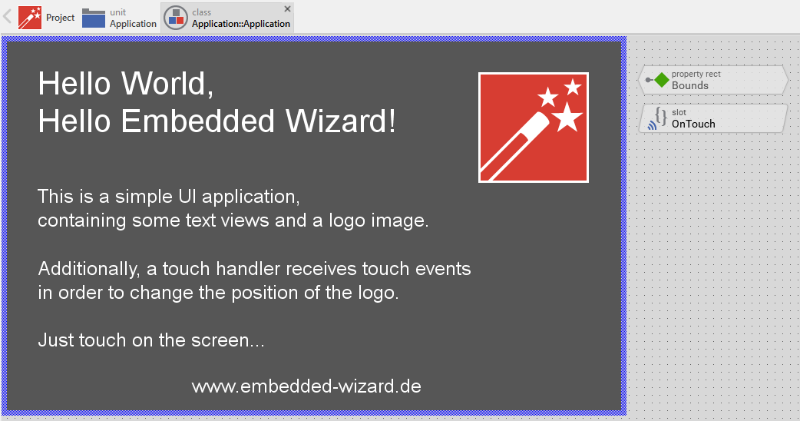
Example 'HelloWorld' within Embedded Wizard Studio.
The following steps are necessary to generate the source code of this sample application:
★On your PC, navigate to the directory \Examples\<ScreenSize>\HelloWorld.
★Open the project file HelloWorld.ewp with your previously installed Embedded Wizard Studio. The entire project is well documented inline. You can run the UI application within the Prototyper by pressing Ctrl+F5.
★To start the code generator, select the menu items - or simply press F8. Embedded Wizard Studio generates now the sources files of the example project into the directory \Application\GeneratedCode.
Compiling, Linking and Executing
The following steps are necessary to build the Embedded Wizard UI sample application and to execute it on the Android device.
★type gradlew -q appStart on the Embedded Wizard build console.
★After the project was built, the created apk is downloaded to the connected Android device and started.
★Build and download can also be done with separate commands gradlew -q assembleDebug and gradlew -q installDebug.
★The different commands can be displayed with typing help.
This is the resulting application on your Android device:
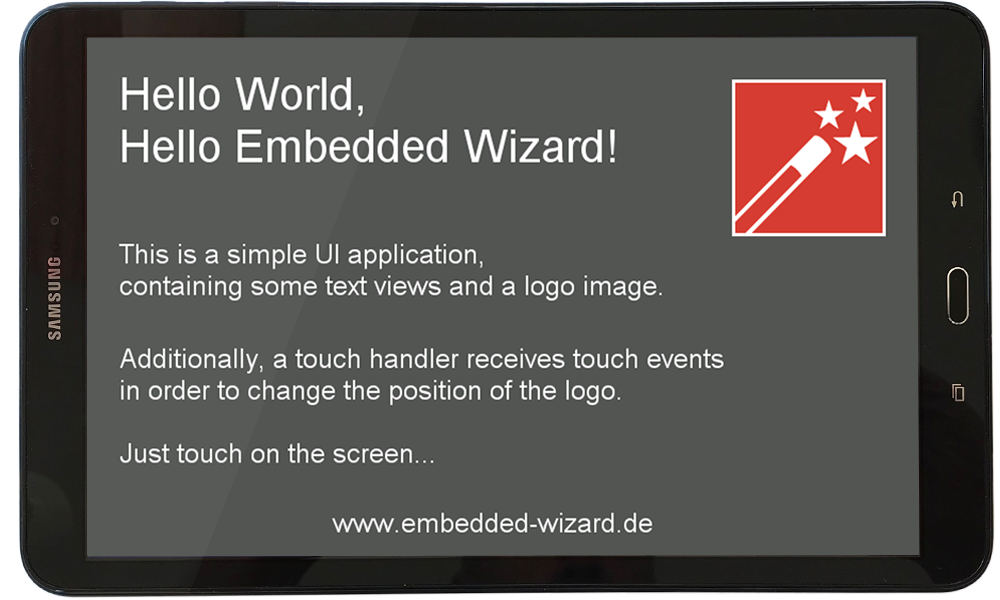
Example 'HelloWorld' running on Android device.
All other examples can be created in the same way: Just open the desired example with Embedded Wizard Studio, generate code and rebuild the whole application.
TIP
In case that the automatic download is blocked by your Android system, you can manually install the apk file on your device. You will find the built package within the subdirectory \Application\Project\app\build\outputs\apk\debug.
Creating your own UI Applications
In order to create your own UI project suitable for the Android device, you can create a new project and select the Android OpenGL project template:
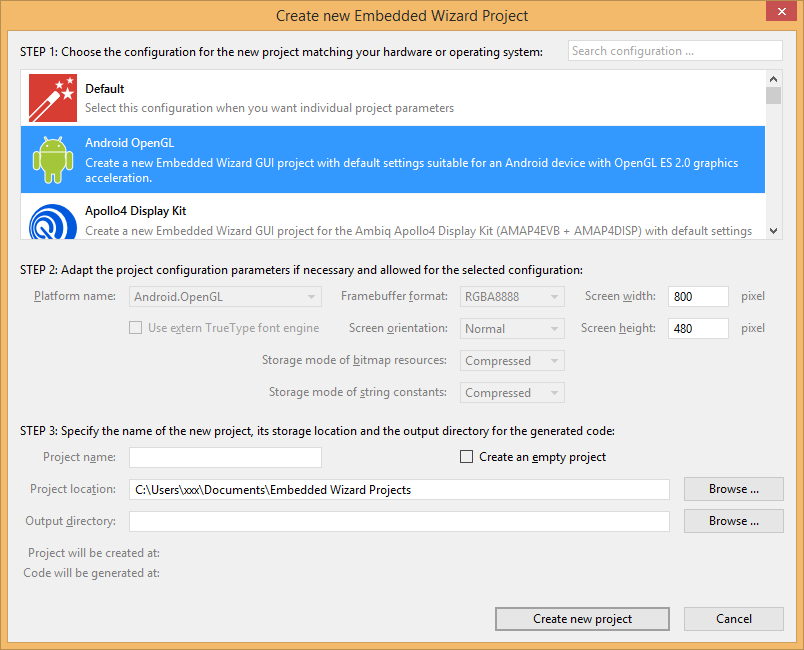
As a result you get a new Embedded Wizard project, that contains the necessary Profile attributes suitable for an Android device:
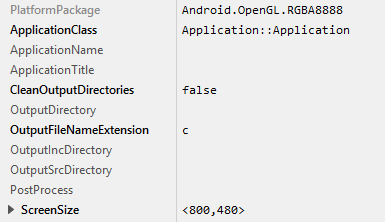
The following profile settings are important:
★The attribute PlatformPackage should refer to the Android OpenGL Platform Package.
★The attribute ScreenSize should correspond to the display size of the Android touch screen.
★The attribute OutputDirectory should refer to the \Application\GeneratedCode directory within your Build Environment. By using this template, it will be very easy to build the UI project for your target.
Now you can use the template project in the same manner as it was used for the provided examples to compile and link the binary.
Most of the project settings are taken directly out of the generated code, like the color format or the screen orientation. All other settings can be made directly within the file ewconfig.h, which contains general configuration settings for the target system.
Console output
Debug or trace messages from your Embedded Wizard UI application are monitored via the adb logcat console. Alternatively, you can use the command logcat within the build console to receive only logs from the GUI application.
During a successful application startup, the console displays the following information:
EmbeddedWizard: Application started EmbeddedWizard: Initialize Display... [OK] EmbeddedWizard: Initialize Touch Driver... [OK] EmbeddedWizard: Initialize Memory Manager... [OK] EmbeddedWizard: Initialize Platform Package... [OK] EmbeddedWizard: Initialize Invocation Queue... [OK] EmbeddedWizard: Create Embedded Wizard Root Object... [OK] EmbeddedWizard: Create Embedded Wizard Viewport... [OK] EmbeddedWizard: Embedded Wizard and EGL initialization completed EmbeddedWizard: --------------------------------------------- EmbeddedWizard: Embedded Wizard System Info EmbeddedWizard: --------------------------------------------- EmbeddedWizard: Target system Android (OpenGL ES 2.0/EGL) EmbeddedWizard: Color format RGBA8888 EmbeddedWizard: Build Environment version V15.00.00.00 EmbeddedWizard: Runtime Environment (RTE) version 15.00 EmbeddedWizard: Graphics Engine (GFX) version 15.00 EmbeddedWizard: MemoryPool address 0x40D87358 EmbeddedWizard: MemoryPool size 33554432 bytes EmbeddedWizard: Display size 2249 x 1080 EmbeddedWizard: Viewport size 1800 x 1080 EmbeddedWizard: Viewport rotation 0 EmbeddedWizard: EwScreenSize 800 x 480 EmbeddedWizard: Graphics accelerator OpenGL ES 2.0 EmbeddedWizard: Warp function support enabled EmbeddedWizard: Vector graphics support enabled EmbeddedWizard: Gradients support enabled EmbeddedWizard: Blur support enabled EmbeddedWizard: Mask support enabled EmbeddedWizard: Tint support enabled EmbeddedWizard: Bidirectional text support enabled EmbeddedWizard: Compression support enabled EmbeddedWizard: Index8 bitmap resource support enabled EmbeddedWizard: RGB565 bitmap resource support enabled EmbeddedWizard: Native bitmap resource support enabled EmbeddedWizard: Max surface cache size 8388608 bytes EmbeddedWizard: Glyph cache size 512 x 512 EmbeddedWizard: Max issue tasks 512 EmbeddedWizard: Operating system Android EmbeddedWizard: Toolchain GCC EmbeddedWizard: C-Compiler version 4.2.1 EmbeddedWizard: Build date and time Dec 3 2025, 16:44:42 EmbeddedWizard: --------------------------------------------- EmbeddedWizard: Application window initialized
It can be used for all trace statements from your Embedded Wizard UI applications or for all debug messages from your C code.
Embedded Wizard GUI Demos
If you just want to run our GUI demos on your Android device without building the different examples, you can simply start the binary file of the Embedded Wizard Master Demo.
The Embedded Wizard Master Demo combines a variety of examples within one huge demo application. It can be used for presentations and showcases. Each demo application can be activated from a common main menu. To return back from a demo application to the main menu, a small home button appears on top of every demo. Additionally, the Master Demo contains an auto-demo mode that presents one demo application after the other. The auto-demo starts automatically and stops as soon as the user touches the screen.
In order to install the Master Demo on your Android device, please follow these steps:
★Connect your Android device to your PC via USB.
★Change into the subfolder /MasterDemo and execute the file InstallMasterDemo.bat
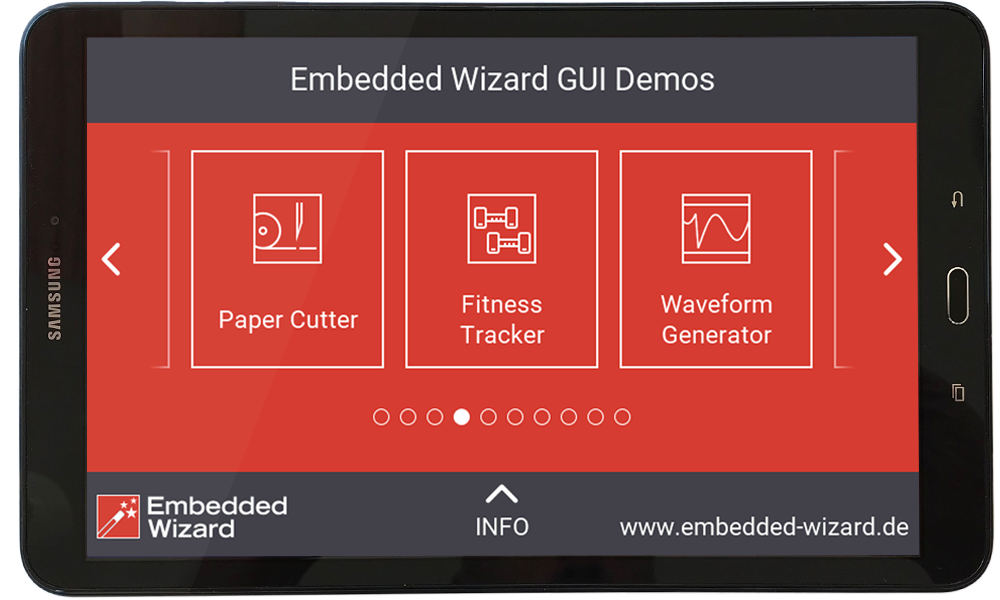
'Master Demo' running on Android device.
Release notes
The following section contains the version history of the Build Environment (including Graphics Engine and Runtime Environment) for Android with OpenGL. These release notes describe only the platform specific aspects - for all general improvements and enhancements please see the Embedded Wizard release notes.
Version 15.00.00.00
★Using JDK V15.0.2.
★Using Graphics Engine (GFX) and Runtime Environment (RTE) V15.00.