
Build Environments: Examples
Every Build Environment includes a comprehensive set of example applications that demonstrate different features, capabilities, and best practices. These examples serve multiple purposes: they help verify your toolchain installation, provide starting points for your own projects, and showcase various aspects of GUI development with Embedded Wizard.
IMPORTANT
The availability of specific examples depends on your target platform's capabilities. Not all examples are included in every Build Environment. Check your Build Environment's \Examples folder to see which examples are available for your target.
Basic Examples
These fundamental examples are included in almost all Build Environments and serve as your starting point for development and system verification.
HelloWorld
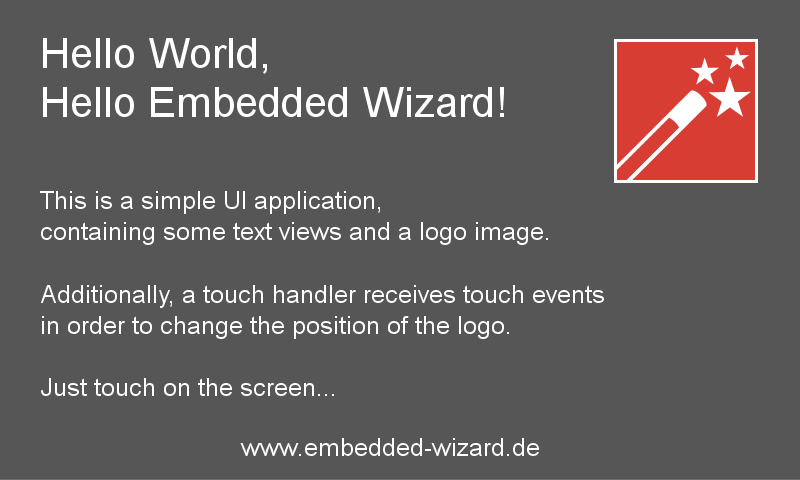
HelloWorld example - the simplest starting point for verifying your toolchain.
A very simple project that is useful as a starting point and to verify that the entire toolchain, your installation and your board are properly working. This is typically the first example you should try when setting up a new Build Environment.
TIP
Always start with the HelloWorld example when setting up a new Build Environment. It helps verify that all components of your development setup are working correctly before moving to more complex examples.
ColorFormats
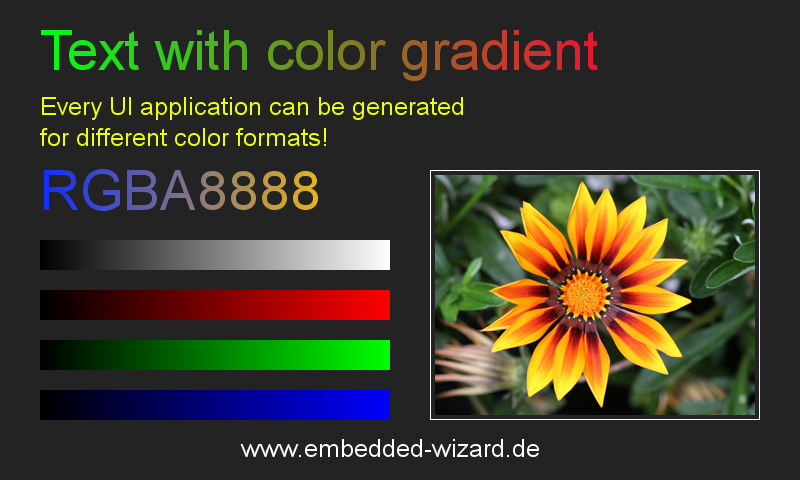
ColorFormats example demonstrating support for different color formats.
This project demonstrates that every UI application can be generated for different color formats. Depending on your target platform, the example supports various formats such as RGBA8888, RGB888, RGB565, RGBA4444, Index8, and LumA44. Use this example to:
★Test display color depth and quality
★Verify correct color format configuration
★Understand trade-offs between color depth and memory usage
★Test color gradients
For background information about color formats and their impact on memory usage, see Memory Footprint and Performance Optimization Guide.
ScreenOrientation
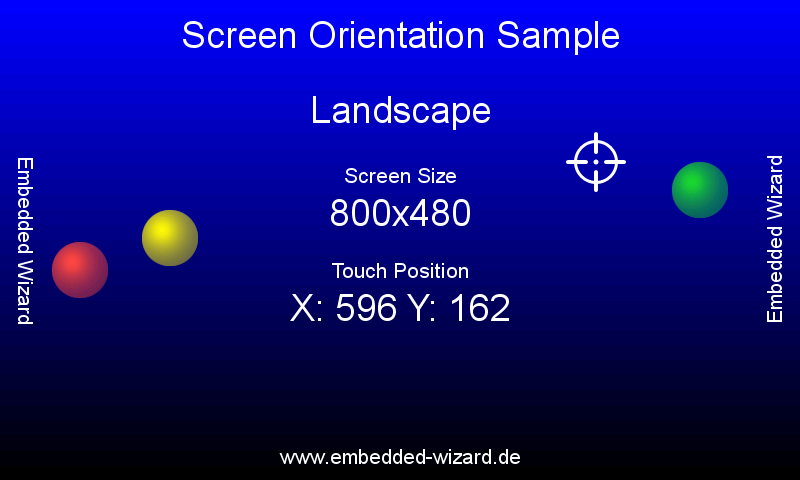
ScreenOrientation example showing orientation independence.
This demo shows that the orientation of the UI application is independent from the physical orientation of the display. The example contains simple animations to verify system tick functionality and can be used for touch calibration and coordinate verification. Key features:
★Tests all four orientation modes (0°, 90°, 180°, 270°)
★Provides immediate visual feedback for touch input
★Helps verify display coordinate mapping
★Demonstrates layout adaptation to different orientations
For more information about display and touch integration, see Framebuffer Concepts and Custom Hardware Integration.
DeviceIntegration
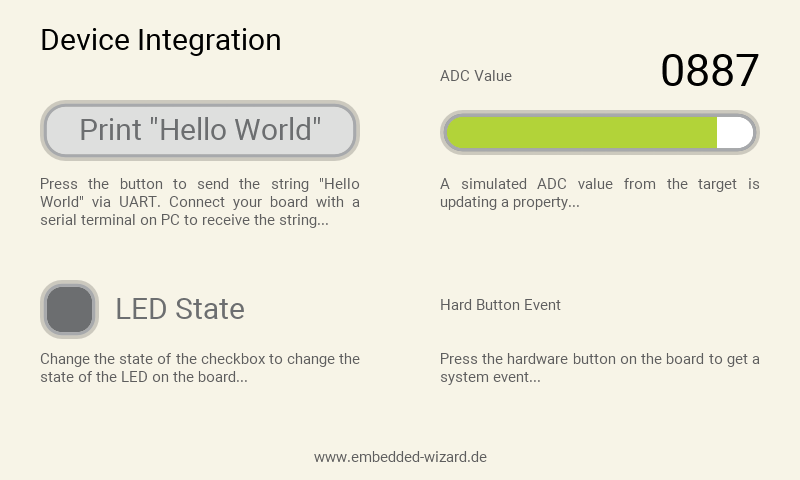
DeviceIntegration example demonstrating hardware integration patterns.
This example shows the integration of devices into a UI application and addresses typical questions:
★How to start a certain action on the target?
★How to get data from a device?
★How to communicate between GUI and hardware layer?
★How to implement proper separation of concerns?
The example includes actual device driver implementations (C/H files) that demonstrate best practices for hardware abstraction and GUI-device communication. For comprehensive information about device integration patterns, see Device Class and Device Driver.
Advanced Examples
These sophisticated examples demonstrate complete application implementations with complex user interfaces, advanced graphics features, and real-world use cases.
GraphicsAccelerator
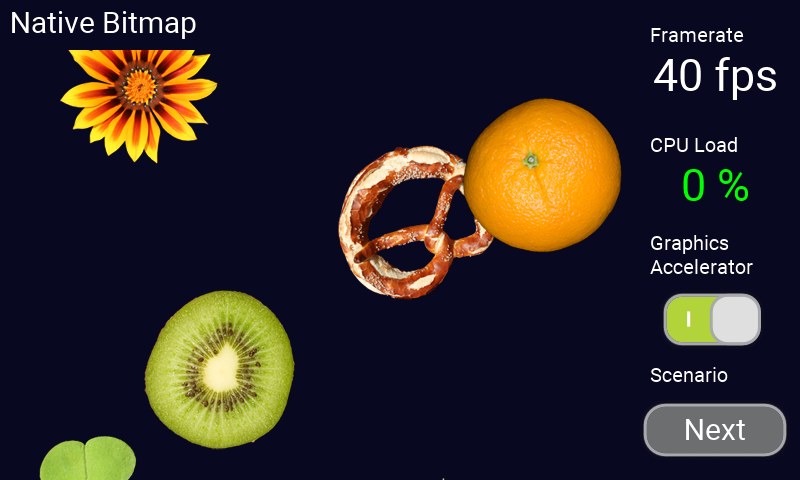
GraphicsAccelerator example for performance testing and benchmarking.
This application demonstrates the graphics performance of the target by using sets of basic drawing operations that are executed permanently and continuously. The example allows you to:
★Measure rendering performance and frame rates
★Compare software rendering vs. hardware acceleration
★Test different drawing operations (fills, copies, blends, alpha operations)
★Evaluate the impact of different color formats on performance
TIP
Use the GraphicsAccelerator example to establish performance baselines for your target platform and to verify that hardware acceleration is working correctly.
For detailed information about graphics performance optimization, see Performance Optimization Guide and Memory Footprint.
BrickGame
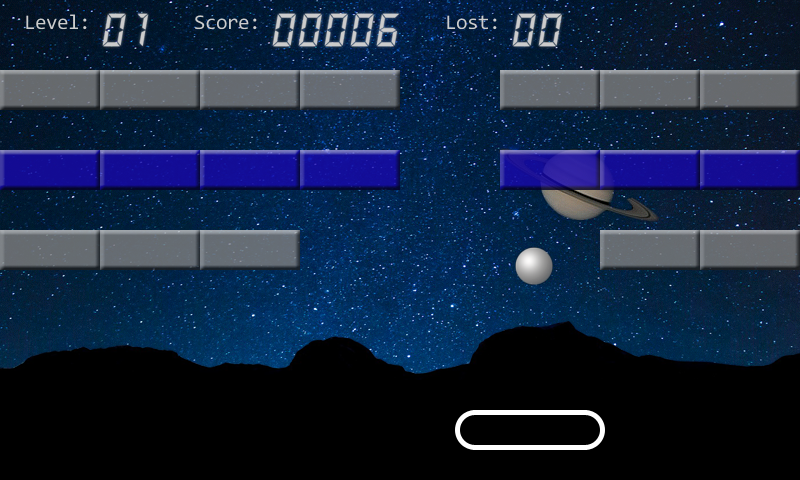
BrickGame implementing a classic paddle and ball game.
The sample application BrickGame implements a classic "paddle and ball" game. In the game, a couple of brick rows are arranged in the upper part of the screen. A ball travels across the screen, bouncing off the top and side walls of the screen. When a brick is hit, the ball bounces away and the brick is destroyed. The player has a movable paddle to bounce the ball upward, keeping it in play. This example demonstrates:
★Game loop implementation
★Collision detection
★Physics simulation
★Touch/keyboard input handling for games
This example serves as a good introduction to implementing interactive applications with real-time updates. For information about handling user input, see Main Loop.
BezierClock
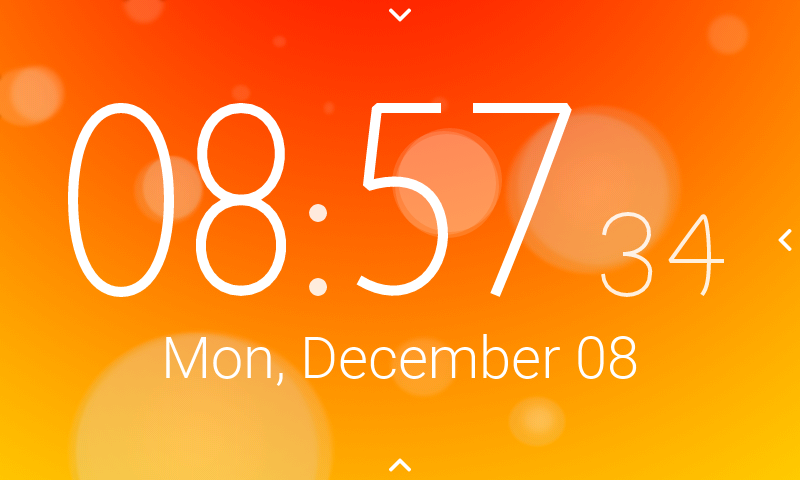
BezierClock example with animated vector graphics.
The sample application BezierClock implements a fancy digital clock and timer application with animated digits. The application uses vector graphics to render dynamically the different digits for clock and timer. The change from one digit to another is handled by moving the vector points to get a smooth transition animation. This example demonstrates:
★Dynamic vector graphics rendering
★Smooth animations using Bézier curves
★Point-based shape morphing
★Real-time path manipulation
The implementation showcases the usage of Filled Path views and demonstrates advanced animation techniques.
AnimatedWatch
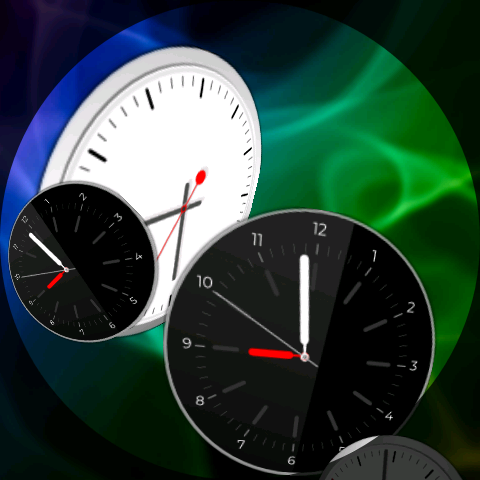
AnimatedWatch example with 3D transformations and animations.
The sample application AnimatedWatch implements a 3D animation with different clock faces. This demo makes intensive usage of the Warp3D functionality and demonstrates:
★3D perspective transformations
★Complex animations with overlapping objects
★Realistic depth effects
★Performance optimization for 3D content
The example showcases advanced usage of Warp Image and demonstrates how to create realistic 3D effects.
StarField
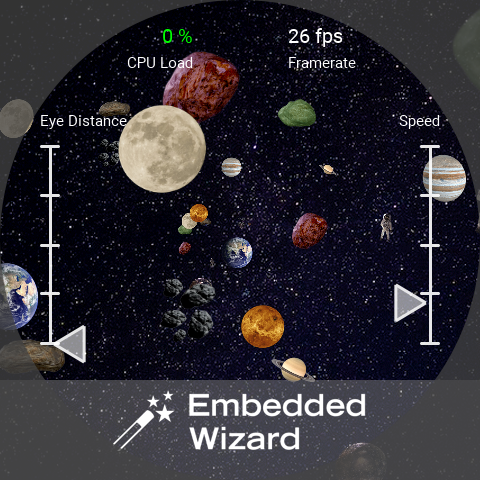
StarField simulation demonstrating 3D space rendering.
This simulation application implements a star field animation (space flight) with a variable number of images within the 3D space. The user can configure the eye distance and the animation speed. This demo makes intensive usage of the Warp3D functionality and showcases:
★Particle system implementation
★3D space simulation
★Dynamic perspective calculations
★Scalable performance with variable object counts
For details about 3D transformation capabilities, see Warp Image views.
Dashboard
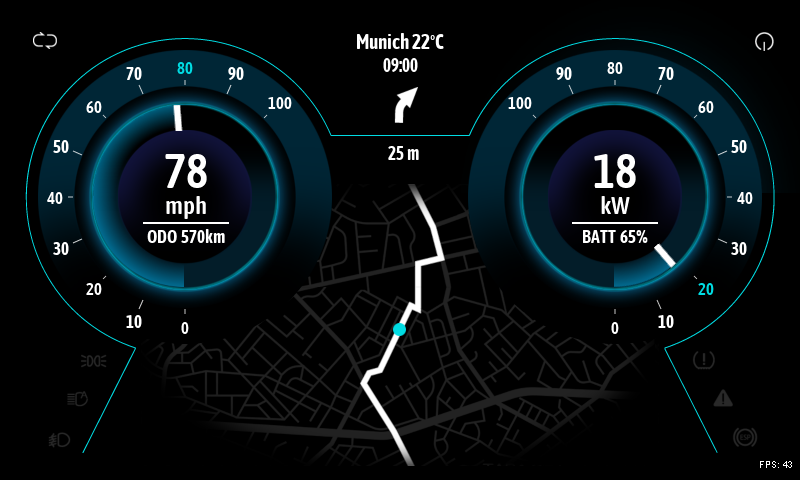
Dashboard example showing automotive instrumentation.
The sample application Dashboard shows the implementation of a car dashboard. The application demonstrates the usage of vector graphics created from SVG path data and how transitions between two dashboard variants and further UI components can be achieved. Features include:
★SVG-based vector graphics integration
★Smooth transitions between UI states
★Realistic gauges and instruments
★Complex compositions
This example demonstrates how to import and use SVG graphics. For information about working with vector graphics, see Filled Path and Stroked Path views.
ClimateCabinet
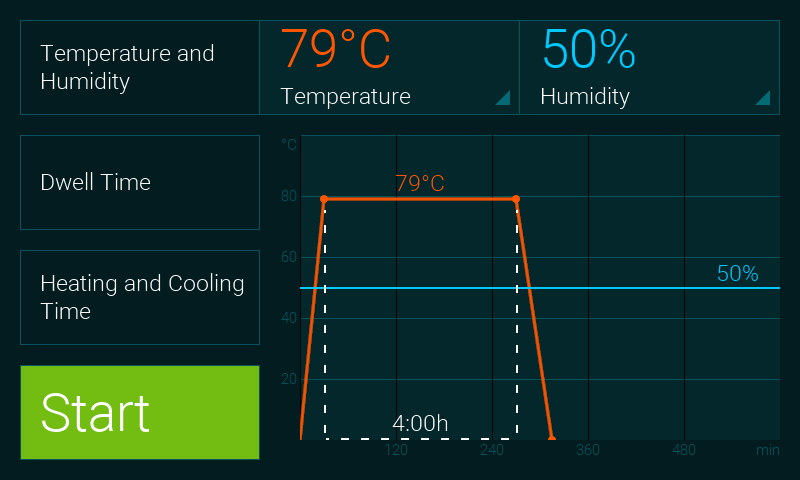
ClimateCabinet control panel implementation.
The ClimateCabinet demo shows the implementation of a control panel for a climatic exposure test cabinet. The user can define a heating time, a nominal temperature and humidity, a dwell time and the final cooling time. This example demonstrates:
★Complex parameter configuration interfaces
★Multi-step workflow implementation
★Time-based process control
★Industrial control panel design patterns
PaperCutter
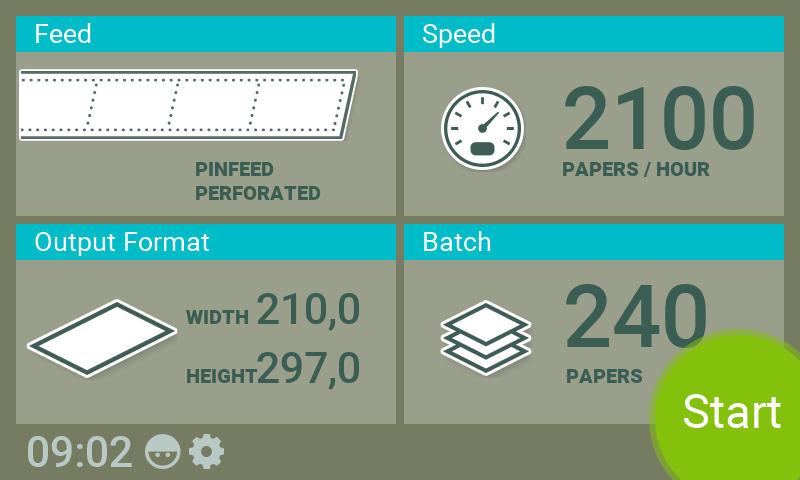
PaperCutter machine control interface.
This demo shows the implementation of a paper cutting machine, where the user can define the pagination and format of the paper as well as the cutting speed and the amount of papers. The application contains many rect effects and fade-in/fade-out effects to change dynamically the layout of the screen. Key aspects:
★Dynamic layout reconfiguration
★Smooth transitions and effects
★Machine parameter configuration
★Industrial UI design patterns
WashingMachine
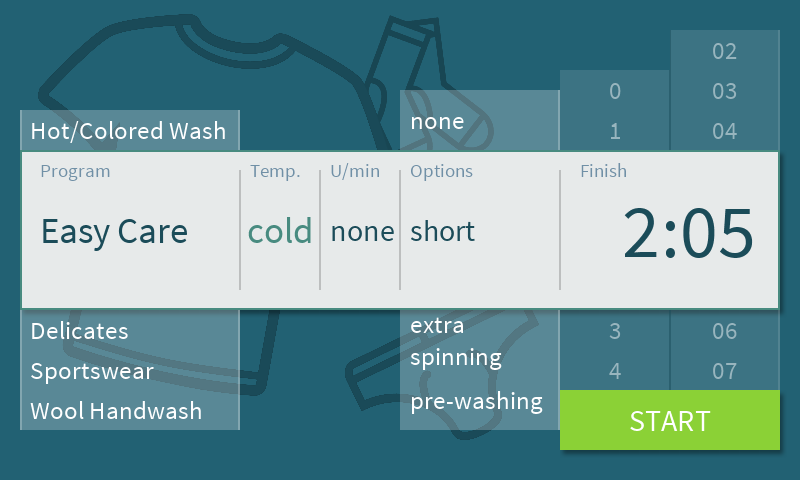
WashingMachine interface with scrollable program selection.
This demo shows the implementation of a washing machine with a couple of fancy scrollable list widgets to choose the washing program and parameters. The speciality of this sample application is the magnification effect of the centered list items and the soft fade-in/fade-out effects. Features:
★Advanced list widget implementation
★Magnification and focus effects
★Smooth scrolling animations
★Home appliance UI design patterns
SmartThermostat
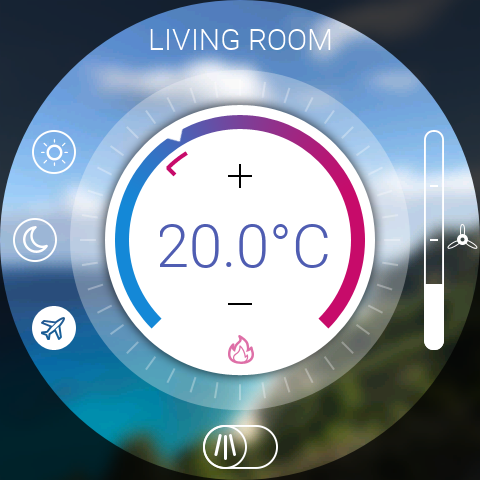
SmartThermostat with rotatable temperature control.
The SmartThermostat demo application shows the implementation of a fancy, rotatable temperature controller to adjust and display the nominal and actual temperature. This example demonstrates:
★Circular slider controls
★Rotary input handling
★Temperature visualization
★Smart home UI design patterns
PatientMonitor
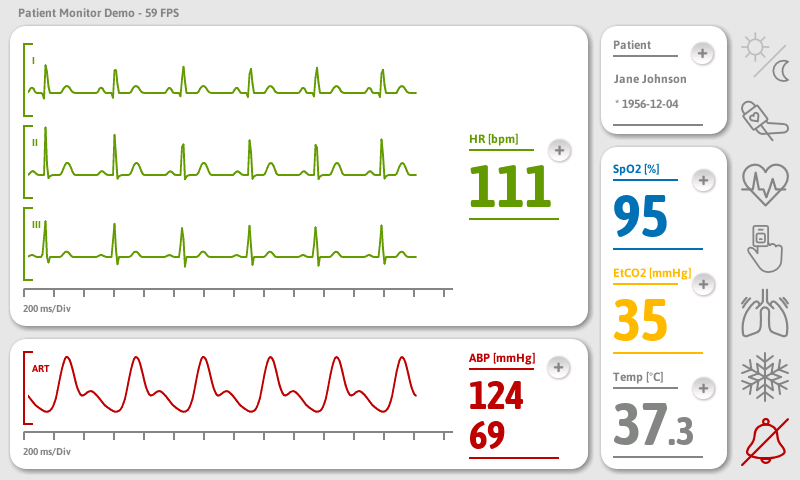
PatientMonitor displaying real-time medical data.
This application displays continuously measured data in an overwriting data recorder (such as an oscilloscope). The data graphs of the (simulated) measured values and the dialogs for user settings are presented in a modern, clean medical style. Dialogs are using blur filters to show the content behind them with a glass effect. Key features:
★Real-time data visualization
★Oscilloscope-style chart rendering
★Medical UI design patterns
★Glass-effect dialogs with blur filters
PulseOximeter
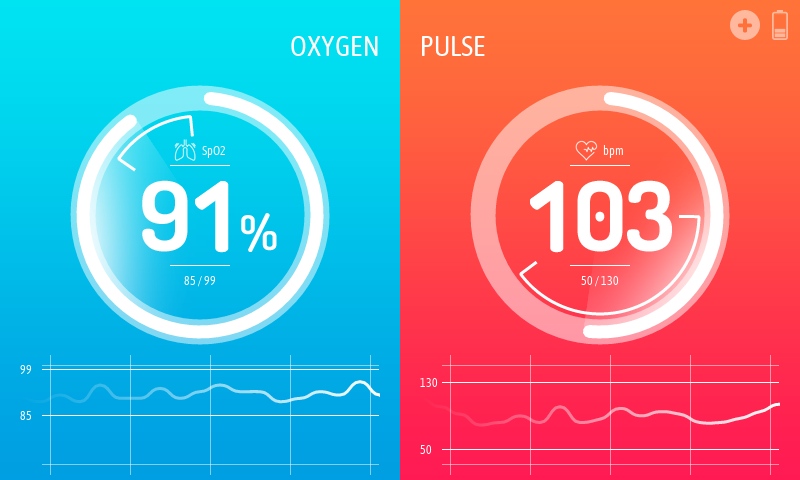
PulseOximeter showing vital signs monitoring.
The sample application PulseOximeter shows the implementation of a medical device for monitoring a person's pulse frequency and peripheral oxygen saturation. The application demonstrates the usage of vector graphics within graphs and circular gauges. This example showcases:
★Real-time vital signs display
★Circular progress indicators
★Vector-based graph rendering
★Medical device UI patterns
WaveformGenerator
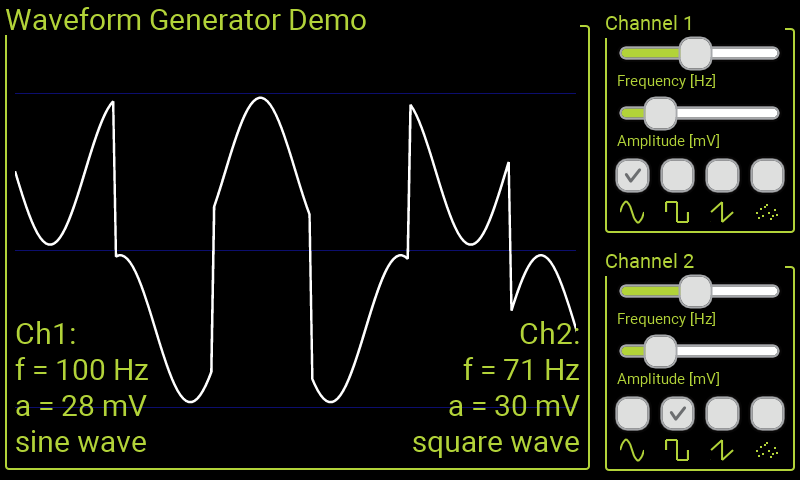
WaveformGenerator demonstrating dynamic curve rendering.
This WaveformGenerator demo application combines waveforms with different amplitudes and frequencies. The implementation shows the usage of vector graphics to draw a curve based on a list of coordinates. Key features:
★Dynamic path creation from data points
★Real-time curve rendering
★Scalable waveform visualization
★Efficient handling of large point datasets
For more information about vector graphics, see Filled Path and Stroked Path views.
ChartsDemo
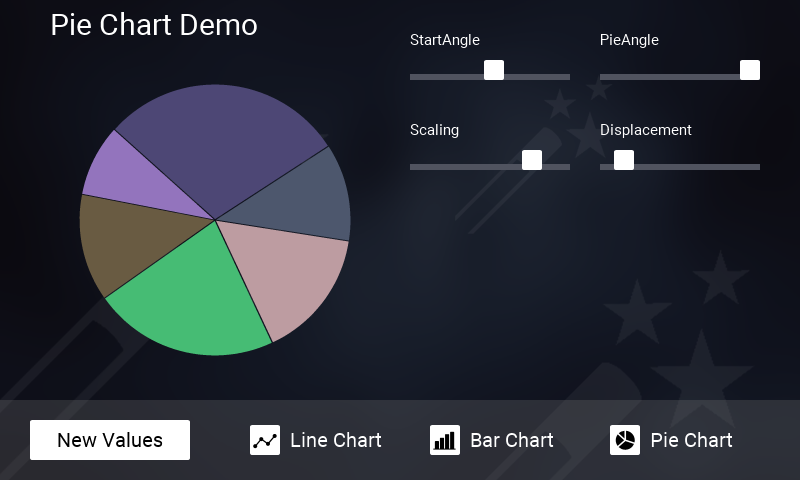
ChartsDemo demonstrating various chart types.
This application demonstrates the possibilities and the usage of the chart classes LineChart, BarChart and PieChart. The appearance of each chart diagram can be configured easily by using their corresponding properties. Additionally, this demo shows the usage of an outline box to manage scrollable content. Features:
★Multiple chart type implementations
★Configurable chart appearance
★Scrollable content management
★Data visualization best practices
AnimatedList
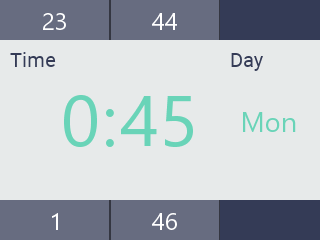
AnimatedList with magnification effects and smooth scrolling.
This demo shows the implementation of some fancy scrollable list widgets to set a time and a day of the week. The speciality of this sample application is the magnification effect of the centered list items and the soft fade-in/fade-out effects. Key features:
★Custom list widget implementation
★Center-focused magnification
★Smooth scrolling animations
★Time and date picker patterns
AnalogWatches
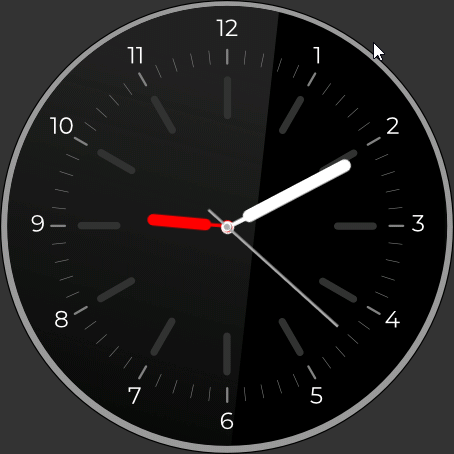
AnalogWatches with rotating clock hands.
This application contains a set of analog watches with rotating clock hands. The example demonstrates:
★Rotational transformations
★Real-time clock display
★Multiple watch face styles
★Efficient rendering of rotating elements
ChargingStation
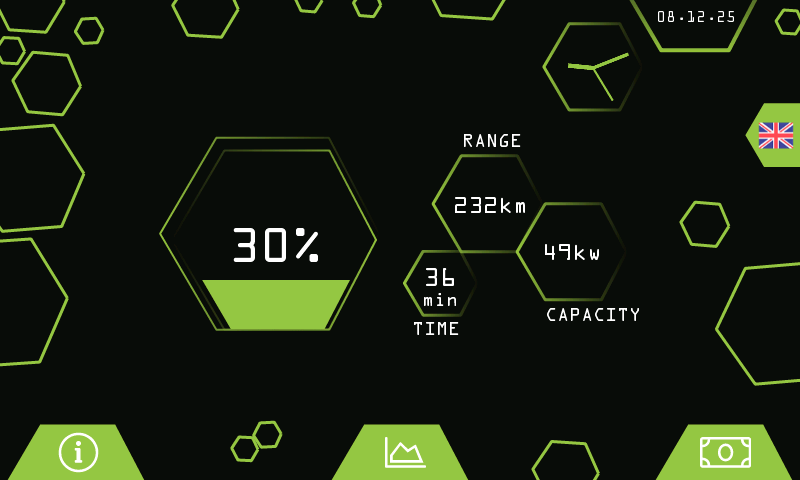
ChargingStation implementing an EV charging station interface.
The sample application ChargingStation implements a user interface for an EV charging station. The user can switch between multiple GUI states such as an info screen, chart animation, and payment request. A dedicated focus of this demo application lies on the usage of path objects and SVG strings. Many components and visual elements are realized by computing SVG strings rather than using bitmaps. This is an efficient way of element drawing on storage restricted targets. Key features:
★Dynamic SVG path generation
★Multi-state GUI workflow (info, charts, payment)
★Memory-efficient vector graphics
★Automotive/charging station UI patterns
For additional details on utilizing the path data object, see Path Data.
FitnessTracker
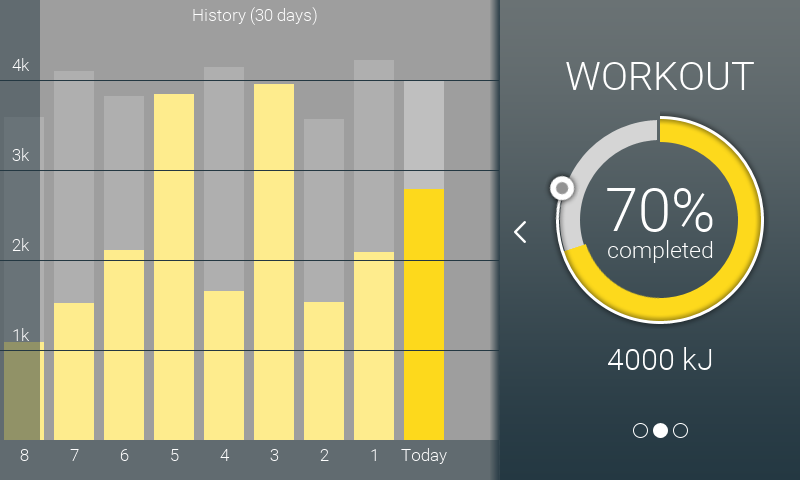
FitnessTracker showing fitness goals and history.
This project implements a simple fitness tracker application that shows fitness parameters for stand time (in min), for workout (in kJ) and for move activities (in steps). The fitness goals of the actual day can be defined by the user. All fitness values of the past 30 days are shown within a history list. This example demonstrates:
★Multi-parameter data display
★User-configurable goals
★Historical data visualization (30-day history)
★Wearable/fitness device UI patterns
Toaster
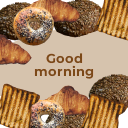
Toaster example demonstrating minimum footprint GUI design.
The sample application Toaster implements a user interface for a simple toaster device. The user can switch between multiple GUI states such as a welcome screen, type selection, intensity level etc. This example demonstrates:
★Minimum footprint GUI design (128x128 resolution)
★Memory-optimized implementation
★Multi-state workflow for simple appliances
★Compact UI design patterns
Using the Examples
Building Examples
To build and run any example:
★Navigate to the directory \Examples\<ScreenSize>\<ExampleName> within your Build Environment.
★Open the project file <ExampleName>.ewp with Embedded Wizard Studio.
★Press Ctrl+F5 to run the example in the Prototyper.
★Press F8 to generate code for your target platform.
★Build and flash the application using your toolchain (make, IDE, etc.).
Adapting Examples
All examples are fully documented inline and can serve as templates for your own applications:
★Study the implementation patterns used in the examples
★Copy and adapt example code to your own projects
★Use examples as reference implementations
★Extend examples with additional features
IMPORTANT
Examples are designed to be self-contained and well-documented. They serve as living documentation of best practices and design patterns. Take time to study the implementation details and inline comments.
Example Availability by Platform
Not all examples are available on all platforms. The availability depends on:
★Display size and resolution
★Available memory (RAM and Flash)
★Graphics acceleration capabilities
★Target platform features
Check your Build Environment's \Examples folder to see which examples are provided for your specific target platform.