
Getting started with GigaDevice: GD32W515 Evalboard
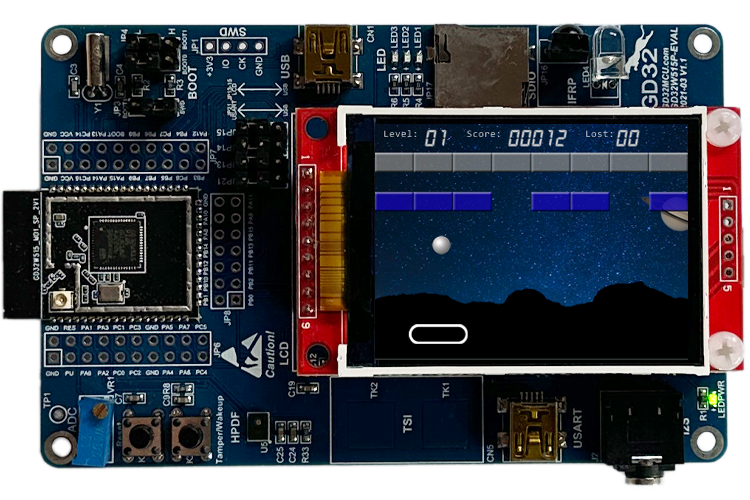
GD32W515 Evalboard development board (GD32W515P-EVAL) with integrated display.
The following article explains all necessary steps to create an Embedded Wizard UI application suitable for the GD32W515 Evalboard development board (GD32W515P-EVAL) from GigaDevice.
Please follow these instructions carefully and step by step in order to ensure that you will get everything up and running on your target. In case you are not familiar with Embedded Wizard, please read first the chapter basic concepts and the Quick Tour tutorial to understand the principles of Embedded Wizard and the GUI development workflow.
Introduction: External display controller and partial display updates
The GD32W515 Evalboard development board (GD32W515P-EVAL) contains an integrated display with an ILI9341 display controller. This type of display controller can be accessed very easy by using the SPI data interface and it contains its own display memory. As a result, the entire framebuffer can be located inside the display controller and only a small scratch-pad buffer is needed inside the micro-controller (MCU). For this purpose, Embedded Wizard supports a partial display update, that makes it possible to update the display in sequential small areas. This makes it possible to operate with a scratch-pad buffer of a few kilobytes instead of a full-screen framebuffer within the memory space of the MCU.
Please note: The partial display update is intended to be used for extremely memory-constrained systems. Due to the fact that the display update is done in subsequent updates of small areas, moving graphical objects can cause some tearing effects. The UI design should consider this aspect.
Prerequisites
First, make sure you have all of the following items:
Hardware components
★GD32W515P-EVAL development board from GigaDevice
★USB cable to connect the board with your PC
Software components
★Embedded Wizard Studio
You can download Embedded Wizard Studio directly from the following link:
 EmbeddedWizard_Studio_x64-V15.00.msi
Customers can also find all their licensed software packages in the Embedded Wizard Download Center (login required).
★Embedded Wizard Build Environment for GD32W515 Evalboard
You can download the suitable Build Environment from the following link:
GD32W515-Evalboard-BuildEnvironment-V15.00.00.00.zip
Customers can also find the latest version of the Build Environment and their licensed Platform Package source codes in the Embedded Wizard Download Center (login required).
★Optional: IAR Embedded Workbench
★Optional: Keil MDK-ARM
Installing Tools and Software
★Step 1: Install the latest version of Embedded Wizard Studio.
★Step 2: Connect your development board with your PC via USB (make sure to use the GD-Link connector CN2).
★Step 3: Unpack the provided Embedded Wizard Build Environment for GD32W515 Evalboard to your local file system (e.g. C:\GigaDevice\GD32W515-Evalboard).
Exploring the Build Environment
The provided Embedded Wizard Build Environment for GD32W515 Evalboard contains everything you need to create, compile, link and flash an Embedded Wizard UI application for the GD32W515 Evalboard. After unpacking, you will find the following subdirectories and files:
•StartGccBuildEnvironment.bat - This script file is provided to start a windows command line to build your GUI applications for the target.
•\Application - This folder contains ready-to-use projects to compile and link an Embedded Wizard generated UI application. They are used for all provided examples and they can be used to build your own UI applications.
•\FlashDownload - This folder contains a script to load the created binaries into the flash of your target by using the GD-Link flash utility.
•\GeneratedCode - This folder is used to receive the generated code from an Embedded Wizard UI project. All template projects are building the UI application out of this folder. You can create your own UI project and generate the code into the subdirectory \GeneratedCode without the need to adapt the project.
•\Project - This folder contains the prepared project for GCC (make).
•\Source - This folder contains the files main.c and ewmain.c. There you will find the initialization of the system and the main loop to drive an Embedded Wizard GUI application. The file ewconfig.h contains general configuration settings for the target system, like memory ranges and display parameter and configuration settings for the Embedded Wizard Graphics Engine and Runtime Environment.
•\Examples\<ScreenSize> - This folder contains a set of demo applications prepared for a dedicated screen size (320x240 pixel). Each example is stored in a separate folder containing the entire Embedded Wizard UI project. Every project contains the necessary profile settings for the GD32W515 Evalboard. For a complete overview and detailed descriptions of all available examples, including their features and usage, see Examples.
•\PlatformPackage - This folder contains the necessary source codes and/or libraries of the GigaDevice Platform Package: Several Graphics Engines for the different color formats (RGB565, Index8 and LumA44) and the Runtime Environment (in the subdirectory \RTE).
•\TargetSpecific - This folder contains all configuration files and platform specific source codes. The different ew_bsp_xxx files implement the bridge between the Embedded Wizard UI application and the underlying board support package (GigaDevice hardware drivers) in order to access the display, the serial interface and the clock.
•\ThirdParty - This folder contains third-party source codes and tools:
•\gcc-arm-none-eabi - This folder contains a subset of the ARM GNU toolchain to compile the examples.
•\Make - This folder contains a make tool to build the entire GUI application via command line.
•\GD-Link-Programmer - This folder contains the necessary tools to flash the binaries.
•\GD32W51x_Firmware_Library - This folder contains the necessary subset of the Software Development Kit (SDK) for GD32W515 Evalboard used for the Embedded Wizard UI applications (BSP, drivers).
Creating the UI Examples
For the first bring up of your system, we recommend to use the example 'HelloWorld':
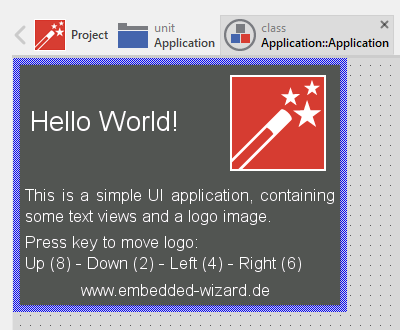
Example 'HelloWorld' within Embedded Wizard Studio.
The following steps are necessary to generate the source code of this sample application:
★Navigate to the directory \Examples\<ScreenSize>\HelloWorld.
★Open the project file HelloWorld.ewp with your previously installed Embedded Wizard Studio. The entire project is well documented inline. You can run the UI application within the Prototyper by pressing Ctrl+F5.
★To start the code generator, select the menu items - or simply press F8. Embedded Wizard Studio generates now the sources files of the example project into the directory \Application\GeneratedCode.
Compiling, Linking and Flashing
The following steps are necessary to build and flash the Embedded Wizard UI sample application using the GCC ARM embedded toolchain:
★Navigate to the top level of the Build Environment.
★Open StartGccBuildEnvironment.bat - as a result, a windows command line window should open. In case there are error messages, please edit the file and double-check the path settings.
★Now start compiling, linking and flashing:
make make install
If everything works as expected, the application should be built and flashed to the GD32W515 target.
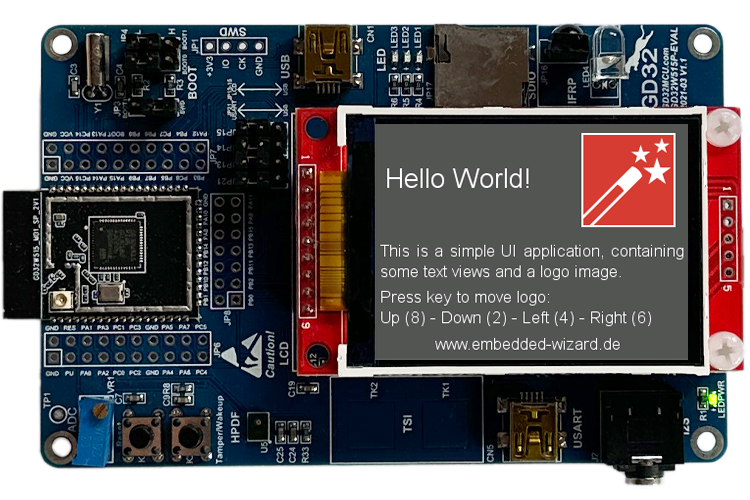
Example 'HelloWorld' running on GD32W515 Evalboard (GD32W515P-EVAL).
All other examples can be created in the same way: Just open the desired example with Embedded Wizard Studio, generate code and rebuild the whole application using simply:
make install
TIP
Unfortunately, the display on the GD32W515 Evalboard is not a touch display - but you can control your GUI application from PC via serial interface (using a console window). A set of basic key events are provided within the file ewmain.c.
To navigate within the demo applications you can use the following keys: 8 up - 2 down - 4 left - 6 right.
Creating your own UI Applications
In order to create your own UI project suitable for the GD32W515 target, you can create a new project and select the GD32W515 Evalboard project template:
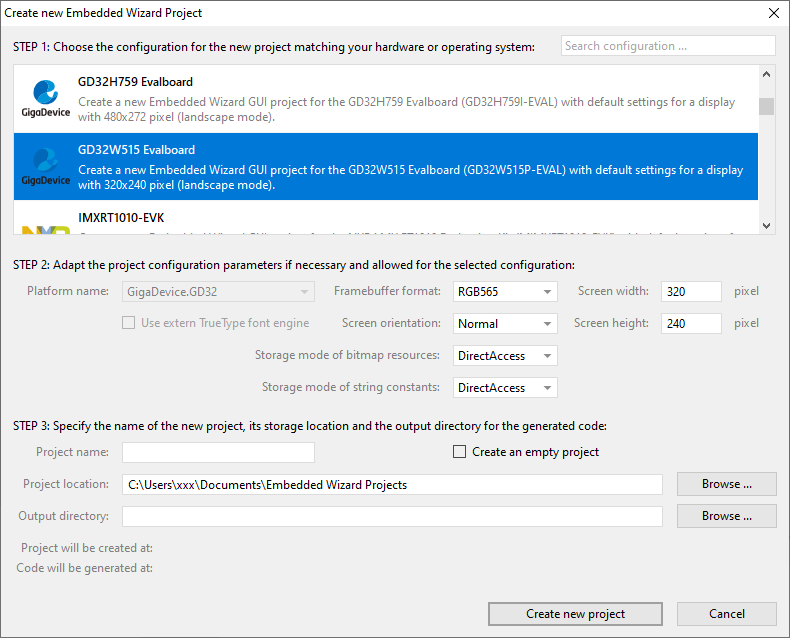
As a result you get a new Embedded Wizard project, that contains the necessary Profile attributes suitable for the GD32W515 Evalboard (GD32W515P-EVAL):
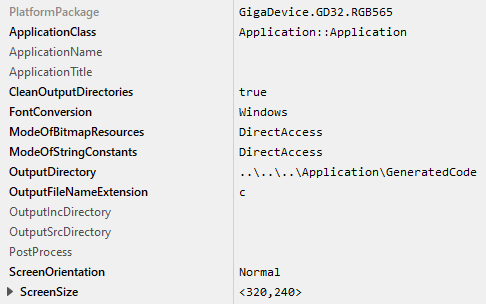
The following profile settings are important for your target:
★The attribute PlatformPackage should refer to the GigaDevice Platform Package. Please note, that for GD32W515 only the color formats RGB565, Index8 or LumA44 can be used.
★The attribute ScreenSize should correspond to the display size of the GD32W515 Evalboard (GD32W515P-EVAL).
★The attributes ModeOfBitmapResources and ModeOfStringConstants should be set to DirectAccess. This ensures that resources are taken directly from flash memory.
★The attribute OutputDirectory should refer to the \Application\GeneratedCode directory within your Build Environment. By using this template, it will be very easy to build the UI project for your target.
★The attribute CleanOutputDirectories should be set to true to ensure that unused source code within the output directory \Application\GeneratedCode will be deleted.
★The attribute PostProcess should refer to \Application\Project\EWARM\EWARM_ew_post_process.cmd if you are working with IAR Embedded Workbench or to \Application\Project\MDK-ARM\MDK-ARM_ew_post_process.cmd if you are working with Keil MDK-ARM. In case of the GCC ARM embedded toolchain leave it blank
Now you can use the template project in the same manner as it was used for the provided examples to compile, link and flash the binary.
After generating code, please follow these steps, in order to build your own UI application:
★Start the batch file 'StartGccBuildEnvironment.bat'. Again, a windows command line window should open.
★Start compiling, linking and flashing:
make install
Most of the project settings are taken directly out of the generated code, like the color format or the screen orientation. All other settings can be made directly within the file ewconfig.h, which contains general configuration settings for the target system.
Console output
In order to receive error messages or to display simple debug or trace messages from your Embedded Wizard UI application, a serial terminal like 'Putty' or 'TeraTerm' should be used.
★As soon as you connect your GD32W515P-EVAL target with the PC via USB (connector CN5), a new virtual Com Port appears within your system device list. Open the device manager to get the port number of this COM port.
★Now you can open your terminal application and connect it via COMx with the following settings: 115200-8-N-1
During a successful application startup, the console displays the following information:
Initialize Display... [OK] Initialize Touch Driver... [OK] Initialize Memory Manager... [OK] Initialize Platform Package... [OK] Initialize Invocation Queue... [OK] Create Embedded Wizard Root Object... [OK] Create Embedded Wizard Viewport... [OK] --------------------------------------------- Embedded Wizard System Info --------------------------------------------- Target system GD32W515-Evalboard Color format RGB565 Build Environment version V15.00.00.00 Runtime Environment (RTE) version V15.00 Graphics Engine (GFX) version V15.00 MemoryPool address 0x200000B4 MemoryPool size 327680 bytes Scratch-pad buffer address 0x200500B4 Scratch-pad buffer size 15360 pixel Display size 320 x 240 Framebuffer size 320 x 48 Surface rotation 0 EwScreenSize 320 x 240 Graphics accelerator none Warp function support enabled Vector graphics support enabled Gradients support enabled Blur support enabled Mask support enabled Tint support enabled Bidirectional text support enabled Compression support enabled Index8 bitmap resource support enabled RGB565 bitmap resource support enabled Native bitmap resource support enabled Max surface cache size 0 bytes Glyph cache size 160 x 160 Max issue tasks 60 External Flash memory disabled Operating system bare-metal Toolchain IAR Embedded Workbench C-Compiler version 9060002 Build date and time Nov 24 2025, 09:57:55 ---------------------------------------------
This terminal connection can be used for all trace statements from your Embedded Wizard UI applications or for all debug messages from your C code.
Using IAR Embedded Workbench
IAR Embedded Workbench support is available exclusively for customers with a licensed Platform Package Source Code. The required project templates can be downloaded from the Embedded Wizard Download Center (login required).
If you want to use the IAR Embedded Workbench instead of the GCC ARM embedded toolchain, please follow these instructions:
The subdirectory \Application\Project\EWARM contains a template project that is commonly used for all provided Embedded Wizard examples. All Embedded Wizard examples will store the generated code within the common \Application\GeneratedCode folder.
The generated code of an Embedded Wizard example is imported automatically to the IAR Embedded Workbench project using the Project Connection mechanism.
To establish this automatic project import a post process has to be added to the Profile settings within Embedded Wizard Studio:
★Open the desired Embedded Wizard example project.
★Select the Profile and set the attribute PostProcess to the file ..\..\..\Application\Project\EWARM\EWARM_ew_post_process.cmd.
After the Embedded Wizard code generation the installed post process will generate a ewfiles.ipcf file, that controls the import to the IAR Embedded Workbench project.
After returning to IAR Embedded Workbench, the latest generated code and the suitable Embedded Wizard Platform Package will be imported to the IAR Embedded Workbench project (depending on the color format and the screen orientation selected in the Embedded Wizard Profile).
If the color format or the screen orientation was changed, please do a complete rebuild of the IAR Embedded Workbench project.
Using Keil MDK-ARM
Keil MDK-ARM support is available exclusively for customers with a licensed Platform Package Source Code. The required project templates can be downloaded from the Embedded Wizard Download Center (login required).
If you want to use the Keil MDK-ARM toolchain instead of the GCC ARM embedded toolchain, please follow these instructions:
The subdirectory \Application\Project\MDK-ARM contains a template project that is commonly used for all provided Embedded Wizard examples. All Embedded Wizard examples will store the generated code within the common \Application\GeneratedCode folder.
The generated code of an Embedded Wizard example is imported automatically to the Keil MDK-ARM project using the CMSIS PACK mechanism.
The following steps are needed to establish this automatic project import:
★Install Tara.Embedded_Wizard_Launcher.x.x.x.pack by double clicking. You will find the file within the subdirectory \Application\Project\MDK-ARM.
★Open the desired Embedded Wizard example project.
★Select the Profile and set the attribute PostProcess to the file ..\..\..\Application\Project\MDK-ARM\MDK-ARM_ew_post_process.cmd.
After the Embedded Wizard code generation the installed post process will generate a ewfiles.gpdsc file, that controls the Keil MDK-ARM project import.
In Keil MDK-ARM a dialog appears: "For the current project new generated code is available for import". After confirmation, the latest generated code and the suitable Embedded Wizard Platform Package will be imported to the Keil MDK-ARM project (depending on the color format and the screen orientation selected in the Embedded Wizard Profile).
If the color format or the screen orientation was changed, please do a complete rebuild of the Keil MDK-ARM project.
Working with your own display
If you want to connect your GD32W515 Evalboard (GD32W515P-EVAL) with your own display hardware, a couple of modifications might be necessary. Here are a few hints, that might be helpful to manage that migration:
★Within the subdirectory \TargetSpecific you will find a display driver, supporting ILI9341 via SPI. You can either re-use this implementation to drive your display hardware, or you can use it as template for your own driver development.
★Adapt the file \TargetSpecific\ew_bsp_display.c to access the desired display driver.
★Edit the makefile to use the desired display driver.
★If your display hardware provides a different screen size than 320x240 pixel, please ensure to adapt the ScreenSize within your Profile and to adapt the framebuffer defines within the file ewmain.c.
Custom specific hardware
In order to bring-up an Embedded Wizard generated UI application on your GD32W515 custom hardware, you can use the provided Embedded Wizard Build Environment for GD32W515 Evalboard as a template. For general information about porting Embedded Wizard to custom hardware, please refer to the article Custom Hardware Integration.
For GD32W515-based custom hardware, the following target-specific adaptations are typically necessary:
★System clock (ew_bsp_system.c) - Configure the system and peripheral clock according to your hardware. Depending on your hardware you can use the internal or external clock as source. Please take care that your USART and I2C are connected to the selected clock source and configured correctly. The Embedded Wizard UI application runs independent from the chosen system frequency, however, with a slow system clock, all components need more time for their tasks.
★USART (ew_bsp_console.c) - Typically, the USART configuration just requires a new pinout according your hardware layout. The usage of the serial connection is highly recommended in order to get status and debug messages during runtime. In case of using a GigaDevice BSP it is possible to use the preconfigured debug console.
★Display driver - Within the subdirectory \TargetSpecific you will find a display driver, supporting ILI9341 via SPI. You can either re-use this implementation to drive your display hardware, or you can use it as template for your own driver development. Adapt the file \TargetSpecific\ew_bsp_display.c to access the desired display driver and edit the makefile accordingly. The GD32W515 supports partial display updates for memory-constrained systems.
★Screen size - If your display hardware provides a different screen size than 320x240 pixel, please ensure to adapt the ScreenSize within your Profile and to adapt the framebuffer defines within the file ewconfig.h.
Release notes
The following section contains the version history of the Build Environment (including Graphics Engine and Runtime Environment) for GD32W515 Evalboard. These release notes describe only the platform specific aspects - for all general improvements and enhancements please see the Embedded Wizard release notes.
Version 15.00.00.00
★Using Graphics Engine (GFX) and Runtime Environment (RTE) V15.00.
★IAR Embedded Workbench and Keil MDK-ARM libraries removed from Build Environment to reduce package size. Project templates available as separate download (Download Center, customers only).
★Using GD32W51x Firmware Library V1.4.0.
★Using Arm GNU Toolchain V14.3.Rel1.
★Using IAR Embedded Workbench 9.60.2, IAR C/C++ Compiler V9.60.2.399/W64 for ARM.
★Using Keil MDK-ARM Professional Version 5.43.0.0, ARM Compiler 6.24 (armclang).