
Creating components from templates: Menu Item
With this template you can add a new Menu Item component to your project. Menu Item is a simple widget the user can press in order to perform an action. Each time the user activates a Menu Item, the component sends signals to associated slot methods where your particular implementation is executed. If the Menu Item is focused the component can also be activated by pressing keys on the keyboard or by using hardware buttons. Generally menu items are used within menus only. Therefore when using a Menu Item you will also need to add at least one Menu component to your project.
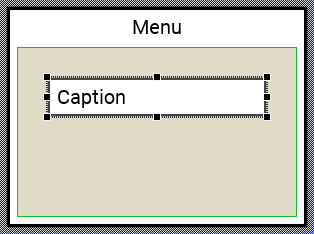
Components created with this template are intended to be adapted to your particular design expectations. After adding the new Menu Item you should edit the component, change its appearance and if desired also its behavior. Once you have adapted the component, you can embed instances of this Menu Item wherever you need in your GUI project. Because it serves as template, it is intentionally kept very simple. Nevertheless, Menu Items created by the template are working widgets. If desired, they can already be used as they are. The following figure demonstrates the default appearance of the Menu Item created by using the here described component template:
The approach with component templates has two functions. Primarily the templates should simplify the development of new components. Instead of creating the Menu Item from scratch you can use the available template. The second function is more educative. The template implements fully working Menu Item component you can investigate and learn about the corresponding programming aspects. The template is well documented. It contains annotations and inline comments with instructions helping you to understand how the component works and how it can be adapted to your particular needs.
This chapter provides an overview how the Menu Item component template is used within your own application and how you adapt this component according to your particular needs. You will find here also further details concerning the internal implementation of the Menu Item component.
Add new Menu Item component
To create a new Menu Item component from a template you simply Drag & Drop it between the Templates window and the Composer with an opened unit. This is important in that by using the component templates you add in fact a new class to your project. Classes, in turn, can exist within units only. The following are the typical steps to create a new Menu Item component from a template:
★First switch to the Composer page for the respective unit, where you want to add the new Menu Item component.
★Then ensure that the Templates window is visible.
★In Templates window switch to the folder Component Templates.
★In the folder locate the Menu Item template.
★Drag & Drop the template into the Composer window:
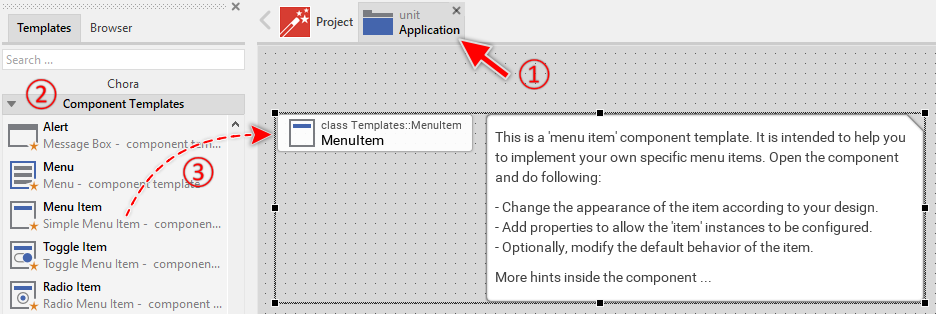
★Eventually name the new added component.
The new created Menu Item component appears accompanied by annotation providing helpful tips how to proceed. If undesired, you can select and delete the annotation.
Use the Menu Item component
Once you have created the Menu Item component, you can use it to assemble menu components. Technically seen, you embed an instance of the Menu Item class in-place within a superior Menu GUI component. At the runtime, the superior Menu GUI component takes care of the correct initialization, arrangement and the displaying of all embedded item components.
Step 1. Add new Menu Item instance
The following are the typical steps to create a new instance of an already existing Menu Item component:
★First switch to the Composer page for the respective Menu GUI component, where you want to add the new Menu Item.
★Then ensure that the Browser window is visible.
★Within the Browser locate the class of the previously created Menu Item. This can be done easily with Browser's own filter function.
★Select the found class in the Browser window.
★Drag & Drop the selected class into the Composer area.
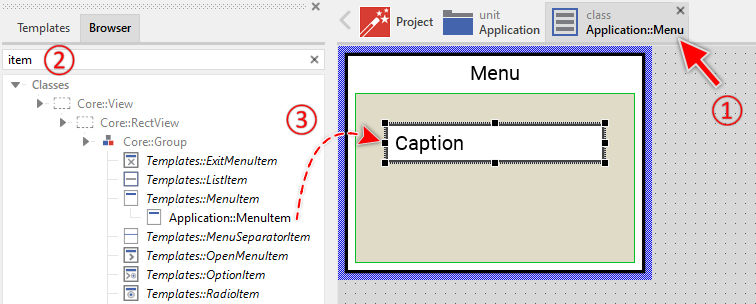
★Eventually name the new instance according to its function within the menu component.
Component templates are intended to create widgets which can be modified and adapted to your particular design expectations. In the following sections you will learn how to do this. Originally, if not yet modified, the Menu Item will appear as white rectangle with item caption text. Our intention is to keep the component templates as minimalistic as possible so they don't distract you with less important design details.
Step 2. Inspect the Menu Item instance
As long as the Menu Item is selected you can inspect and modify its properties conveniently in the Inspector window as demonstrated with the property Bounds in the screenshot below. This is in so far worth mentioning as diverse features of the Menu Item are controlled by the corresponding properties. If you are not familiar with the concept of a property and the usage of Inspector window, please read first the preceding chapter Compositing component appearance.
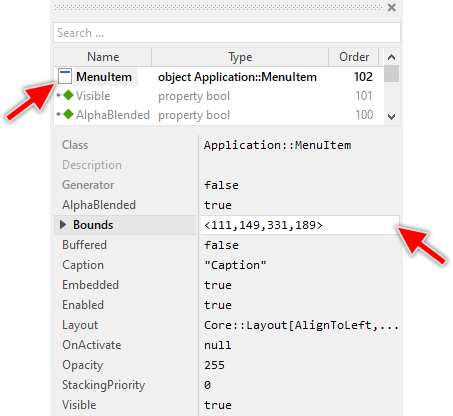
The Menu Item component descends from the Mosaic class Core::Group. Consequently, most of the properties listed in the above screenshot are inherited from this base class. Particular to the Menu Item are only few following properties:
Property |
Description |
|---|---|
Caption |
The property Caption stores the text to display within the item. |
OnActivate |
The property OnActivate can refer to a slot method, which will receive a signal as soon as the user has activated (pressed and released) the item. Thereupon the method's logic will be executed. |
Step 3. Arrange the Menu Item within the Menu component
The position of the Menu Item doesn't matter. The Menu component will automatically arrange the items within its area and if necessary enlarge or reduce their size. Moreover, the size of the menu itself is adapted to the number and to the size of the enclosed items. This layout algorithm is part of the Menu component template. Consequently, when you move an item within the menu, it does not have any effect on its final position.
However, the order in which the items will be displayed at the runtime does correspond to the order in which the item objects are stored within the menu component. This is the order in which the items have been originally added. Consequently, the first added item appears at the top of the menu while the last added item is arranged at the end of the menu. See also the column Order in the members area of the Inspector window:
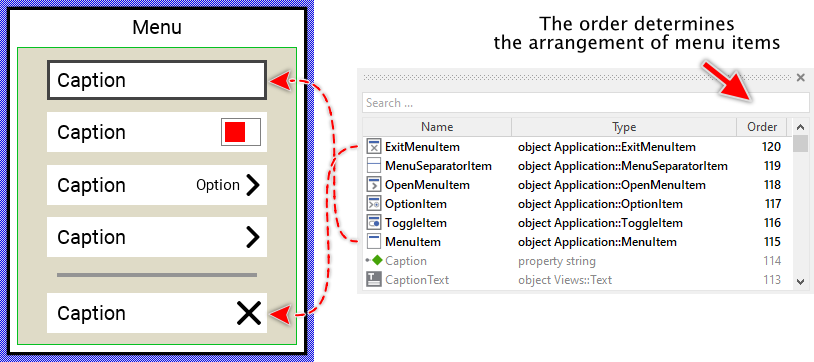
★If necessary you can reorder the item objects in the Inspector window to correspond to the order in which the items should appear in the menu.
Even if the position of an item doesn't matter, we recommend to move the item objects within the menu so you have a good overview of the items existing inside it. If the menu area is too small, you can enlarge it by clicking and dragging the thick blue Canvas border. Resizing the Canvas area of the menu manually has no effect on the final size of the menu. At the runtime the menu will adapt its size to the number and the size of the enclosed items.
Step 4. Implement Menu Item's slot method
While the user interacts with the Menu Item, the component sends signals to associated slot methods. Within the slot method your particular implementation can react and process the event. If the Menu Item is controlled by keyboard events, the item can also be activated by using the Enter key. This is the default behavior implemented in the Menu Item template.
The slot methods are connected to the item by simply storing them in the for this purpose available property OnActivate. The slot method connected to property OnActivate is signaled when the user has activated (pressed and released) the item. You can initialize the property OnActivate with already existing slot methods or you add a new one and implement it as desired. The following steps describe how to do this:
★First add a new slot method to your GUI component (the component where you have embedded the menu item).
★Assign the slot method to the property OnActivate of the affected Menu Item.
★Open the slot method for editing.
★In the Code Editor implement your desired operation to execute when the event occurs. For example:
// User activated the "Save Settings" menu item SaveCurrentSettings();
When you start the Prototyper now, you can interact with the item. Thereupon the item will trigger the associated slot method.
Open the component for editing
Component templates are intended to create widgets which can be adapted and enhanced to your particular design expectations. For this purpose, once you have added a new Menu Item component to your project, you can open the component class for editing. Thereupon the implementation of the component appears in a new Composer page:
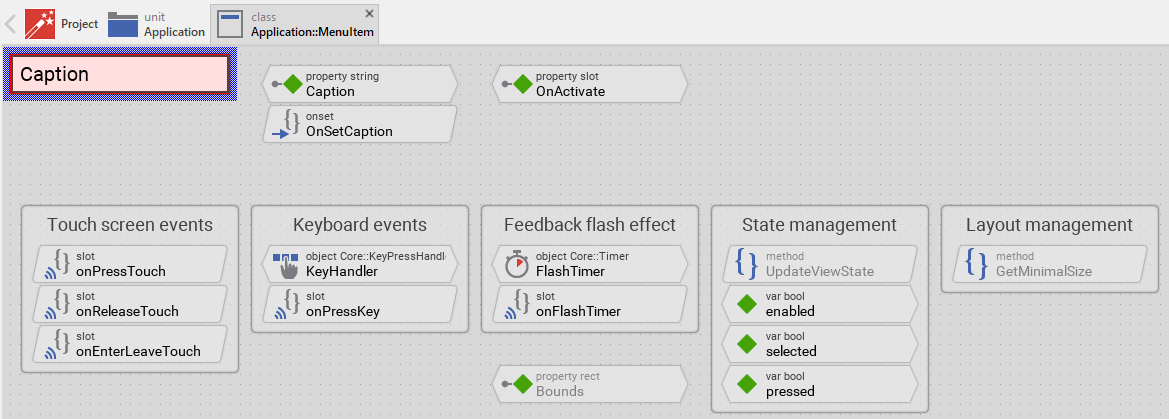
Originally, if not yet modified, the Menu Item appears as a white rectangle with a caption text. When the user interacts with the item, it changes color to provide visual feedback. Our intention is to keep the component templates as minimalistic as possible so they don't distract you with less important design details. The Menu Item can react to touch, mouse and keyboard inputs. The color reflects the actual state of the item.
This default functionality is implemented by following members belonging to the Menu Item. These members are explicitly intended to be modified. Understanding this internal structure is thus the first step before you start to adapt the Menu Item to your particular needs:
Icon |
Member |
Description |
|---|---|---|
|
Caption |
The property Caption stores the text to display within the item. |
|
OnSetCaption |
The onset method belongs to the property Caption. Each time the value of the property is changed, the code implemented in the method is executed to update the caption text view and trigger layout recalculation in the owner menu. |
|
OnActivate |
The property OnActivate can refer to a slot method, which will receive a signal as soon as the user has activated (pressed and released) the item. Thereupon the method's logic will be executed. |
|
onPressTouch |
This internal slot method is called when the user touches the item area (when the interaction begins). This slot method is connected to the member TouchHandler. The method focuses the item and handles the feedback flash effect. |
|
onReleaseTouch |
This internal slot method is called when the user releases the touch screen after touching the item (when the interaction ends). This slot method is connected to the member TouchHandler. The method activates the item if the touch ended inside the item area. |
|
onEnterLeaveTouch |
This internal slot method is called when the user drags the finger/mouse while pressing the item and enters or leaves the item's area. The method updates the item's appearance to show pressed or released state. |
|
KeyHandler |
This key handler reacts to key press events. When the user presses the key specified in the property Filter of the key handler (per default Enter), the handler is activated and the method onPressKey is called. |
|
onPressKey |
This internal slot method is called when the KeyHandler has been activated (when the user has pressed the Enter key). Thereupon, the method flashes the item briefly and activates it. |
|
FlashTimer |
This Timer object is used to flash the item when the user has tapped it very quickly or the item has been activated with the keyboard. This is just a visual feedback effect. The timer's Begin property defines the flash duration (50 milliseconds per default). |
|
onFlashTimer |
This internal slot method is called when the FlashTimer expires. The method ends the flash feedback effect and activates the item by sending a signal to the slot method stored in the property OnActivate. |
|
Background |
This Filled Rectangle view displays in the template the background of the item. The background is white per default. |
|
Border |
This Border view displays in the template the border of the item. The border appears only when the item is selected (focused) or pressed. Depending on the item's actual state variables enabled, selected and pressed the border's visibility and color changes. |
|
CaptionText |
This Text view displays the caption text of the item. The text content is determined by the property Caption. Depending on the item's actual state, the text color changes between black and white/gray. The text view is configured with ellipsis mode to truncate long text with [...] sign. |
|
TouchHandler |
This Simple Touch Handler reacts to touch and mouse events and invokes the associated slot methods: onPressTouch, onReleaseTouch and onEnterLeaveTouch. |
|
UpdateViewState |
This method is invoked automatically after the state of the component has been changed. In case of the Menu Item, the method updates the views Background, Border and CaptionText so they reflect the item's current state. |
|
GetMinimalSize |
This method is invoked by the owner menu to determine the minimum width required by this item. The method calculates the width based on the caption text length plus margins. This information is used by the menu for automatic size adjustment. |
|
enabled |
This variable stores the current state of the item. It is true if the item is allowed to handle user inputs (the component is enabled). See also Control the Enabled state of nested components. If the item is actually disabled, the variable is consequently false. |
|
selected |
This variable stores the current state of the item. It is true if the item is actually focused for keyboard inputs (more precisely, the item is selected within its owner menu component). The user can thereupon control the item via keyboard. |
|
pressed |
This variable stores the current state of the item. It is true if the item should appear pressed. This is usually the case when the user touches the item actively or presses a key intended to activate the item (the user is pressing the item or the flash effect is active). |


Understand the state management of the component
During its lifetime, the Menu Item will assume different states as direct effect of user interactions and as result of other superior state alternations within the GUI application. To track its current state the Menu Item manages the above mentioned state variables: enabled, selected and pressed. The variables are evaluated and updated within the implementation of the method UpdateViewState. This method evaluates the common component states (Enabled and Selected) and verifies whether the user is actually interacting with the item via touch screen or keyboard (the user is pressing the item). At the end of the method the estimated states are stored in the state variables:
// Estimate the new state var bool isEnabled = aState.contains( Core::ViewState[ Enabled ]); var bool isSelected = aState.contains( Core::ViewState[ Selected ]); var bool isPressed = ( TouchHandler.Down && TouchHandler.Inside ) || FlashTimer.Enabled; [...] // Remember the new state enabled = isEnabled; selected = isSelected; pressed = isPressed;
For example, the local variable isPressed will become true if the user is actually touching within the area of the item AND the finger/mouse is still inside the item's boundaries (the variables Down and Inside of the TouchHandler are both true) or the feedback flash timer is active (the variable Enabled of the FlashTimer is true). Being in this state, the item should assume the appearance indicating that the user is actively pressing it.
When common component states (Enabled or Selected) have changed, the method UpdateViewState is invoked automatically. You don't need to worry about it. Any other state alternations need to explicitly request an invocation of the UpdateViewState method. This is especially true for state alternations caused by touch handlers, keyboard handlers or timer objects. When you modify the Menu Item to handle other user inputs or perform other animations always ensure that each state alternation (each event) does request an invocation of UpdateViewState. In your implementation you use for this purpose the method InvalidateViewState.
For example, the slot method onPressTouch is associated to the TouchHandler and it is invoked when the user presses the finger within the item area. In response to this, the pressed state of the item might change (if the flash effect starts). However, the method doesn't request explicitly the invocation of UpdateViewState because the flash effect start is handled automatically by the timer. When the timer starts or stops, it causes state changes that trigger UpdateViewState automatically.
Depending on your design expectations the default state management may require adaptations. Generally, you are free to modify the method UpdateViewState, add further state variables to your Menu Item or even remove the existing functionality if it is not needed in your case.
For example, the default implementation of the Menu Item template manages the state selected. This state indicates that the item is actually selected within the superior menu. The item could thus receive keyboard events. However, whether the item is really able to receive events does depend on the selection status of its owner menu and all other superior components. Only when the item lies on the focus path, the item will receive keyboard events. If your application case requires the item to distinguish this additional state, you can add a variable focused similar to the approach described in the Horizontal Slider template.
Adapt the appearance of the component
Originally, if not yet modified, the Menu Item appears as a white rectangle with a caption text. Our intention is to keep the component templates as minimalistic as possible so they don't distract you with less important design details. It's up to you to adapt the item to have the expected appearance. The available possibilities are explained in the following sections. Please note, that you can combine the different approaches according to your application case:
1. Modify existing views
The Menu Item template contains per default the views Background, Border and CaptionText. If desired, you can modify the views. For example, you can display them with other colors depending on the actual state of the item. For this purpose you change the implementation of the above explained method UpdateViewState responsible for tracking the state alternations within the Menu Item.
When you open the method UpdateViewState you will see that it does not only update the state variables but also updates the views existing within the component. Accordingly, depending on the actual state of the item the views Background, Border and CaptionText are displayed with other colors and the border's visibility changes. By simply modifying this implementation you change the appearance. For example, you change the pressed color from red to green:
if ( !isEnabled ) { Background.Color = #AAAAAAFF; Border.Visible = false; CaptionText.Color = #888888FF; } else if ( isPressed ) { Background.Color = #00FF00FF; // <-- green color Border.Color = #000000FF; Border.Visible = true; CaptionText.Color = #FFFFFFFF; } else if ( isSelected ) { Background.Color = #FFFFFFFF; Border.Color = #444444FF; Border.Visible = true; CaptionText.Color = #000000FF; } // Enabled but not pressed nor selected. else { Background.Color = #FFFFFFFF; Border.Visible = false; CaptionText.Color = #000000FF; }
2. Remove existing views
If not needed, you can delete the per default existing views Background, Border or CaptionText. Doing this, please don't forget to also remove all references to the deleted views from the implementation of the UpdateViewState and GetMinimalSize method. Otherwise you will get error messages next time the Composer contents is reloaded. To avoid this error message we recommend to perform the steps in following order:
★In the UpdateViewState method adapt the implementation to not refer anymore to the undesired view. For example, if you decided to delete the Border view, simply remove all corresponding code lines. The remaining implementation looks then like this:
if ( !isEnabled ) { Background.Color = #AAAAAAFF; CaptionText.Color = #888888FF; } else if ( isPressed ) { Background.Color = #FF0000FF; CaptionText.Color = #FFFFFFFF; } else if ( isSelected ) { Background.Color = #FFFFFFFF; CaptionText.Color = #000000FF; } // Enabled but not pressed nor selected. else { Background.Color = #FFFFFFFF; CaptionText.Color = #000000FF; }
★Review the method GetMinimalSize whether it contains any references to the affected view. Modify the code appropriately.
★Now you can delete the affected view.
3. Add further views to the component
You can add further views to your Menu Item. For example, you can add an Image view to display an icon within the item. Or you add additional decoration elements like checkmarks, arrows, or status indicators. The appearance of the views (e.g. colors) can be fixed, predetermined at the design time. Or it can change according to the actual state of the item. Following steps explain the workflow:
★First add the desired view to the component. For example add an Image view.
★Name the just added view according to its function in the component. For example ItemIcon.
★In order to arrange the view within the Menu Item, move the view, or you simply grab one of its corners and resize it in this way. If you want the view to appear behind other views you can reorder it explicitly.
★In Inspector window configure the properties of the just added view. For example, in case of the Image view you can select the bitmap to display.
★In the UpdateViewState method adapt the implementation to update the properties of the view according to the item's current state. This can be, for example, the color of the Image view depending on the actual enabled state of the item. For this purpose you could add following code to the method:
// Update the appearance of the ItemIcon view. if ( !isEnabled ) ItemIcon.Color = #00000077; // semi-transparent black color else if ( isPressed ) ItemIcon.Color = #FFFFFFFF; // white color // Enabled, evtl. selected else ItemIcon.Color = #000000FF; // black color
★If you added an icon or other elements that affect the item's minimum width, don't forget to adapt the implementation of the GetMinimalSize method to include the additional space needed:
// We assume: the item requires space for the caption, 10 pixel margin on // its left side, some space for the icon image on the left, and 10 pixel // margin on the right. Important: perform the calculation without the // caption text being evtl. truncated and replaced by an ellipsis sign. var bool ellipsis = CaptionText.Ellipsis; CaptionText.Ellipsis = false; var point size = point( ItemIcon.Bounds.w + 10 + CaptionText.GetContentArea().w + 10, 0 ); CaptionText.Ellipsis = ellipsis; // Assume the min. height corresponds to the actual design height of the item. size.y = 40; return size;
4. Replace existing views
Also possible, you can replace the existing views by other views. For example, in the original version, the Menu Item displays the caption as an ordinary text. To make the component more sophisticated, you could replace the here used Text view by e.g. Attributed Text view to support rich formatted text. For this purpose:
★Think about which view is adequate as replacement for the old view existing per default in the component. An overview of existing views is found in the section Using Views.
★Delete the old view.
★Add the desired view to the component.
★Name the just added view to have the name of the previously removed view.
★Eventually move the view, or you simply grab one of its corners and resize it in this way. If you want the view to appear behind other views you can reorder it explicitly.
★If necessary, in Inspector window configure the properties of the just added view.
★If necessary, modify the implementation of other methods existing in the component if these evaluate/modify the properties of the replaced view.
Configure the layout of the component
The initial size of the Menu Item is determined by the thick blue border surrounding the Canvas area. It corresponds to the default size that all instances of this Menu Item component will have. However, when menu items are embedded within a menu, the Menu component will automatically adjust the size of items according to:
★The content of the item (especially the caption text length)
★The minimum size calculated by the item's GetMinimalSize method
★The formation of the menu (horizontal or vertical)
★The available space within the menu
★The available space on the display
If desired, you can adjust the Canvas area of the item component itself. This affects the default height and visual proportions of the item during editing. For this purpose you click and drag the edges of the surrounding border (see also Resize the Canvas area). Once the size is changed, you can then adapt (move, resize) the views existing within the component.
The views existing per default in the Menu Item template (Background, Border, CaptionText and TouchHandler) are configured to automatically adjust to fill the area of the item. All other views you have eventually added later to the Menu Item are not adjusted automatically.
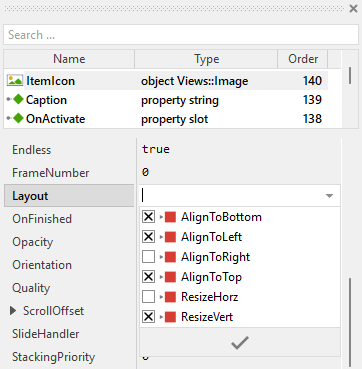
To control the adjustment you have to explicitly configure for each view its Layout property. (see also Configure component layout). Let's assume, in order to display an icon you have added an Image view to the Menu Item. Then you have arranged the view within the Canvas area according to your design expectation. If you want now that the view is centered vertically and remains aligned at the left side when the item width changes, you enable in the property Layout of this view following settings:
Implement the interface of the component
When creating your own Menu Item component you should ensure that instances of the item can be configured to control all the features implemented in it. For example, if you have enhanced the item to display some icon, you should allow this icon to be specified individually for each item instance. In this way several item instances can exist at the same time, each displaying another icon.
To control the features in your item you use properties. A property can be understood as variable where the corresponding setting is stored, e.g. the icon bitmap to display in the item. When the value of the property changes, the item can react to it and update its appearance accordingly. The properties reflect thus the settings within your item. Together they form the interface of the component.
Usually, each particular setting within a component is represented by the corresponding property. Thus, an item where icon and background color can be configured will require two properties: one for the icon and one for the color. In its original version, the Menu Item contains already two properties Caption and OnActivate. The first stores the text to display and the second allows you to connect a slot method to be notified when the item is activated. In order to enhance this interface by your own properties, following steps are necessary:
★Add a new property to the Menu Item component.
★Name the property according to the setting it should represent. For example, the property intended to store an icon bitmap could be named Icon.
★Determine the data type of the property. For example, the property intended to store an icon bitmap will reference a Resources::Bitmap.
★Determine the initialization value of the property. This value should correspond to the item's default state. For example, the property intended to store an icon could be initialized with null if no icon should be displayed by default.
★The property is accompanied by its onget method. Except particular cases, this method is not needed and can be deleted now.
★The property is accompanied by its onset method. Open this method for editing.
★Adapt the implementation of the onset method so it updates the item according to its new value. For example, in case of the property intended to store an icon, you will probably update some Image view where the icon is displayed:
// The value doesn't change - nothing to do. if ( pure Icon == value ) return; // Remember the property's new value. pure Icon = value; // Update the view to display the just modified icon. ItemIconImage.Bitmap = value; // Changing the icon may affect the minimum width of the item. Request the // superior menu to recalculate its layout. if ( Owner ) Owner.InvalidateLayout();
★If the new property affects the minimum size of the item (like icon or additional decorations do), adapt also the GetMinimalSize method to include the space needed by the new element.
That is all. Now when you deal with instances of the Menu Item component, you can evaluate and modify the properties similarly to how you access variables. Especially, when the item instance is selected, you see in Inspector window the property and can change it there. The modification is immediately visible in the Composer window.
If desired, the properties can also be modified at the runtime of your application. For example, the menu caption can be adapted to reflect the current context. For this purpose you access and modify the affected property directly within Chora code:
var string userName = ... // Let the menu item display concrete context information. item.Caption = "User: " + userName;
Understand the handling of touch inputs
The Menu Item is an interactive component. It can be controlled via touch screen or by the mouse device. For this purpose the template contains the Simple Touch Handler object named TouchHandler. Per default, this handler covers the entire area of the item - this is thus the touch sensitive area. To this handler are associated three slot methods: onPressTouch, onReleaseTouch and onEnterLeaveTouch. As their names imply the methods are invoked at the beginning of the interaction (press), at its end (release) and when the user drags the finger and enters or leaves the item's area:
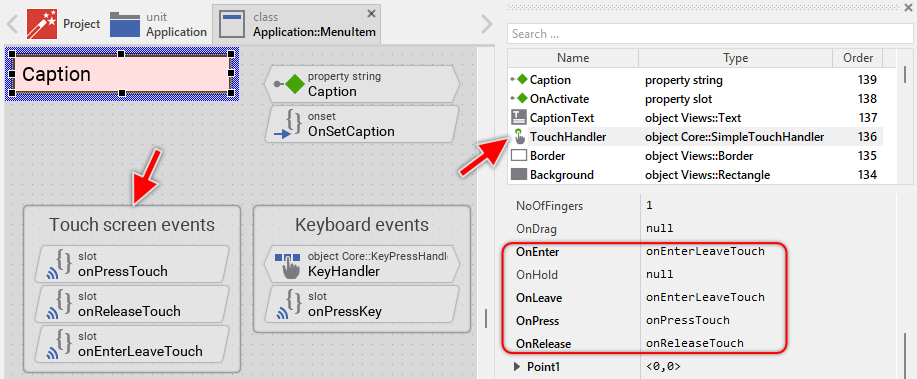
The methods take care of two tasks. As first they request an invocation of the UpdateViewState method if due to the performed touch (mouse) interaction the visual appearance of the item does need the update. The second task is the activation of the item when the user successfully touches and releases within the item's area.
The menu item uses a feedback flash effect to provide visual feedback when the user taps the item very quickly. If the user holds the finger pressed for a short moment (at least 50 milliseconds per default), the item is activated immediately when released. If the user taps very quickly (less than 50 milliseconds), a short flash effect is shown first before the item is activated. This ensures the user always gets visual feedback.
The slot method onPressTouch is invoked when the user touches the item area:
// Clicking on a menu item focuses (selects) the item. If you don't want it, // remove the following code line. Owner.Focus = this; // The item is still performing the feedback flash effect from the preceding // tap. This can occur when the user taps the item in a very rapid succession. // Thus complete this preceding tap (simulate the timer expiration) before // starting a new item interaction. if ( FlashTimer.Enabled ) { postsignal OnActivate; FlashTimer.Enabled = false; }
Later, when the user finalizes the touch (mouse) interaction, the item is activated depending on whether the finger/mouse is still inside the item's area and how long the user held the item pressed. This functionality is implemented in the slot method onReleaseTouch:
// Did the user moved the finger outside the item's area? In such case // the item is not activated. if ( !TouchHandler.Inside ) return; // The touch interaction has been passed over to another touch handler. // The item is not activated in such case. if ( TouchHandler.AutoDeflected ) return; // The user has pressed and held the item for longer time. This was enough // long to give a visual 'press' feedback to the user. The item can be // activated immediately. if ( TouchHandler.HoldPeriod >= FlashTimer.Begin ) postsignal OnActivate; // The user has tapped the item very quickly. Defer the item activation // to give the user first a short visual feedback that the item has been // pressed. else FlashTimer.Enabled = true;
The slot method onEnterLeaveTouch is invoked when the user drags the finger while touching the item and enters or leaves the item's area. This method is also invoked at the begining and at the end of the touch interaction. The method simply requests a visual update to show the item as pressed or released:
// Every time the user touches the item or drags the finger inside/outside // the item's area request the item update its appearance. The update will // occur in the UpdateViewState() method. InvalidateViewState();
Usually you will not need to edit the implementation of these methods. It corresponds already to whatever typical menu items do. Nevertheless, you are free to change this default functionality if you want some particular behavior to be implemented in your item. For example, you can modify the flash duration by changing the Begin property of the FlashTimer object. A shorter duration (e.g. 25 milliseconds) makes the flash faster, a longer duration (e.g. 100 milliseconds) makes it slower.
Per default the TouchHandler is configured to handle all touch events. If necessary you can change this behavior and restrict the item to react only when the user performs a particular touch interaction. The TouchHandler provides for this purpose diverse configuration properties like MinStrikeCount, MaxStrikeCount, NoOfFingers or LimitToFinger. For more details, see Configure the filter condition.
If your device does not contain any touch screen nor mouse, the per default existing TouchHandler and its associated slot methods are unnecessary ballast. You can remove them in such case. We recommend to do this in following order to avoid eventual error message because of broken references between still existing and the already removed members:
★First remove all expressions accessing TouchHandler from the UpdateViewState method.
★Edit the onPressKey method and remove the expressions accessing TouchHandler.
★Delete the three slot methods: onPressTouch, onReleaseTouch and onEnterLeaveTouch.
★Finally delete the annotation grouping the slot methods.
Understand the handling of keyboard inputs
The Menu Item is an interactive component. It can be controlled via keyboard or hardware buttons. For this purpose the template contains the Key Press Handler object named KeyHandler. To this handler is associated the slot methodonPressKey. The method is thus invoked when the user presses the key matching the filter condition specified in the handler object. This is per default the Enter key:
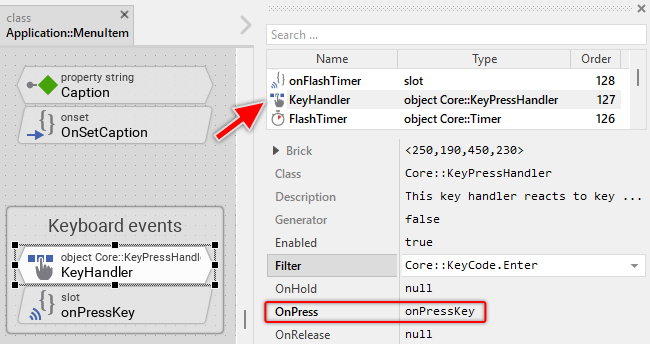
The method takes care of activating the item and showing the feedback flash effect. Similar to the touch handling, the method ensures that the user always gets visual feedback by showing a flash effect before activating the item:
// Ignore keyboard events when the user is interacting with the item via the // touch screen. if ( TouchHandler.Down ) return; // Pressing the key flashes the item for a short period. This is a kind of // feedback effect. Request the item to update its appearance accordingly. // The update will occur in the UpdateViewState() method. InvalidateViewState(); // The item is still performing the feedback flash effect from the preceding // tap/key event. This can occur when the user taps the item or presses the // key in a very rapid succession. Thus complete this preceding tap (simulate // the timer expiration) before starting a new item interaction. if ( FlashTimer.Enabled ) { postsignal OnActivate; FlashTimer.Enabled = false; } // Start the feedback flash effect. FlashTimer.Enabled = true;
Usually you will not need to edit the implementation of this method. It corresponds already to whatever typical menu items do. Nevertheless, you are free to change this default functionality if you want some particular behavior to be implemented in your item.
Per default the key handler is configured to accept the Enter key. If necessary you can change this behavior and adapt the item to react to other keys. The key handler provides for this purpose the configuration property Filter. For example, if you want the item to be activated with the Space key, set the property Filter of the object KeyHandler to the value Core::KeyCode.Space. For more details, see Configure the filter condition.
If your device does not contain any keyboard nor hardware buttons, the per default existing key handler and its associated slot method are unnecessary ballast. You can remove them in such case. We recommend to do this in following order to avoid eventual error messages because of broken references between still existing and the already removed members:
★Delete the KeyHandler object.
★Delete the slot methodonPressKey.
★Finally delete the annotation grouping the handler and the slot method.
Understand the feedback flash effect
The Menu Item uses a feedback flash effect to provide visual feedback when the user interacts with the item very quickly. This ensures that the user always sees a visible response to their action, even for very brief taps or key presses.
The flash effect is implemented using the Timer object named FlashTimer. This timer is configured with a duration (50 milliseconds per default) that determines how long the item should appear in the pressed state:
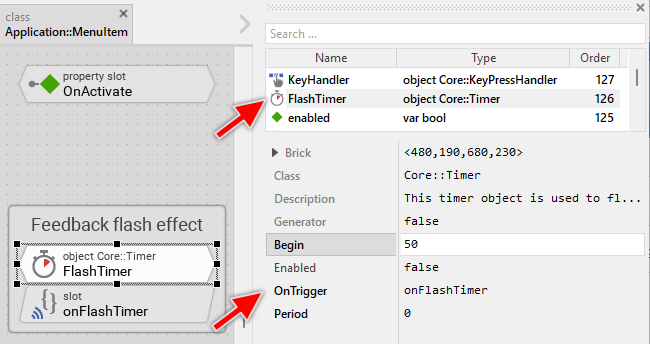
The timer is started in two situations:
★Quick tap: When the user taps the item very quickly (touch duration less than 50ms), the timer is started to show the pressed state briefly before activating the item.
★Keyboard activation: When the user presses the Enter key, the timer is started to show visual feedback before activating the item.
When the timer expires, the slot method onFlashTimer is called, which ends the flash effect and activates the item:
// The feedback flash timer is finished. Request the item to update its // appearance. The update will occur in the UpdateViewState() method. InvalidateViewState(); // With the end of the feedback flash effect the item is activated. postsignal OnActivate;
The flash duration can be adjusted by modifying the Begin property of the FlashTimer object:
★Shorter duration (e.g. 25 milliseconds): Faster flash, more responsive feel
★Longer duration (e.g. 100 milliseconds): Slower flash, more pronounced feedback
If you don't want the flash effect at all, you can simplify the touch and keyboard handling by removing the timer and directly activating the item in the touch/keyboard handlers. However, this is not recommended as users expect visual feedback for their interactions.
Understand the GetMinimalSize method
The GetMinimalSize method plays a crucial role in the automatic layout system of menus. This method is called by the owner menu to determine how much horizontal space the item requires at minimum. The menu uses this information to:
★Calculate the minimum width needed to display all items without truncating content
★Adjust its own size to fit all items comfortably
★Determine when scrolling is needed for large menus
The default implementation calculates the minimum width based on the caption text length plus margins:
// We assume: the item requires space for the caption and 20 pixel margin on // the left and on the right of the caption. Important: perform the calculation // without the caption text being evtl. truncated and replaced by an ellipsis // sign. var bool ellipsis = CaptionText.Ellipsis; CaptionText.Ellipsis = false; var point size = point( CaptionText.GetContentArea().w + 20, 0 ); CaptionText.Ellipsis = ellipsis; // Assume the min. height corresponds to the actual design height of the item. size.y = 40; return size;
Please note that the calculation temporarily disables the ellipsis mode of the text view to get the full text width without truncation. This ensures that the menu knows how much space is really needed to display the complete caption.
If you have modified the item appearance by adding icons, checkmarks, or other decorations, you must adapt this method to include the additional space needed. For example, if you added an icon on the left side, take its width as well as an additional margin in account:
// Include space for: icon + margin (10px) + caption + margin (10px) var bool ellipsis = CaptionText.Ellipsis; CaptionText.Ellipsis = false; var point size = point( ItemIcon.Bounds.w + 10 + CaptionText.GetContentArea().w + 10, 0 ); CaptionText.Ellipsis = ellipsis; size.y = 40; return size;
TIP
For horizontal menus: If you configure the menu to arrange items horizontally (by setting the Formation property of the menu's Outline to Core::Formation.LeftToRight), you need to adapt this method to calculate the minimum height instead of minimum width.
Perform state changes with animations
In the section Adapt the appearance of the component you learned how state alternations within the Menu Item are processed and how views existing in the component are updated in order to reflect the actual state. Accordingly, when the user touches the item (starts pressing it), the item does appear pressed. When the user releases the item again (ends pressing it), the item restores its released appearance. The default implementation performs such appearance updates instantly, just in the moment when the respective interaction took place.
If desired, you can modify the Menu Item to update its appearance with animations. For example, instead of instantly switching between the pressed and released appearance, such item can fade-in/out the background color, scale slightly, or show other animated transitions. For this purpose you use the Animation Effects. With an Animation Effect you can animate a property of a view existing in the item. Following are the steps how to do this:
★Depending on the data type of the property to animate, add the appropriate Animation Effect to the Menu Item. For example, to animate a color property, add a Pulse color effect.
★Connect the effect object with the property to animate. For example, if you want to animate the background color, connect the Pulse color effect with the property Color of the Background view.
★Configure the duration and eventually the desired timing (easing) for the animation.
★Once started, the effect will animate the property endlessly. In our case, however, the animation should stop at its end. For this purpose set the effect's property NoOfCycles to the value 1.
★Configure the key values for the animation. In case of the pulse color effect, it is the start and the end color. For example, to animate the color between white and red, configure the effect's property Value1 with the #FFFFFFFF (white) and the property Value2 with #FF0000FF (red). This step is appropriate if the key values are fixed, known at the design time. Otherwise, the key values must be set at runtime shortly before the effect is triggered.
★Open the method UpdateViewState and modify its implementation to trigger the effect object when the item switches between the states pressed and not pressed. For example in case of the above mentioned pulse color effect to animate the background color, following implementation could be adequate:
// Estimate the new state var bool isEnabled = aState.contains( Core::ViewState[ Enabled ]); var bool isSelected = aState.contains( Core::ViewState[ Selected ]); var bool isPressed = ( TouchHandler.Down && TouchHandler.Inside ) || FlashTimer.Enabled; [...] // Following code updates the views instantly, without animations // (except the background color which is now animated) if ( !isEnabled ) { Border.Visible = false; CaptionText.Color = #888888FF; } else if ( isPressed ) { Border.Color = #000000FF; Border.Visible = true; CaptionText.Color = #FFFFFFFF; } else if ( isSelected ) { Border.Color = #444444FF; Border.Visible = true; CaptionText.Color = #000000FF; } // Enabled but not pressed nor selected. else { Border.Visible = false; CaptionText.Color = #000000FF; } // Switching from not pressed -> pressed state. Start the animation. if ( isEnabled && isPressed && !pressed ) { ColorEffect.Reversed = false; ColorEffect.Enabled = true; } // Switching from pressed -> not pressed state. Start the animation. else if ( isEnabled && !isPressed && pressed ) { ColorEffect.Reversed = true; ColorEffect.Enabled = true; } // Remember the new state enabled = isEnabled; selected = isSelected; pressed = isPressed;
★Since the properties of the affected views are now modified with animations, you will eventually need to adapt their initial values to correspond to the default state of the item. For example, you might need to set the property Color of the view Background to the value #FFFFFFFF (default color is white).