
Embedded Wizard Connect for Figma: Re-import of designs
Best practice for re-importing designs
In the majority of design projects, it is common to undergo multiple iterations before finalizing the design. Consequently, it is almost inevitable that a design will need to be fully or partially re-imported several times throughout the development process. Thanks to the versatile options provided by the generic import/export tool, these tasks can be performed as often as necessary with a high degree of flexibility and efficiency. While the generic import/export tool provides a comprehensive range of configurable options to address various re-import use cases, in most situations, the checkbox selection displayed in the screenshot below is adequate to achieve a proper re-import efficiently. This option allows the tool to replace all existing unit members that share the same name while also removing unit members and resources that are no longer required. Thus, the automatically generated unit remains clean and organized.
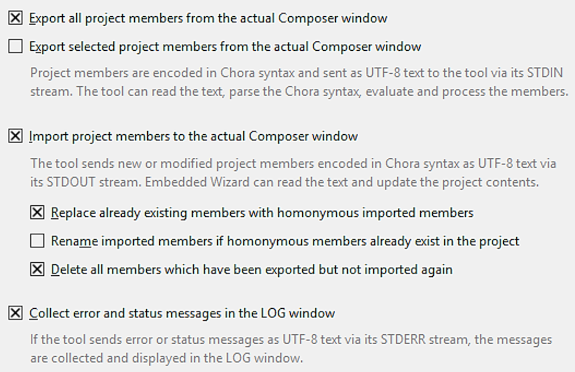
Best practice for re-importing designs.
This streamlined approach simplifies the re-import process, ensuring that the design remains up-to-date without redundant elements cluttering the project. Generally, Embedded Wizard takes care that existing Embedded Wizard unit members and image resources are renamed, deleted or updated according to the checkbox selection. Nevertheless, other project references to already imported unit members might be required to be updated manually to ensure proper functionality.
List of all possible re-import use cases
The following sections will discuss each use case that can be configured with the generic import/export tool in the context of re-importing a Figma design into an Embedded Wizard project. Each section contains screenshots of the actual checkbox selection and a very simple example of how the import behavior will be.
Use case 1
Behavior: The re-import step will replace all resources and unit members with the same names. Any existing project members or resources which were added after the initial import, will not be replaced, modified, or renamed.
The following checkbox configurations can be used for this use case.
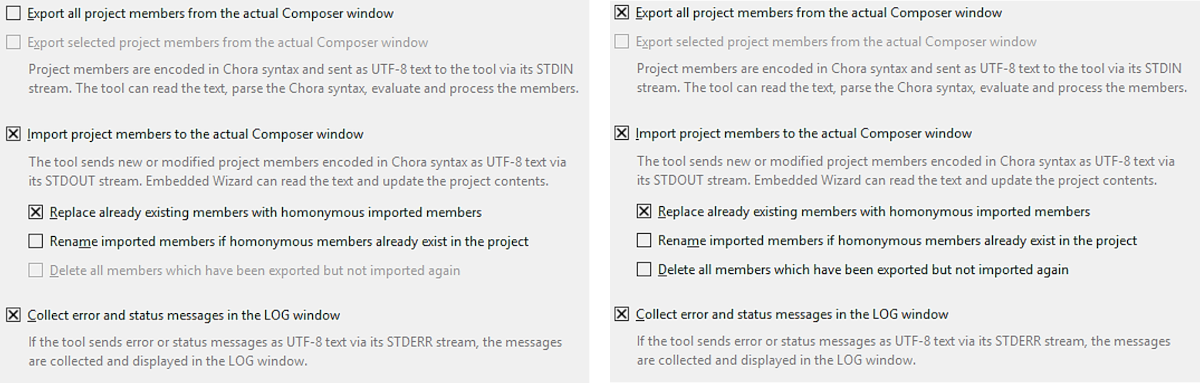
Use case 1 - Checkbox selection.
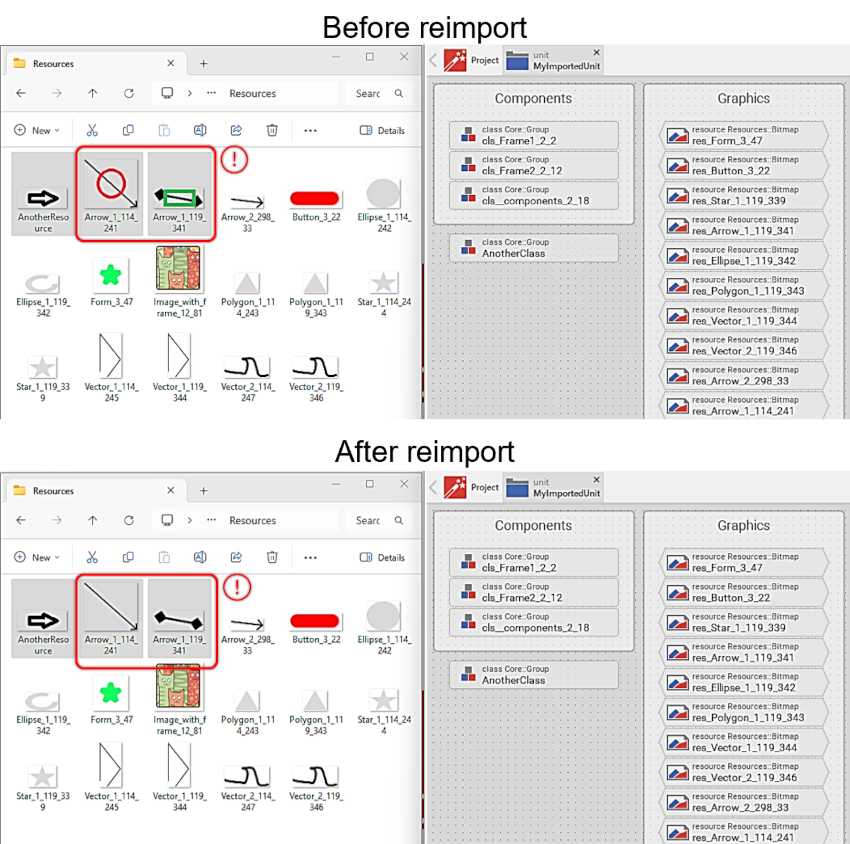
The following illustration shows the content of an example unit before and after the re-import, as well as the resources folder before and after the re-import. As can be seen, all bitmaps in the resource folder with the same names will be replaced. In this case, the files Arrow_1_114_241.png and Arrow_1_119_341.png were part of the initial import, but the file named AnotherResource.png was not. Since the first import the files Arrow_1_114_241.png or Arrow_1_119_341.png were modified. This results in the replacement of Arrow_1_114_241.png and Arrow_1_119_341.png but without performing any changes to the image named AnotherResource.png.
Use case 1 - Unit content before and after re-import.
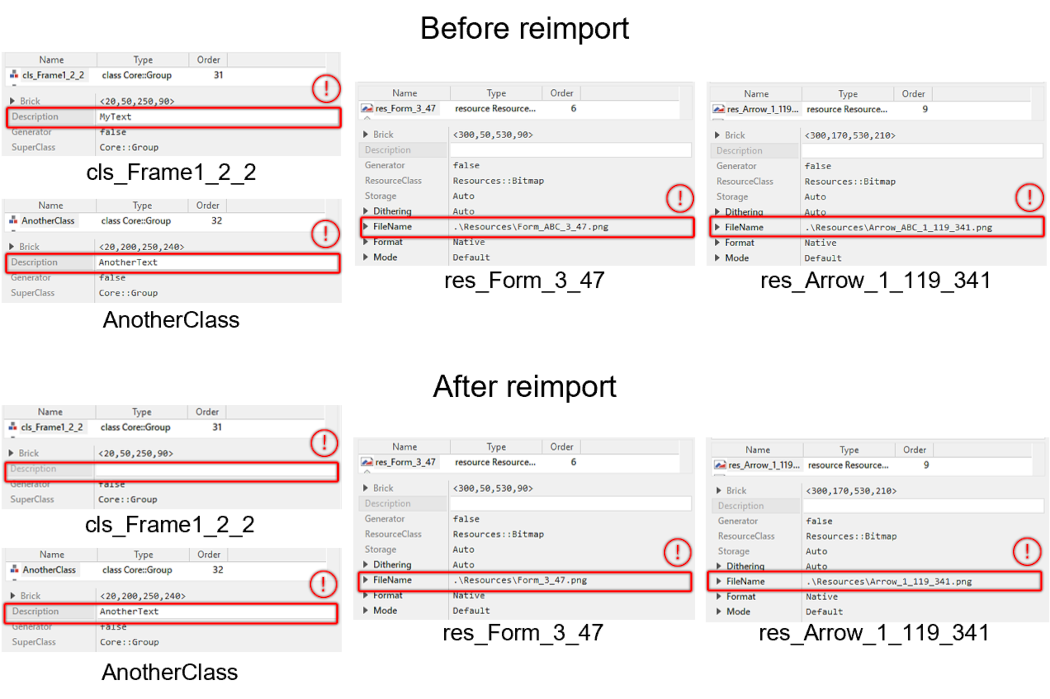
The same behavior can be observed when inspecting the attributes of class members. In the next illustration, the class clsFrame1_2_2 and resources named res_Form_3_47 and res_Arrow_1_119_341 were part of the initial import and re-import, but the class named AnotherClass was added after the initial import. When re-importing the exact same .ewx file as used in the initial import, all modified attributes of class and unit members with the same name will be replaced by their newer states. Thus, only the Description attribute of the class clsFrame1_2_2 will be overwritten. For the same reason, the FileName attribute of both bitmap resources will be updated.
Use case 1 - Attributes of unit members before and after re-import.
The behavior of this use case may result in the deletion of modifications made since the initial import. Therefore, in the case of smaller design modifications, it often makes more sense to use partial re-imports.
Use case 2
Behavior: This re-import constellation will replace all selected resources and unit members with the same names. Any existing selected unit member or resource which was added after the initial import, will not be replaced, modified, or renamed.
The following checkbox configuration can be used for this use case.

Use case 2 - Checkbox selection.
In the next illustration, you can see that the classes and resources named cls_Frame1_2_2, AnotherClass, and res_Arrow_1_119_341 are selected. For the re-import, an .ewx file that only contains the class named cls_Frame1_2_2 and the resource res_Arrow_1_119_341 was used. The re-import results in overwriting of the image resource Arrow_1_119_341.png and class named cls_Frame1_2_2.
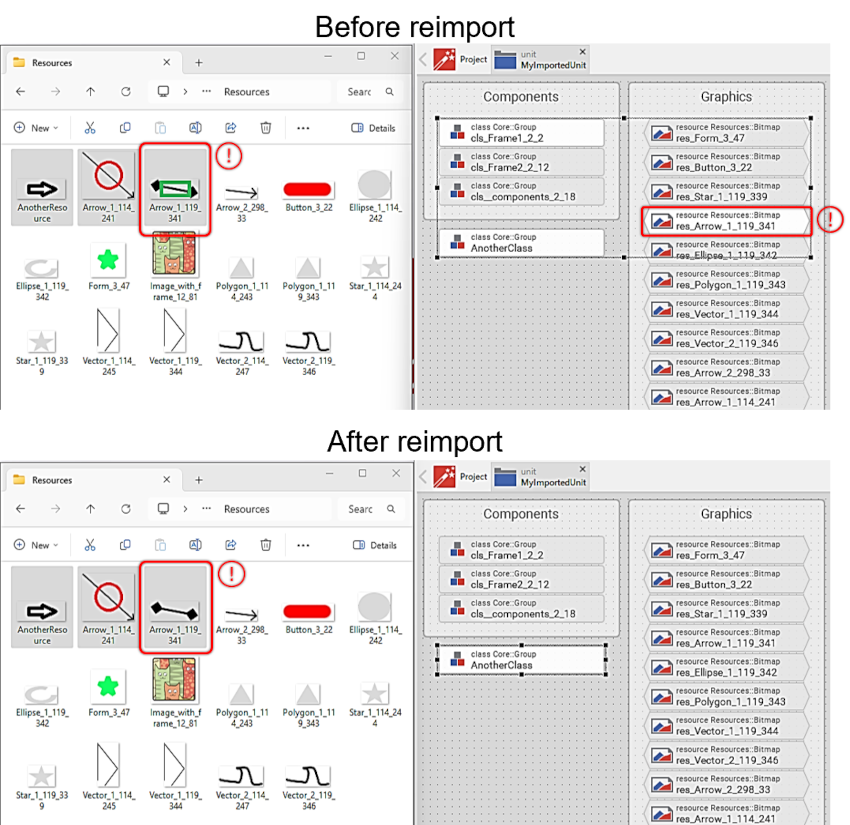
Use case 2 - Unit content before and after re-import.
When observing the attributes of the selected members, it can be seen that only the Description and FileName of the class cls_Frame1_2_2 and the resource res_Arrow_1_119_341 were overwritten. Any other content of the unit remained unchanged.
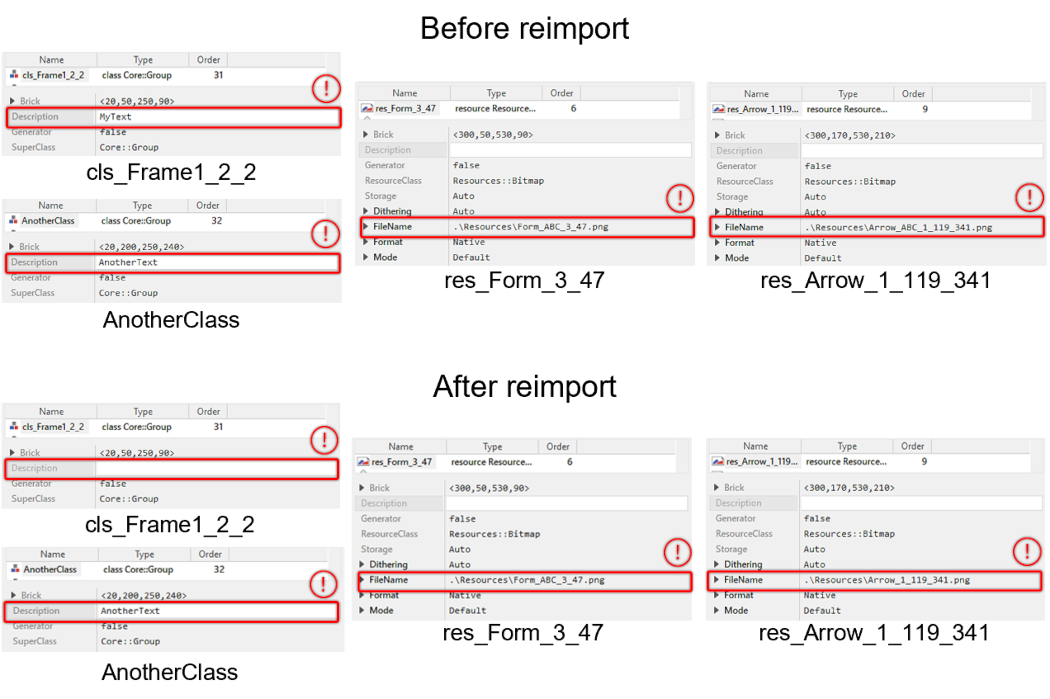
Use case 2 - Attributes of unit members before and after re-import.
With this re-import use case, it is easy to partially update a limited selection. For example, the content of only one component or one image. In most situations, this use case is the best choice for re-importing design data.
Use case 3
Behavior: This re-import configuration replaces all resources and unit members and deletes any that are not required anymore. It will remove any unit member or resource that were manually added after the initial import or are no longer available in the .ewx file.
The following checkbox configuration can be used for this use case.
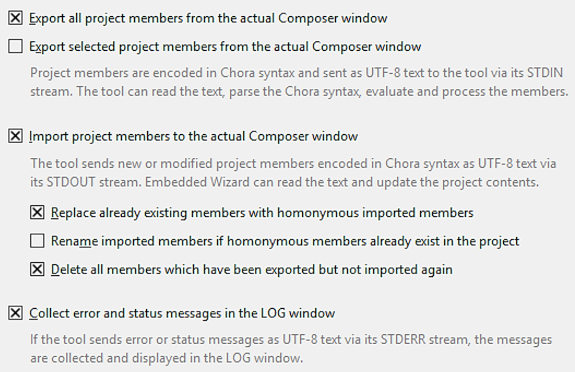
Use case 3 - Checkbox selection.
The example in the illustration below shows the content of an Embedded Wizard unit and the resource folder with all used images. It can be seen that after the initial import, a further class named AnotherClass and an image named AnotherResource.png were added. When performing a re-import with the checkbox selection from above and the same .ewx as used for the initial import, the generic import/export tool will first export the entire content of the unit. Then, the import Python script parses the content and only re-imports unit members with the same name. All resources and components for which no match is found in the used .ewx file will be removed. In this particular situation, it means that the class named AnotherClass and the image named AnotherResource.png will be removed. This behavior can be observed after the re-import.

Use case 3 - Unit content before and after re-import.
As a consequence of this re-import action, the resulting unit no longer contains the class named AnotherClass, and all attribute changes made to any unit or components were overwritten.
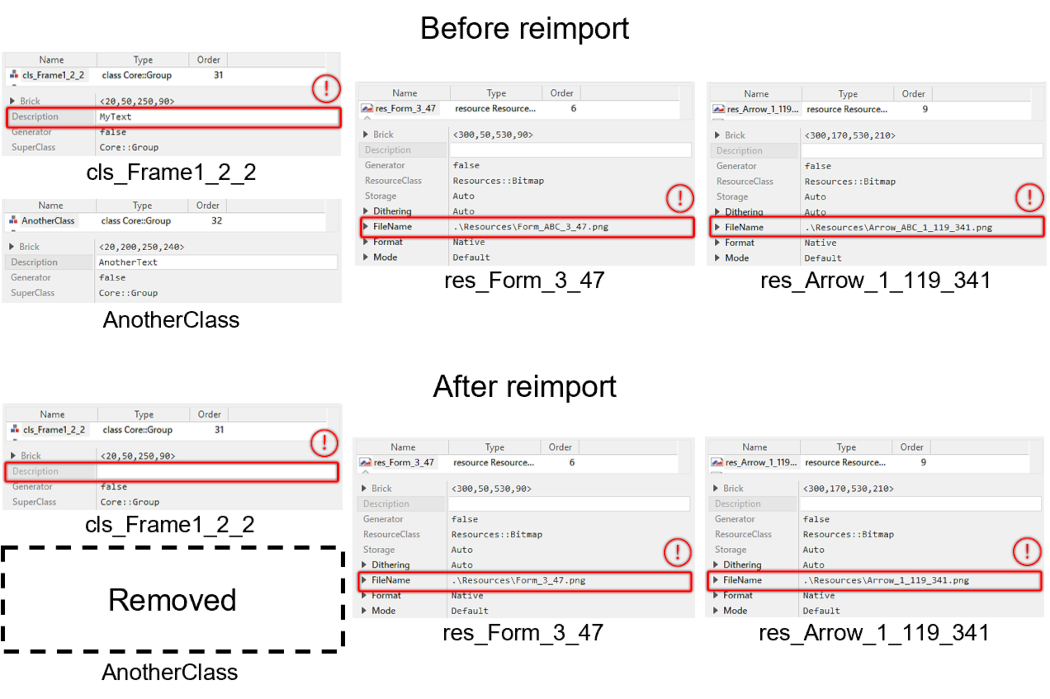
Use case 3 - Attributes of unit members before and after re-import.
The use case explained in this section automatically deletes unnecessary resource files. Therefore, please remember to eventually save the content of the resources folder.
Use case 4
Behavior: Using this re-import configuration will replace all selected resources and unit members and deletes selected unit members that are not re-imported. This import type does not delete any bitmap or SVG resources.
The following checkbox configuration can be used for this use case.
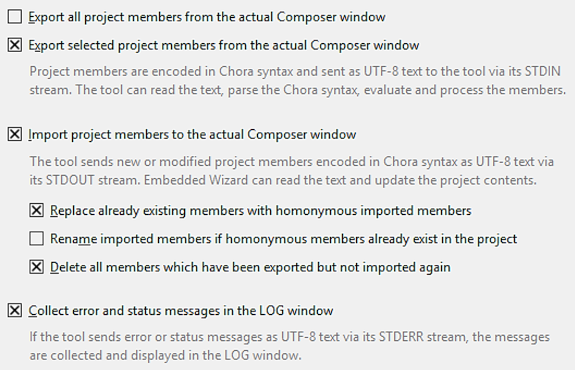
Use case 4 - Checkbox selection.
The example illustrated in the screenshots below shows the unit members and resource folder before the re-import, with some changes made since the initial import. As can be seen in the file explorer, the image files Arrow_1_114_241.png and Arrow_1_119_341.png were modified, and an additional class named AnotherClass was added. Before starting the re-import, the classes and resources named cls_Frame1_2_2, AnotherClass, and res_Arrow_1_119_341 were selected. This means only those unit members were subjects to modifications. Precisely this can also be observed after the re-import. Since the class named AnotherClass was not part of the .ewx file used for the re-import, the class object was consequently removed and the image file Arrow_1_119_341.png was replaced. However, the image resource AnotherResource.png was not deleted. The reason for keeping this file is that the import Python script cannot know which image files remain required by other, non-selected unit members.
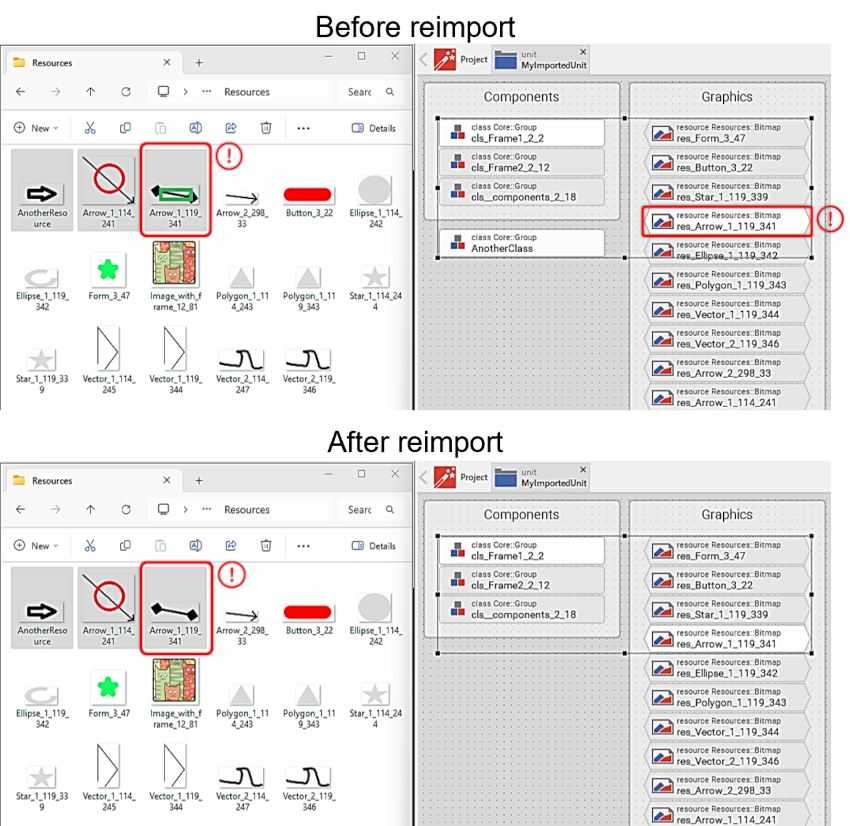
Use case 4 - Unit content before and after re-import.
As usual, the next screenshots contain the attribute views of some chosen unit members. After the re-import, the unnecessary class named AnotherClass was removed, and all modifications made to the Description and FileName attributes of the selected class named cls_Fram1_2_2 and ressource res_Arrow_1_119_341 were overwritten.
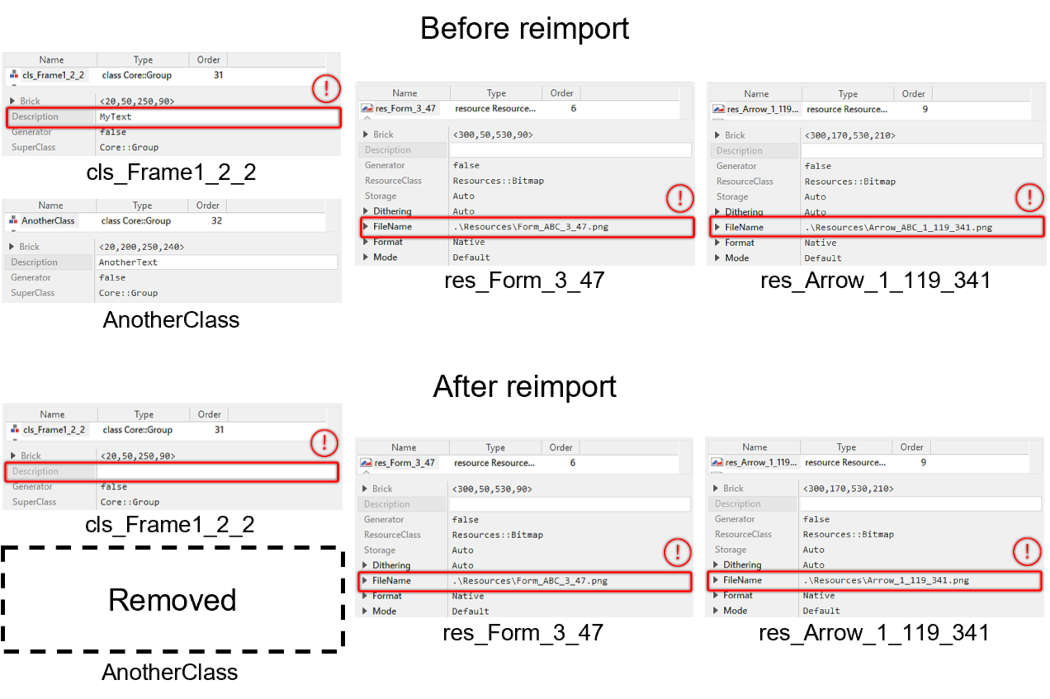
Use case 4 - Attributes of unit members before and after re-import.
Use case 5
Behavior: Attempting the re-import with this checkbox selection will result in an error message, as renaming requires an export to ensure that changed member names are properly reflected during re-import.
The following checkbox configuration can be used for this use case.
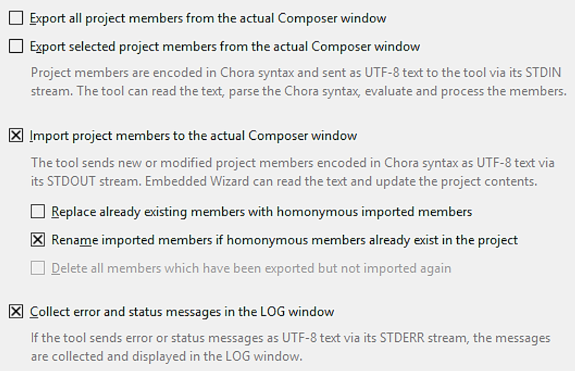
Use case 5 - Checkbox selection.
As can be seen, this re-import attempt will fail and throw an error message:
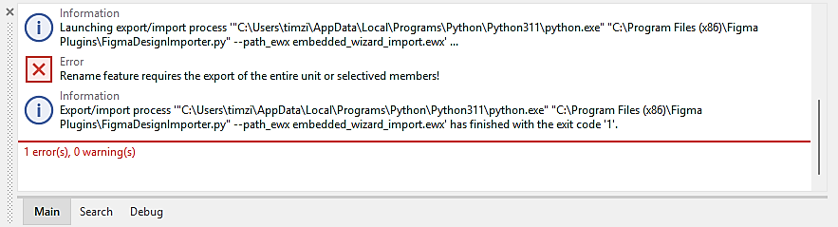
Use case 5 - Error message.
Use case 6
Behavior: This re-import use case creates renamed versions of the selected unit members and adds a timestamp to the resources used. This option preserves the existing unit members and resources. Only re-imported unit members and resources with the same name will be renamed.
The following checkbox configuration can be used for this use case.
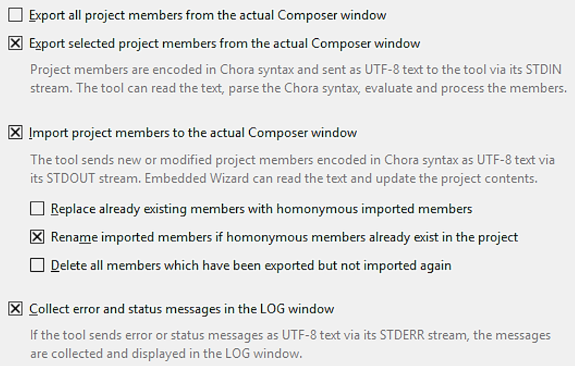
Use case 6 - Checkbox selection.
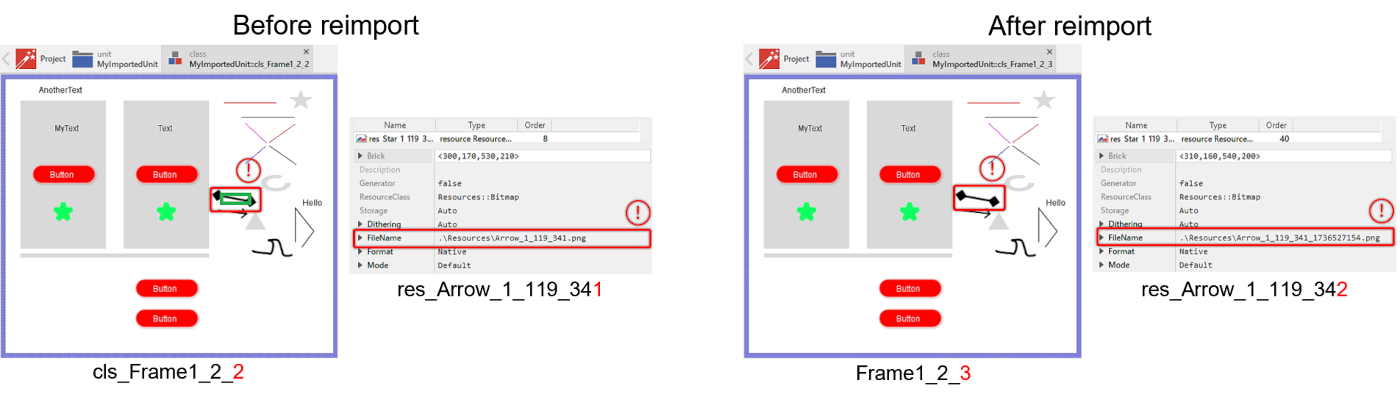
The following illustration shows the unit state of an example unit before and after a re-import. The classes clsFrame1_2_2, AnotherClass, and the resource res_Arrow_1_119_341 were selected before re-import. Only the class clsFrame1_2_2 and the resource res_Arrow_1_119_341 were part of the .ewx file used for re-import. This resulted in the creation of the new class clsFrame1_2_3 and the resource res_Arrow_1_119_342. Since AnotherClass was not part of the re-import, no changes were made to it. The same scheme was applied to the used resources, resulting in the creation of the file Arrow_1_119_341_1736793827.png, which represents another state of the image Arrow_1_119_341.png. For this example the .ewx. file for the initial import was the same than used fo the re-import, thus any changes made in the selected unit members are not present in the overwritten versions of it.
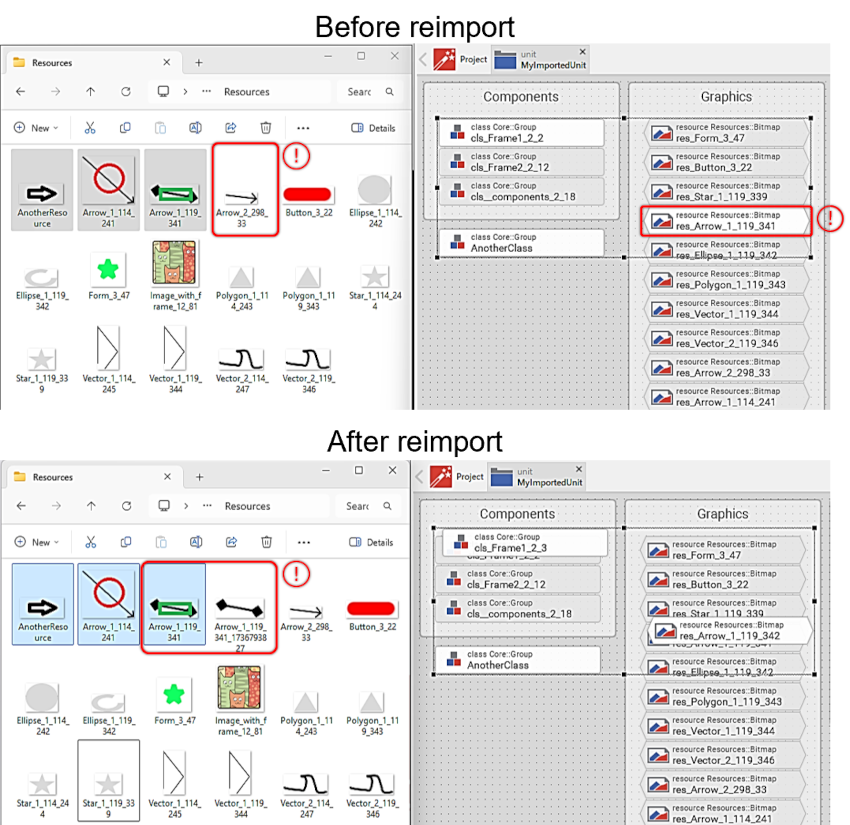
Use case 6 - Unit content before and after re-import.
When examining the classes clsFrame1_2_2 and clsFrame1_2_3, it can be observed that the bitmap resources point to the old file version (Arrow_1_119_341.png.) and to the new file version (Arrow_1_119_341_1736793827.png), respectively.
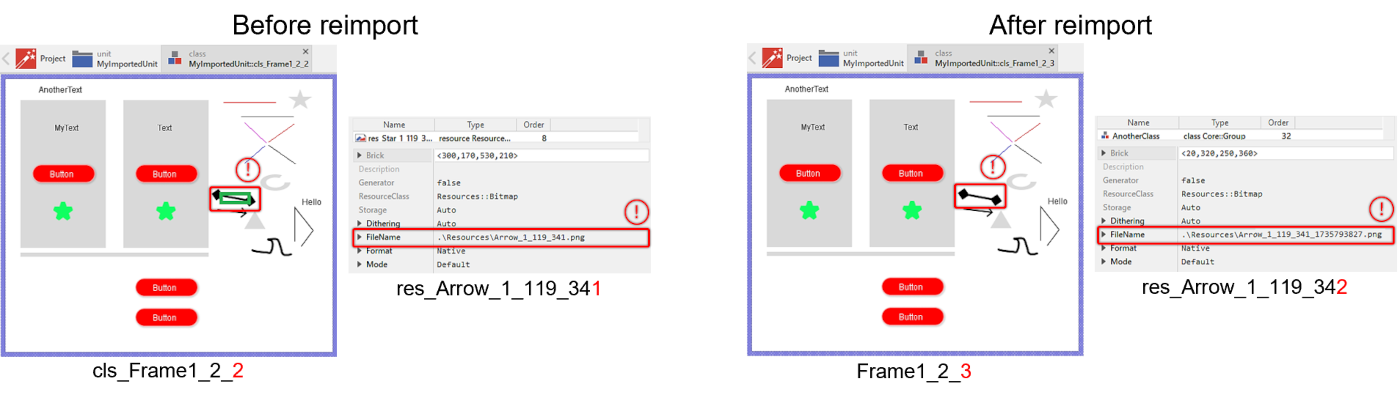
Use case 6 - Attributes of unit members before and after re-import.
Use case 7
Behavior: The re-import creates renamed versions of the all unit members and adds a timestamp to the used resource files. This option preserves existing unit members and resources. Only re-imported unit members and resources with the same name will be renamed.
The following checkbox configuration can be used for this use case.
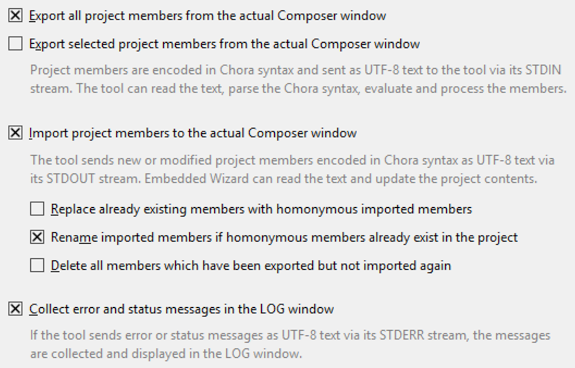
Use case 7 - Checkbox selection.
Regardless of the selected unit member, this re-import use case exports the entire unit content first. As a result, every single class and image resource is versioned. This applies only to unit members and resources that were available in the .ewx file used for the initial import and re-import. Since the class AnotherClass was not part of either the initial import or the re-import, this class remained unchanged.
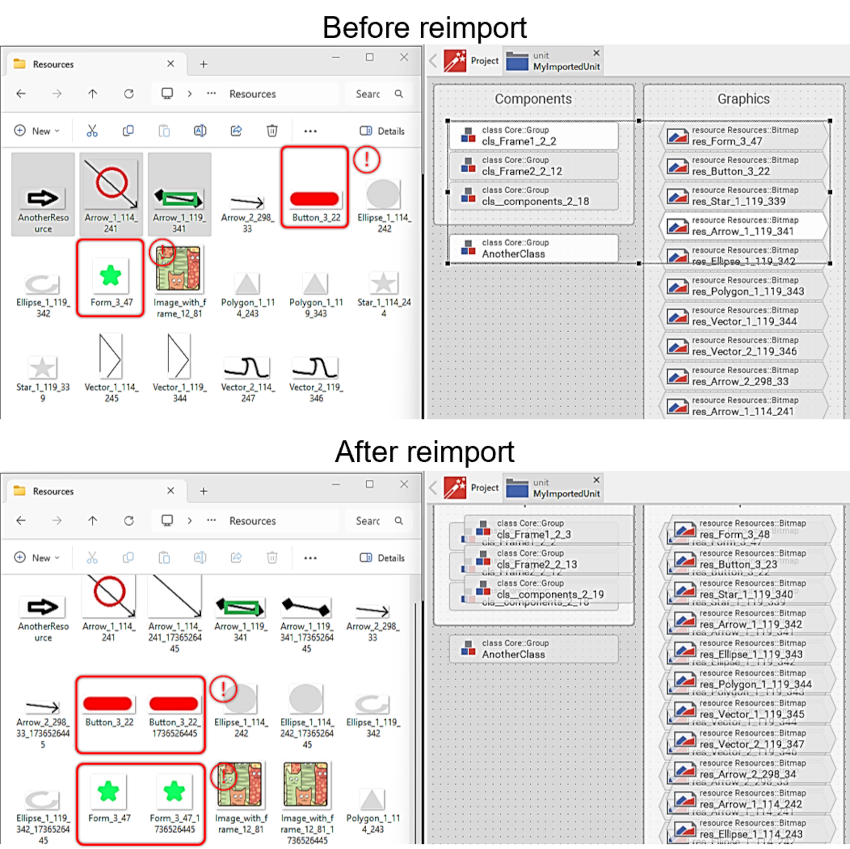
Use case 7 - Unit content before and after re-import.
When inspecting the class named clsFrame1_2_3, it can be observed that every bitmap resource used within it references the updated files. This results in entirely new and independent class content.
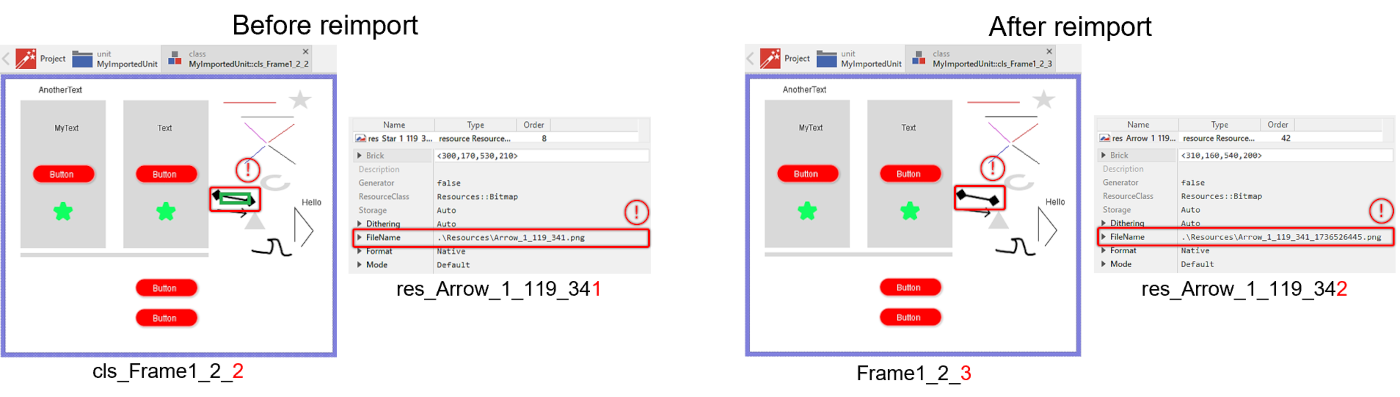
Use case 7 - Attributes of unit members before and after re-import.
When performing re-import with this checkbox selected, a unit may quickly become very large. Therefore, it is generally better to limit the re-import to a smaller selection of unit members.
Use case 8
Behavior: The re-import creates renamed versions of the selected unit members and adds a timestamp to the used resource files. This option preserves existing unit members and resources. Only re-imported unit members and resources with the same name will be renamed. Unit members that are not re-imported will be deleted, but all resources will remain the same.
The following checkbox configuration can be used for this use case.
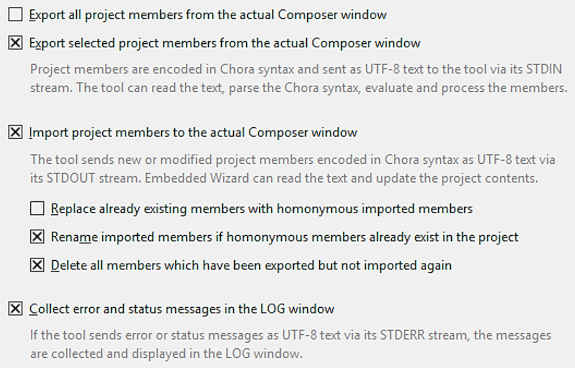
Use case 8 - Checkbox selection.
For this example, the .ewx file used for the initial import was the same as the one used for re-import. As a result, any changes made to the selected units are not present in the renamed versions. The following illustration shows the state of an example unit before and after re-import.
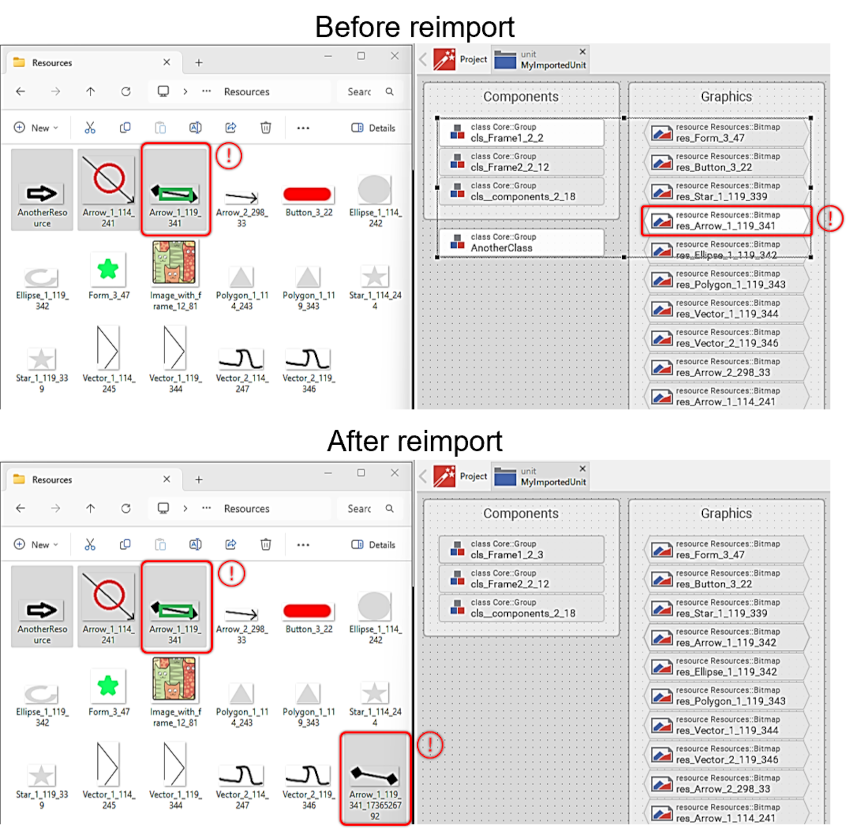
Use case 8 - Unit content before and after re-import.
The classes clsFrame1_2_2, AnotherClass, and the resource res_Arrow_1_119_341 were selected before re-import. However, only the class clsFrame1_2_2 and the resource res_Arrow_1_119_341 were part of the .ewx file used for re-import. This resulted in the creation of the new class clsFrame1_2_3 and the resource res_Arrow_1_119_342, and the removal of AnotherClass.
The same scheme was applied to the used resources, resulting in the creation of the file Arrow_1_119_341_1736526792.png, which represents another state of the image named Arrow_1_119_341.png. However, the image resource AnotherResource.png was not deleted. The reason for keeping this file is that the import Python script cannot determine which image files are still required by other, non-selected unit members.
When inspecting the class named clsFrame1_2_3, it can be observed that only the bitmap resource selected before the re-import references to the newer file named Arrow_1_119_341_1736526792.png.
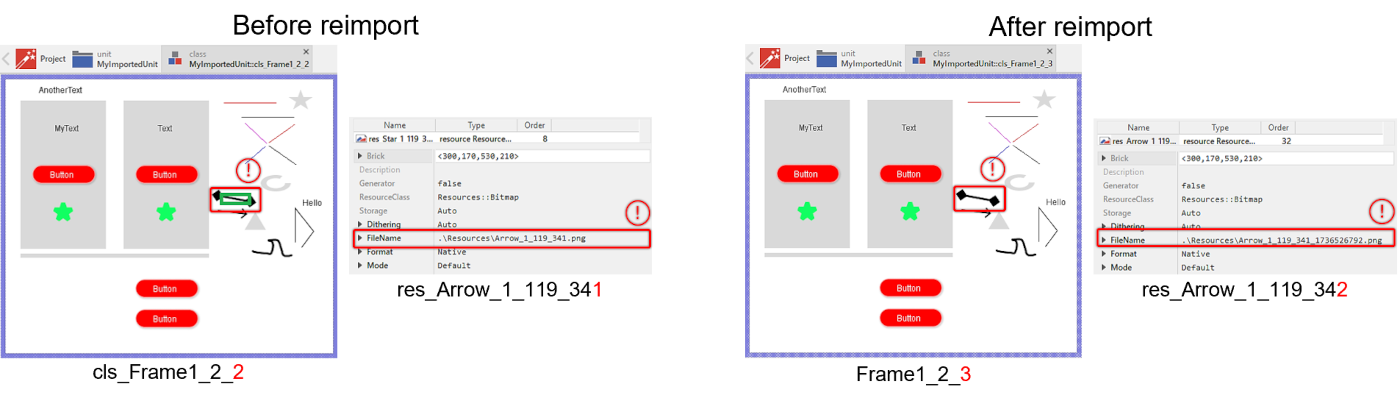
Use case 8 - Attributes of unit members before and after re-import.
Use case 9
Behavior: The import creates renamed versions of all unit members and adds a timestamp to all used resource files. This option preserves the existing unit members and resources. Only re-imported unit members and resources with the same name will be renamed. Unit members and resources that are not re-imported will be deleted.
The following checkbox configuration can be used for this use case.
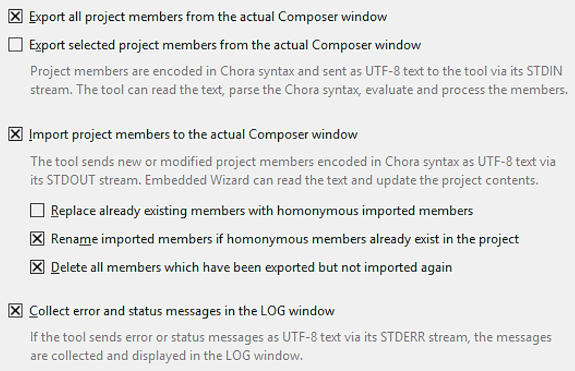
Use case 9 - Checkbox selection.
For this example, the .ewx file used for the initial import was the same as the one used for re-import. As a result, any changes made to any unit member are not present in the renamed versions. The following illustration shows the state of an example unit before and after re-import.
Regardless of the selected unit member, this re-import use case exports the entire unit content first. As a result, every single class and image resource is versioned. This applies only to unit members and resources that were available in the .ewx file used for the initial import and re-import. Since the class AnotherClass was not part of either the initial import or the re-import, this class was deleted. The same scheme was applied to the used resources, resulting in the creation of the resource files with a timestamp in its name. Since the entire unit was exported, it was possible to parse for unnecessary resource files. Therefore, the file AnotherResource.png was removed. It is important to know that any manually added resource file will also be deleted.
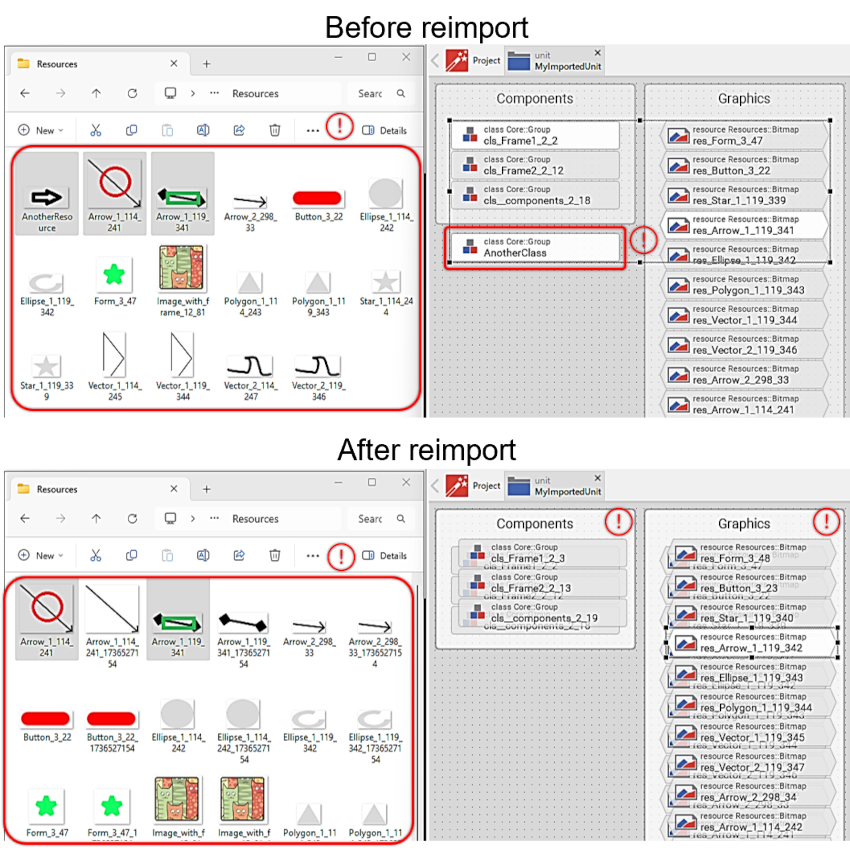
Use case 9 - Unit content before and after re-import.
When inspecting the class named clsFrame1_2_3, it can be observed that every bitmap resource used within it references the updated files. This results in entirely new and independent class content.
Use case 9 - Attributes of unit members before and after re-import.