
Creating components from templates: Time Picker
With this template you can add a new Time Picker component to your project. Time Picker allows the user to select the hour, minute and second from three lists the user can conveniently scroll. Each time the user interacts with the picker, the component sends signals to associated slot methods where your particular implementation is executed.
Components created with this template are intended to be adapted to your particular design expectations. After adding the new Time Picker you should edit the component, change its appearance and if desired also its behavior. Once you have adapted the component, you can embed instances of this Time Picker wherever you need in your GUI project. Because it serves as template, it is intentionally kept very simple. Nevertheless, Time Pickers created by the template are working widgets. If desired, they can already be used as they are. The following figure demonstrates the default appearance of the Time Picker created by using the here described component template:
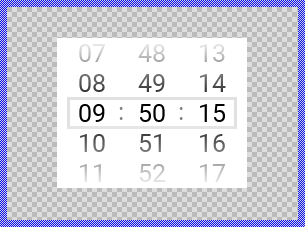
The approach with component templates has two functions. Primarily the templates should simplify the development of new components. Instead of creating the Time Picker from scratch you can use the available template. The second function is more educative. The template implements fully working Time Picker component you can investigate and learn about the corresponding programming aspects. The template is well documented. It contains annotations and inline comments with instructions helping you to understand how the component works and how it can be adapted to your particular needs.
This chapter provides an overview how the Time Picker component template is used within your own application and how you adapt this component according to your particular needs. You will find here also further details concerning the internal implementation of the Time Picker component.
Add new Time Picker component
To create a new Time Picker component from a template you simply Drag & Drop it between the Templates window and the Composer with an opened unit. This is important in that by using the component templates you add in fact a new class to your project. Classes, in turn, can exist within units only. The following are the typical steps to create a new Time Picker component from a template:
★First switch to the Composer page for the respective unit, where you want to add the new Time Picker component.
★Then ensure that the Templates window is visible.
★In Templates window switch to the folder Component Templates.
★In the folder locate the Time Picker template.
★Drag & Drop the template into the Composer window:
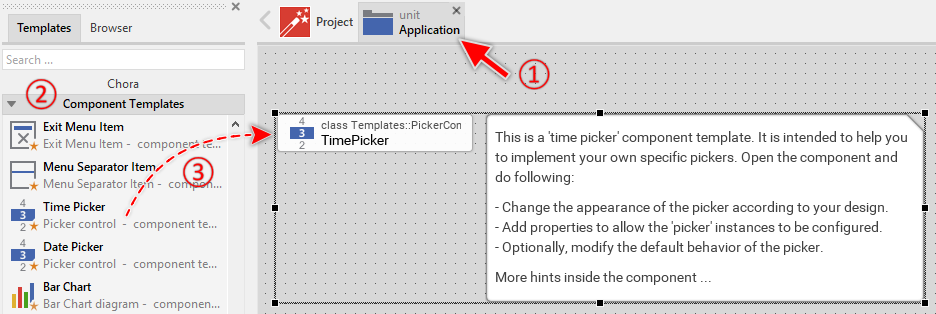
★Eventually name the new added component.
The new created Time Picker component appears accompanied by annotation providing helpful tips how to proceed. If undesired, you can select and delete the annotation.
Use the Time Picker component
Once you have created the Time Picker component, you can use it to assemble more complex components. Technically seen, you embed an instance of the Time Picker class in-place within some superior GUI component. At the runtime, the superior GUI component takes care of the correct initialization and the displaying of all embedded components, so they appear similarly as you have composed them at the design time.
Step 1. Add new Time Picker instance
The following are the typical steps to create a new instance of an already existing Time Picker component:
★First switch to the Composer page for the respective GUI component, where you want to add the new Time Picker.
★Then ensure that the Browser window is visible.
★Within the Browser locate the class of the previously created Time Picker. This can be done easily with Browser's own filter function.
★Select the found class in the Browser window.
★Drag & Drop the selected class into the Composer area.
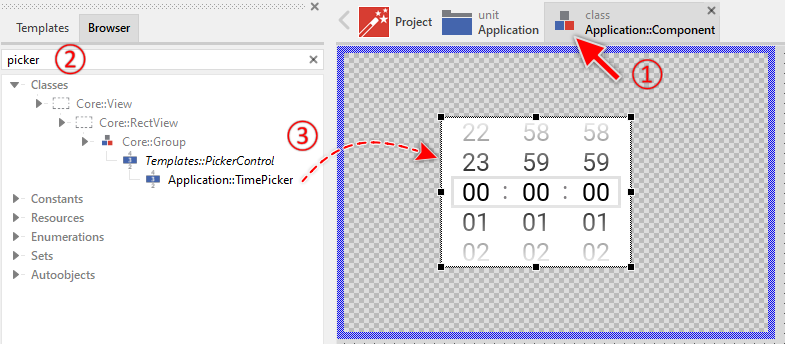
★Eventually name the new instance according to its function within the GUI component (e.g. AlarmClock).
Component templates are intended to create widgets which can be modified and adapted to your particular design expectations. In the following sections you will learn how to do this. Originally, if not yet modified, the Time Picker appears as a white rectangle containing three lists to select hour, minute and second. At the runtime the user can scroll the lists. Our intention is to keep the component templates as minimalistic as possible so they don't distract you with less important design details.
Step 2. Inspect the Time Picker instance
As long as the Time Picker is selected you can inspect and modify its properties conveniently in the Inspector window as demonstrated with the property Bounds in the screenshot below. This is in so far worth mentioning as diverse features of the Time Picker are controlled by the corresponding properties. If you are not familiar with the concept of a property and the usage of Inspector window, please read first the preceding chapter Compositing component appearance.
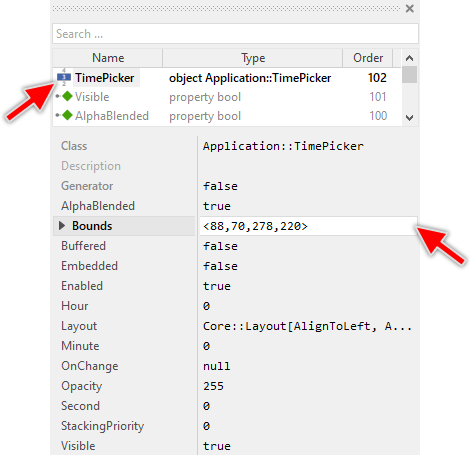
The Time Picker component descends from the Mosaic class Core::Group. Consequently, most of the properties listed in the above screenshot are inherited from this base class. Particular to the Time Picker are only few following properties:
Property |
Description |
|---|---|
Hour |
The property Hour stores the number of hours since midnight. The value is valid in range 0 .. 23. |
Minute |
The property Minute stores the number of minutes after the hour. The value is valid in range 0 .. 59. |
OnChange |
The property OnChange can refer to a slot method, which will receive a signal each time the user selects another time. Thereupon the method's logic will be executed. In the associated slot method you can evaluate the time picker properties Hour, Minute and Second. |
Second |
The property Second stores the number of seconds after the minute. The value is valid in range 0 .. 59. |
Step 3. Arrange the Time Picker within the superior component
Once added to the component, you can freely move the Time Picker instance, or you simply grab one of its corners and resize it in this way. You can control the position and the size of the component also by directly modifying its property Bounds. If you want the Time Picker to appear behind other views you can reorder it explicitly.
Step 4. Determine the Time Picker's current time value
The Time Picker is intended to allow the user to conveniently select a time value. When the user scrolls one of the three lists (hour, minute, second), the corresponding time component changes. This alternation is reflected in the Time Picker's properties Hour, Minute and Second. By evaluating these properties you can simply query the time value which is actually set in the affected picker. Accordingly, when you modify these properties, the affected picker will implicitly update the position of its lists. For example:
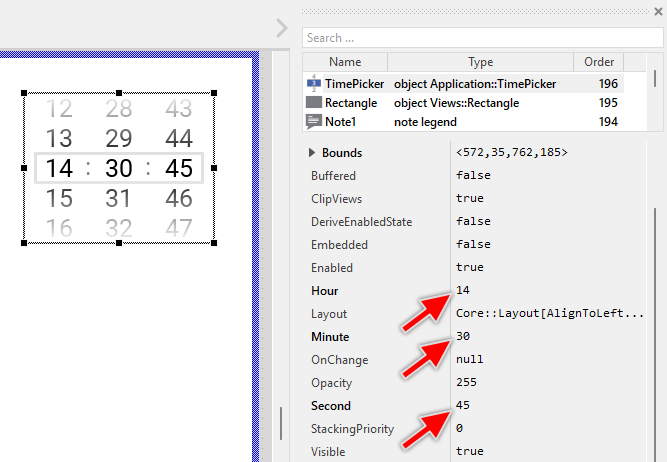
// Evaluate the current time of the picker. if (( TimePicker.Hour >= 9 ) && ( TimePicker.Hour < 17 )) trace "Business hours"; [...] // Change the time displayed in the picker. TimePicker.Hour = 14; TimePicker.Minute = 30; TimePicker.Second = 45;
The three properties work together to represent a complete time value in 24-hour format. The property Hour stores the number of hours since midnight and is automatically limited to the range 0 .. 23. The property Minute stores the number of minutes after the hour in the range 0 .. 59. Similarly, the property Second stores the number of seconds after the minute, also in the range 0 .. 59. The following figure demonstrates the relations between the three properties and the visual appearance of the Time Picker:
TIP
Please note the Mosaic classes Core::Time and Core::TimeSpan which are useful to calculate with date/time, convert it is seconds and format it as strings.
Step 5. Implement Time Picker's slot method
While the user interacts with the Time Picker, the component sends signals to associated slot methods. Within the slot method your particular implementation can react and process the event. The Time Picker sends signals when the user has finished scrolling one of the three lists and a new time value has been selected.
The slot methods are connected to the picker by simply storing them in the for this purpose available property OnChange. The slot method connected to this property is signaled when the user has finished the interaction with any of the three lists. You can initialize the property OnChange with already existing slot methods or you add a new one and implement it as desired. The following steps describe how to do this:
★First add a new slot method to your GUI component.
★Assign the slot method to the property OnChange of the affected Time Picker.
★Open the slot method for editing.
★In the Code Editor implement your desired operation to execute when the event occurs. Especially your implementation can evaluate the picker's properties Hour, Minute and Second to determine the selected time. For example:
var int32 alarmHour = TimePicker.Hour; var int32 alarmMinute = TimePicker.Minute; var int32 alarmSecond = TimePicker.Second; // Configure the alarm clock with the selected time SetAlarmTime( alarmHour, alarmMinute, alarmSecond ); trace "Alarm set to " + string( alarmHour, 2 ) + ":" + string( alarmMinute, 2 ) + ":" + string( alarmSecond, 2 );
When you start the Prototyper now, you can interact with the picker. Thereupon the picker will trigger the associated slot method.
Open the component for editing
Component templates are intended to create widgets which can be adapted and enhanced to your particular design expectations. For this purpose, once you have added a new Time Picker component to your project, you can open the component class for editing. Thereupon the implementation of the component appears in a new Composer page:
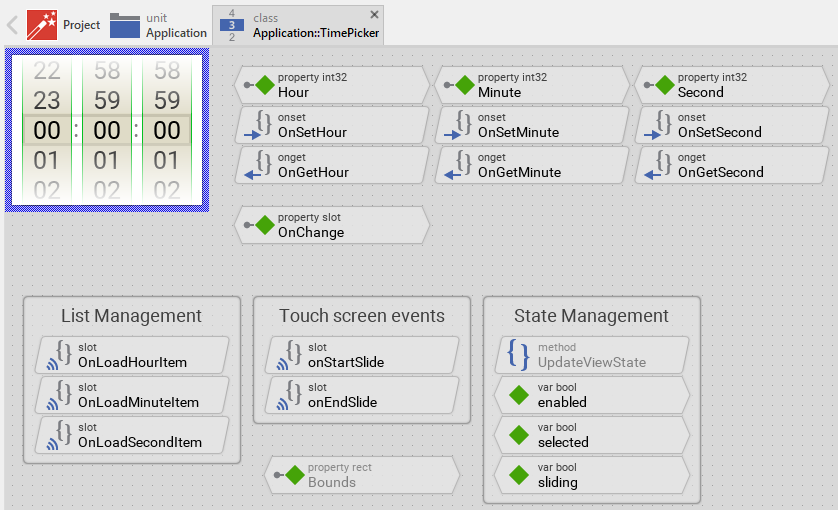
Originally, if not yet modified, the Time Picker appears as a white rectangle containing three scrollable lists displaying hours (0-23), minutes (0-59), and seconds (0-59). The lists can be scrolled by touch interaction, with a border rectangle highlighting the currently selected time value. Gradient shine effects at top and bottom indicate the scrollable nature of the lists. Our intention is to keep the component templates as minimalistic as possible so they don't distract you with less important design details.
This default functionality is implemented by following members belonging to the Time Picker. These members are explicitly intended to be modified. Understanding this internal structure is thus the first step before you start to adapt the Time Picker to your particular needs:
Icon |
Member |
Description |
|---|---|---|
|
Hour |
The property Hour stores the number of hours since midnight. The value is automatically limited to the range 0 .. 23. |
|
Minute |
The property Minute stores the number of minutes after the hour. The value is automatically limited to the range 0 .. 59. |
|
Second |
The property Second stores the number of seconds after the minute. The value is automatically limited to the range 0 .. 59. |
|
OnSetHour |
The onset method belongs to the property Hour. Each time the value of the property is changed, the code implemented in the method is executed to update the scroll position of the ListHour list. |
|
OnGetHour |
The onget method belongs to the property Hour. Each time the value of the property is evaluated within an expression, the code implemented in the method calculates the hour value from the current scroll position of the ListHour list. |
|
OnSetMinute |
The onset method belongs to the property Minute. Each time the value of the property is changed, the code implemented in the method is executed to update the scroll position of the ListMinute list. |
|
OnGetMinute |
The onget method belongs to the property Minute. Each time the value of the property is evaluated within an expression, the code implemented in the method calculates the minute value from the current scroll position of the ListMinute list. |
|
OnSetSecond |
The onset method belongs to the property Second. Each time the value of the property is changed, the code implemented in the method is executed to update the scroll position of the ListSecond list. |
|
OnGetSecond |
The onget method belongs to the property Second. Each time the value of the property is evaluated within an expression, the code implemented in the method calculates the second value from the current scroll position of the ListSecond list. |
|
OnChange |
The property OnChange can refer to a slot method, which will receive a signal when the user has finished scrolling and selected a new time value. Thereupon the method's logic will be executed. In the associated slot method you can evaluate the picker's properties Hour, Minute and Second. |
|
onStartSlide |
This internal slot method is called when the user begins touching and dragging one of the three lists. This method is connected to all three touch handlers (TouchHandlerHour, TouchHandlerMinute, TouchHandlerSecond). |
|
onEndSlide |
This internal slot method is called when the user releases the touch screen after scrolling one of the lists and the slide animation has finished. The method notifies the owner component that a new time has been selected. This method is connected to all three touch handlers. |
|
OnLoadHourItem |
This internal slot method is called by the ListHour vertical list each time the list needs to load or update a displayed item. The method creates and configures a Text view displaying the hour number with two-digit formatting. |
|
OnLoadMinuteItem |
This internal slot method is called by the ListMinute vertical list each time the list needs to load or update a displayed item. The method creates and configures a Text view displaying the minute number with two-digit formatting. |
|
OnLoadSecondItem |
This internal slot method is called by the ListSecond vertical list each time the list needs to load or update a displayed item. The method creates and configures a Text view displaying the second number with two-digit formatting. |
|
ListHour |
This Vertical List displays 24 items (0-23) representing the hours. The list supports endless scrolling, meaning items wrap around when scrolling beyond the boundaries. The list is connected to TouchHandlerHour for scroll interaction. |
|
ListMinute |
This Vertical List displays 60 items (0-59) representing the minutes. The list supports endless scrolling and is connected to TouchHandlerMinute for scroll interaction. |
|
ListSecond |
This Vertical List displays 60 items (0-59) representing the seconds. The list supports endless scrolling and is connected to TouchHandlerSecond for scroll interaction. |
|
TouchHandlerHour |
This Slide Touch Handler reacts to touch and drag events in the hour list area. It provides smooth scrolling with physics simulation (friction, snap-to-grid behavior) and invokes the associated slot methods: onStartSlide and onEndSlide. |
|
TouchHandlerMinute |
This Slide Touch Handler reacts to touch and drag events in the minute list area. It provides smooth scrolling with physics simulation and invokes onStartSlide and onEndSlide. |
|
TouchHandlerSecond |
This Slide Touch Handler reacts to touch and drag events in the second list area. It provides smooth scrolling with physics simulation and invokes onStartSlide and onEndSlide. |
|
Background |
This Filled Rectangle view displays the white background of the Time Picker. |
|
BorderCurrent |
This Border view highlights the currently selected time value. The border's color changes depending on whether the user is actively scrolling (sliding state). |
|
Separator1 |
This Text view displays the ":" separator between the hour and minute lists. |
|
Separator2 |
This Text view displays the ":" separator between the minute and second lists. |
|
ShineAtTop |
This Filled Rectangle view creates a gradient shine effect at the top of the picker to indicate scrollable content above. |
|
ShineAtBottom |
This Filled Rectangle view creates a gradient shine effect at the bottom of the picker to indicate scrollable content below. |
|
UpdateViewState |
This method is invoked automatically after the state of the component has been changed. In case of the Time Picker, the method updates the BorderCurrent view to reflect the picker's current state (especially the sliding state). |
|
enabled |
This variable stores the current state of the picker. It is true if the picker is allowed to handle user inputs (the component is enabled). See also Control the Enabled state of nested components. If the picker is actually disabled, the variable is consequently false. |
|
selected |
This variable stores the current state of the picker. It is true if the picker is actually focused for keyboard inputs (more precisely, the picker is selected within its owner component). |
|
sliding |
This variable stores the current state of the picker. It is true if the user is actively scrolling one of the three lists (the user is interacting with the picker). |


Understand the state management of the component
During its lifetime, the Time Picker will assume different states as direct effect of user interactions and as result of other superior state alternations within the GUI application. To track its current state the Time Picker manages the above mentioned state variables: enabled, selected and sliding. The variables are evaluated and updated within the implementation of the method UpdateViewState. This method evaluates the common component states (Enabled and Selected) and verifies whether the user is actually interacting with one of the picker's three lists via touch screen (the user is sliding). At the end of the method the estimated states are stored in the state variables:
// Estimate the new state var bool isEnabled = aState.contains( Core::ViewState[ Enabled ]); var bool isSelected = aState.contains( Core::ViewState[ Selected ]); var bool isSliding = TouchHandlerHour.Sliding || TouchHandlerMinute.Sliding || TouchHandlerSecond.Sliding; [...] // Remember the new state enabled = isEnabled; selected = isSelected; sliding = isSliding;
For example, the local variable isSliding will become true if the user is actually touching and dragging within the area of any of the picker's three lists (the variable Sliding of the TouchHandlerHour, TouchHandlerMinute or TouchHandlerSecond is true). Being in this state, the picker should assume an appearance indicating that the user is actively interacting with it.
When common component states (Enabled or Selected) have changed, the method UpdateViewState is invoked automatically. You don't need to worry about it. Any other state alternations need to explicitly request an invocation of the UpdateViewState method. This is especially true for state alternations caused by touch handlers. In the Time Picker, the slot methods onStartSlide and onEndSlide explicitly request the invocation:
// The user has begun an interaction with the time picker. Request the // UpdateViewState() method to be called in order to eventually refresh // the time picker appearance. InvalidateViewState();
Depending on your design expectations the default state management may require adaptations. Generally, you are free to modify the method UpdateViewState, add further state variables to your Time Picker or even remove the existing functionality if it is not needed in your case.
Adapt the appearance of the component
Originally, if not yet modified, the Time Picker appears as a white rectangle with three scrollable lists, two colon separators, a border highlighting the selected value, and gradient shine effects at top and bottom. Our intention is to keep the component templates as minimalistic as possible so they don't distract you with less important design details. It's up to you to adapt the picker to have the expected appearance. The available possibilities are explained in the following sections. Please note, that you can combine the different approaches according to your application case:
1. Modify existing views
The Time Picker template contains per default the views Background, BorderCurrent, Separator1, Separator2, ShineAtTop and ShineAtBottom. If desired, you can modify the views. For example, you can display them with other colors depending on the actual state of the picker. For this purpose you change the implementation of the above explained method UpdateViewState responsible for tracking the state alternations within the Time Picker.
When you open the method UpdateViewState you will see that it does not only update the state variables but also updates the view BorderCurrent existing within the component. Accordingly, depending on whether the user is actively sliding, the border color changes. By simply modifying this implementation you change the appearance. For example, you change the border color to blue when the user actively interacts with the picker:
if ( isSliding ) BorderCurrent.Color = #0000FFFF; // <-- blue color else BorderCurrent.Color = #E1E1E1FF; // <-- light gray color
You can also modify other properties of the existing views. For example, you could change the visibility, opacity, or even the size of views depending on the picker's state. You might want to hide the shine effects when the picker is disabled:
if ( !isEnabled ) { ShineAtTop.Visible = false; ShineAtBottom.Visible = false; BorderCurrent.Color = #CCCCCCFF; } else { ShineAtTop.Visible = true; ShineAtBottom.Visible = true; if ( isSliding ) BorderCurrent.Color = #0000FFFF; else BorderCurrent.Color = #E1E1E1FF; }
2. Remove existing views
If not needed, you can delete the per default existing views Background, BorderCurrent, Separator1, Separator2, ShineAtTop and ShineAtBottom. Doing this, please don't forget to also remove all references to the deleted views from the implementation of the UpdateViewState method. Otherwise you will get error messages next time the Composer contents is reloaded. To avoid this error message we recommend to perform the steps in following order:
★In the UpdateViewState method adapt the implementation to not refer anymore to the undesired view. For example, if you decided to delete the BorderCurrent view, simply remove all corresponding code lines. The remaining implementation looks then like this:
★Now you can delete the affected views.
3. Add further views to the component
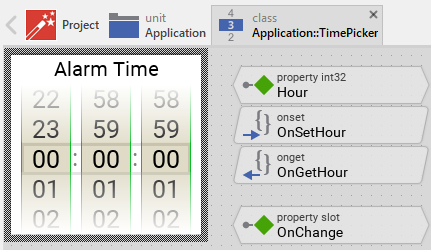
You can add further views to your Time Picker. For example, you can add a Text view to display a caption in the upper area of the picker. This caption could label the purpose of the time selection, such as "Alarm Time" or "Departure Time". Or you add an Image view to display an icon representing the time picker's function. The appearance of the views (e.g. colors) can be fixed, predetermined at the design time. Or it can change according to the actual state of the picker. For example, if the user is actually scrolling a list, the caption text color can change or an icon can appear highlighted. Following steps explain the workflow:
★First add the desired view to the component. For example add a Text view.
★Name the just added view according to its function in the component. For example CaptionText.
★In order to arrange the view within the Time Picker, move the view, or you simply grab one of its corners and resize it in this way. For a caption text in the upper area, you would position it above the lists. If you want the view to appear behind other views you can reorder it explicitly.
★In Inspector window configure the properties of the just added view. For example, in case of the Text view you can select the font to render the text, set the text alignment, and configure the initial string to display (e.g. "Select Time").
★In the UpdateViewState method adapt the implementation to update the properties of the view according to the picker's current state. This can be, for example, the color of the Text view depending on the actual sliding state of the picker. For this purpose you could add following code to the method:
// Update the appearance of the CaptionText view. if ( !isEnabled ) CaptionText.Color = #CCCCCCFF; // light gray color when disabled else if ( isSliding ) CaptionText.Color = #0000FFFF; // blue color when sliding else CaptionText.Color = #000000FF; // black color in normal state
4. Replace existing views
Also possible, you can replace the existing views by other views. For example, in the original version, the Time Picker displays colon separators as text. To make the component more sophisticated, you could replace the here used Text views by e.g. Image views displaying custom separator graphics. For this purpose:
★Think about which view is adequate as replacement for the old view existing per default in the component. An overview of existing views is found in the section Using Views.
★Delete the old view.
★Add the desired view to the component.
★Name the just added view to have the name of the previously removed view.
★Eventually move the view, or you simply grab one of its corners and resize it in this way. If you want the view to appear behind other views you can reorder it explicitly.
★If necessary, in Inspector window configure the properties of the just added view.
★If necessary, modify the implementation of other methods existing in the component if these evaluate/modify the properties of the replaced view.
Understand the list management
The Time Picker uses three Vertical List objects to display the selectable time values: ListHour with 24 items (0-23), ListMinute with 60 items (0-59), and ListSecond with 60 items (0-59). Each list is responsible for displaying its corresponding time component and supporting scrolling interaction.
The lists are configured with several important properties:
Property |
Description |
|---|---|
NoOfItems |
Specifies the total number of items in the list. For ListHour this is 24, for ListMinute and ListSecond this is 60. |
ItemHeight |
Specifies the height in pixels of each item. The default value is 30 pixels. |
ItemClass |
Specifies what the items are. In its original version, all lists are configured to use Text views as items. |
Endless |
When true, the list supports infinite scrolling. Scrolling beyond the last item (e.g., past 23 hours) automatically wraps to the first item (0 hours). |
SlideHandler |
References the associated Slide Touch Handler that controls the scrolling interaction for this list. |
OnLoadItem |
References the slot method that will be called each time the list needs to load or update a visible item. |
ScrollOffset |
The current scroll position in pixels. Negative values scroll the list downward, positive values scroll upward. This property is synchronized with the corresponding Hour, Minute, or Second property. |
The vertical list component manages items dynamically. Only the items that are actually visible on screen are created and displayed. As the user scrolls, items that leave the visible area are recycled and reused for newly appearing items. This approach ensures efficient memory usage regardless of the total number of items in the list.
Each time a list needs to display an item, it calls the corresponding slot method: OnLoadHourItem, OnLoadMinuteItem, or OnLoadSecondItem. These slot methods are responsible for configuring the view that represents the item. The default implementation uses a Text view for each item. For example, the following is the implementation of the OnLoadHourItem method:
// Get the number of the item to load. The list component takes care of the // creation of the corresponding item view. Just access it ... var int32 itemNo = ListHour.Item; var Views::Text itemView = (Views::Text)ListHour.View; // The implementation of this slot method does not match the item class // specified in the associated list component. Or the slot method is not // called in context of the OnLoadItem list operation. if ( itemView == null ) return; // Configure the item view ... itemView.String = string( itemNo, 2 ); itemView.Font = Templates::DefaultFontPicker; itemView.Color = #000000FF; itemView.Alignment = Views::TextAlignment[ AlignHorzCenter, AlignVertCenter ]; // Ensure that the item has correct size. The position of the item will be // managed by the list component. itemView.Bounds.size = ListHour.ViewSize;
Important aspects of the item loading process:
★The property Item of the list provides the index of the item to load (0, 1, 2, ..., 23 for hours).
★The property View of the list provides access to the view object representing this item. The list component automatically creates instances of the class specified in its ItemClass property (default is Views::Text).
★The string( itemNo, 2 ) expression formats the number with leading zeros (e.g., "00", "01", "02", ..., "23").
★The ViewSize property provides the size each item should have, automatically calculated by the list based on its ItemHeight and width of the list.
The implementations of OnLoadMinuteItem and OnLoadSecondItem are identical to OnLoadHourItem, except they work with their respective lists (ListMinute and ListSecond).
Understand the time value calculation
The Time Picker's three properties Hour, Minute and Second are directly synchronized with the scroll positions of the three vertical lists ListHour, ListMinute and ListSecond. The calculation between scroll position and time value is performed in the onget and onset methods of these properties.
Each onget method calculates the time value from the list's current scroll position. For example, the onget method for the Hour property:
// From the actual scroll offset calculate the number of the corresponding // list item. Note, the list displays the actually selected time at the // third position (index 2). return (( -ListHour.ScrollOffset / ListHour.ItemHeight ) + 2 ) % 24;
This calculation performs following operations:
★The ScrollOffset property of the list is negative when scrolling downward (showing later times). Dividing it by the ItemHeight (30 pixels per default) converts the pixel offset into an item index.
★The +2 offset compensates for the display positioning. The Time Picker is designed to show the currently selected time value at the third visible position (index 2) in each list, with two items visible above and two items visible below the selection.
★The modulo operator % implements the endless scrolling behavior. For hours it's % 24, for minutes and seconds it's % 60. This ensures that scrolling beyond 23 hours wraps back to 0, and similarly for minutes and seconds.
The three properties Hour, Minute, and Second are automatically limited to their valid ranges: Hour is limited to 0 .. 23, while Minute and Second are limited to 0 .. 59. This limiting is performed in the onset methods before the value is stored.
Conversely, each onset method updates the list's scroll position when the property is modified programmatically. For example, the onset method for the Hour property:
// Limit the assigned value to the valid range 0 .. 23 if ( value < 0 ) value = 0; if ( value > 23 ) value = 23; // Adjust the scroll position of the corresponding list. Note, the // list displays the actually selected time scrolled by two items. // Take this displacement in account. ListHour.ScrollOffset = ( value - 2 ) * -ListHour.ItemHeight;
This calculation reverses the operations performed in the onget method:
★The value is first limited to the valid range.
★The -2 offset is applied to position the selected item at the third visible position.
★Multiplication by ItemHeight converts the item index back to a pixel offset.
★The result is negated because positive scroll offsets scroll upward (earlier times) while negative offsets scroll downward (later times).
The following figure illustrates how the scroll position relates to the displayed time value:
This calculation approach allows the Time Picker to provide smooth, endless scrolling while maintaining accurate time values. The endless scrolling means that when you scroll past 23 hours, it automatically continues with 0 hours, and vice versa. Similarly, minutes and seconds wrap at 59.
Understand the handling of touch inputs
The Time Picker is an interactive component controlled via touch screen or mouse device. For this purpose the template contains three Slide Touch Handler objects named TouchHandlerHour, TouchHandlerMinute and TouchHandlerSecond. Each touch handler covers the area of its corresponding list. To these handlers are associated two slot methods: onStartSlide and onEndSlide. These methods are invoked at the beginning of the slide interaction (start) and when the slide animation has finished (end):
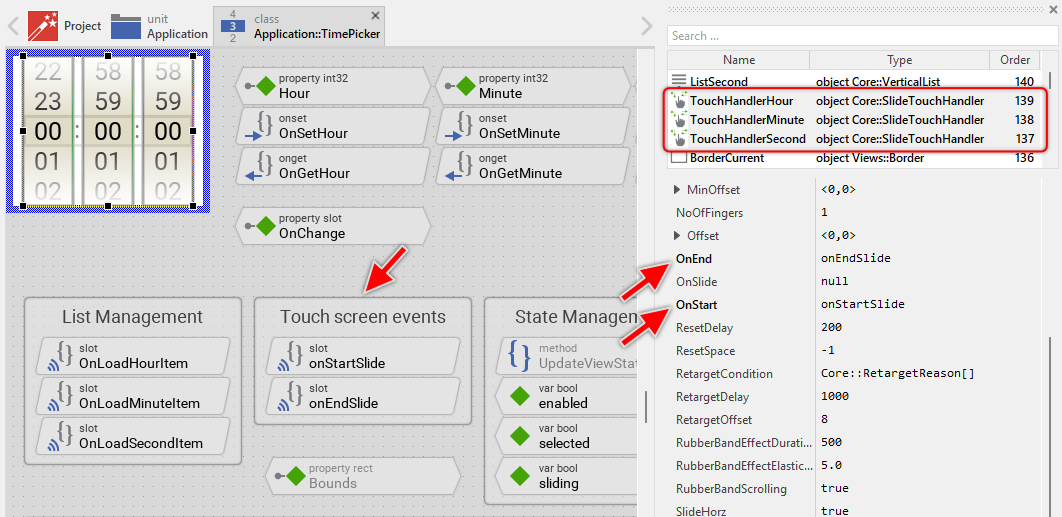
The slide touch handlers provide smooth scrolling with physics simulation. The user can drag a finger up or down within any of the three list areas, and the list will scroll accordingly. When the user releases the finger, the list continues scrolling with simulated inertia (deceleration) until it snaps to the nearest item position. This behavior is controlled by two important properties:
★Friction: Controls how quickly the list decelerates. The default value is 0.2. Lower values result in longer coasting, higher values make the list stop more quickly.
★SnapNext: Determines the snap-to-grid behavior. The default value is <0,30>, which corresponds to the ItemHeight of the lists. This ensures that after scrolling, the list always aligns to show complete items.
The slot methods take care of two tasks. First, they request an invocation of the UpdateViewState method when the user begins or ends interaction with the picker, allowing the visual appearance to reflect the current state. Second, the onEndSlide method sends a signal to the slot method stored in the property OnChange to notify the owner component that a new time has been selected.
The method onStartSlide is invoked when the user begins touching and dragging any of the three lists:
// The user has begun an interaction with the time picker. Request the // UpdateViewState() method to be called in order to eventually refresh // the time picker appearance. InvalidateViewState();
The method onEndSlide is invoked when the slide animation has finished. This occurs after the user has released the touch and the list has coasted to its final position:
// The user has finished the interaction with the time picker. Request the // UpdateViewState() method to be called in order to eventually refresh // the time picker appearance. InvalidateViewState(); // Notify the owner of the time picker, that the user has selected another time. // Do this however only after the last list has finished the slide animation. if ( !TouchHandlerHour.Sliding && !TouchHandlerMinute.Sliding && !TouchHandlerSecond.Sliding ) postsignal OnChange;
Please note that the onEndSlide method checks whether all three touch handlers have finished sliding before sending the signal. This ensures that the owner component receives only one notification even when the user has scrolled multiple lists in quick succession. This is in particulary essential on target devices supporting multi-touch displays. On such devices the user can interact with all three lists simultanously, by using three fingers (see also Touch screen inputs).
Usually you will not need to edit the implementation of these methods. They correspond already to whatever typical time pickers do. Nevertheless, you are free to change this default functionality if you want some particular behavior to be implemented in your picker. For example, you could modify the friction or snap behavior by adjusting the properties of the touch handlers:
★Select one of the touch handler objects (e.g. TouchHandlerHour).
★In Inspector window modify its properties:
★Friction: Try values between 0.1 (slower deceleration) and 0.5 (faster deceleration).
★SnapNext: Should always match the ItemHeight of the corresponding list to ensure proper alignment.
If your device does not contain any touch screen nor mouse, the per default existing touch handlers and their associated slot methods are unnecessary ballast. You could remove them and implement keyboard-based control instead. In practice this could be achieved by adding three Key Press Handlers. One handler to toggle the selection between the three lists (e.g. Tab key), and the second and third handler to react to Up/Down or Plus/Minus keys and adjust accordingly the scroll position in the currently selected list.
Customize item height and appearance
The default implementation of the Time Picker displays each time value with a height of 30 pixels and uses standard black text on white background. If your design requires different dimensions or appearance, you can customize these aspects.
Changing the item height
To change the height of items in the lists, you need to modify two related properties:
★Select the list you want to modify (e.g., ListHour).
★In Inspector window modify its ItemHeight property. For example, set it to 40 for taller items.
★Select the corresponding touch handler (e.g., TouchHandlerHour).
★In Inspector window modify its SnapNext property to match the new item height. For example, set it to <0,40>.
★Repeat these steps for the other two lists and touch handlers to maintain a consistent appearance.
The SnapNext property must always match the ItemHeight to ensure that after scrolling, the lists align properly with complete items visible.
Customizing item appearance
To change the visual appearance of items (fonts, colors, alignment), you modify the implementation of the OnLoadHourItem, OnLoadMinuteItem, and OnLoadSecondItem slot methods:
★Open the slot method for editing (e.g., OnLoadHourItem).
★Modify the properties assigned to itemView according to your design expectations:
var int32 itemNo = ListHour.Item; var Views::Text itemView = (Views::Text)ListHour.View; if ( itemView == null ) return; // Customize the appearance: itemView.String = string( itemNo, 2 ); itemView.Font = Resources::FontLarge; // Use larger font itemView.Color = #0066CCFF; // Use blue color itemView.Alignment = Views::TextAlignment[ AlignHorzCenter, AlignVertCenter ]; itemView.Bounds.size = ListHour.ViewSize;
You can customize various aspects:
★Font: Reference any font resource defined in your project.
★Color: Use any color value. You can also make colors conditional based on itemNo to highlight specific times.
★Alignment: Change how text is positioned within the item area.
★String: Modify the formatting. For example, remove leading zeros by using string( itemNo ) instead of string( itemNo, 2 ).
You can also make the appearance conditional based on the item number. For example, to highlight midnight (0) and noon (12) in the hour list:
var int32 itemNo = ListHour.Item; var Views::Text itemView = (Views::Text)ListHour.View; if ( itemView == null ) return; itemView.String = string( itemNo, 2 ); itemView.Font = Templates::DefaultFontPicker; itemView.Alignment = Views::TextAlignment[ AlignHorzCenter, AlignVertCenter ]; // Highlight midnight and noon with different color if (( itemNo == 0 ) || ( itemNo == 12 )) itemView.Color = #FF0000FF; // Red else itemView.Color = #000000FF; // Black itemView.Bounds.size = ListHour.ViewSize;
More sophisticated customizations are possible by changing the ItemClass property of the lists to use custom view classes instead of simple Views::Text. This would allow you to display the items with other views. For example, if your application case requires the items to appear with some fancy design, you can provide a bitmap resource containing the values 00 .. 59 as small color rich images (frames inside a multi-frame bitmap resource). The adapt the property ItemClass of all three lists to be Views::Image and adapt the implementation of the slot methods as shown below:
// Get the number of the item to load. The list component takes care of the // creation of the corresponding item view. Just access it ... var int32 itemNo = ListHour.Item; var Views::Image itemView = (Views::Image)ListHour.View; // The implementation of this slot method does not match the item class // specified in the associated list component. Or the slot method is not // called in context of the OnLoadItem list operation. if ( itemView == null ) return; // Configure the item view ... itemView.Bitmap = Application::PickerMultiFrameBitmap; itemView.FrameNumber = itemNo; // Ensure that the item has correct size. The position of the item will be // managed by the list component. itemView.Bounds.size = ListHour.ViewSize;
Configure the layout of the component
The initial size of the Time Picker is determined by the thick blue border surrounding the Canvas area. It corresponds to the size that all instances of this Time Picker component will have by default. If desired, you can adjust the Canvas area and change this default size accordingly. This could be for example the case when you plan to create a larger Time Picker with more spacing or additional elements like a caption. For this purpose you click and drag the edges of the surrounding border (see also Resize the Canvas area). Once the size is changed, you can then adapt (move, resize) the views and lists existing within the component:
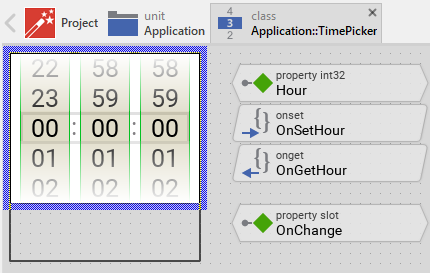
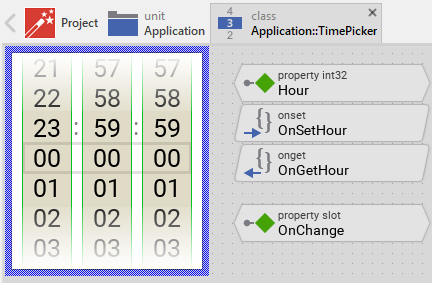
The resulting size of the Time Picker is by default fixed. When you resize a picker instance, the content of the picker remains with the original size. This is because the picker uses texts with fixed predetermined height. Nevertheless, if your application case requires the pickers to be flexible in size, you will need to:
★Configure the Layout property of all views and touch handlers existing in the Time Picker according to your expected layout rules. With this property you can determine how the views and touch handler adapt their position/size when the picker itself is resized.
When you configure all views and touch handler with following layout setting, the views will adjust their position and size proportionally to changes of the picker's own size:
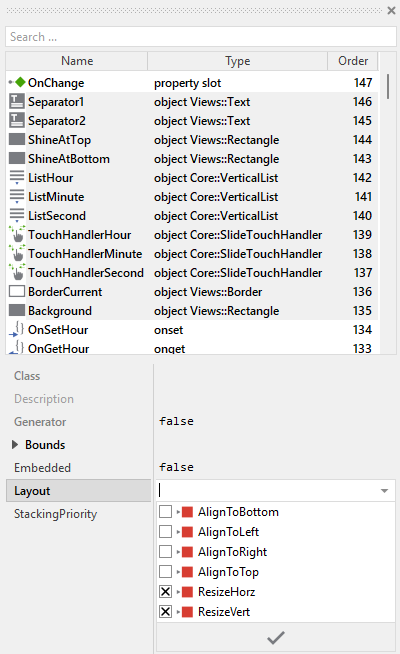
★Calculate the item height dynamically from the current height of the picker. For this purpose overwrite the inherited method UpdateLayout and calculate in the method from the picker's height the optimal item height. See also Implement your own layout algorithm.
★In the OnLoadHour, OnLoadMinute and OnLoadSecond slot method select a font with appropriate height corresponding to the actual item height.
If you add other decorative views or want to adjust the positions of the lists, you can similarly configure their Layout properties. However, be careful when modifying the positions of the three lists and their associated touch handlers - they must remain synchronized (each touch handler must cover its corresponding list area).
Implement the interface of the component
When creating your own Time Picker component you should ensure that instances of the picker can be configured to control all the features implemented in it. For example, if you have enhanced the picker to display a caption text, you should allow this caption to be specified individually for each picker instance. In this way several picker instances can exist at the same time, each displaying another caption like "Alarm Time", "Departure Time", or "Meeting Time".
To control the features in your picker you use properties. A property can be understood as variable where the corresponding setting is stored, e.g. the caption text to display in the picker. When the value of the property changes, the picker can react to it and update its appearance accordingly. The properties reflect thus the settings within your picker. Together they form the interface of the component.
Usually, each particular setting within a component is represented by the corresponding property. Thus, a picker where caption and icon can be configured will require two properties: one for the caption text and one for the icon bitmap. In its original version, the Time Picker contains already four properties Hour, Minute, Second and OnChange. They allow the picker instance to configure its current time value or to receive notifications when the user selects a new time. In order to enhance this interface by your own properties, following steps are necessary:
★Add a new property to the Time Picker component.
★Name the property according to the setting it should represent. For example, the property intended to store the caption text could be named Caption.
★Determine the data type of the property. For example, the property intended to store the caption text will store a string.
★Determine the initialization value of the property. This value should correspond to the picker's default state. For example, the property intended to store the caption text should be initialized with the string the picker will display if no other text is specified (e.g. "Select Time").
★The property is accompanied by its onget method. Except particular cases, this method is not needed and can be deleted now.
★The property is accompanied by its onset method. Open this method for editing.
★Adapt the implementation of the onset method so it updates the picker according to its new value. For example, in case of the property intended to store the caption text, you will probably update the Text view where the caption is displayed:
// The value doesn't change - nothing to do. if ( pure Caption == value ) return; // Remember the property's new value. pure Caption = value; // Update the view to display the just modified caption. CaptionText.String = value;
That is all. Now when you deal with instances of the Time Picker component, you can evaluate and modify the properties similarly to how you access variables. Especially, when the picker instance is selected, you see in Inspector window the property and can change it there. The modification is immediately visible in the Composer window:
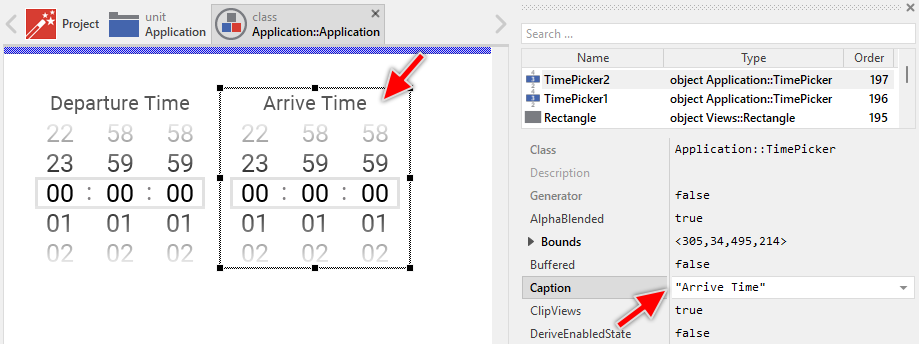
If desired, the properties can also be modified at the runtime of your application. The picker caption, for example, can be adapted to provide useful information for the user concerning the time selection purpose. For this purpose you access and modify the affected property directly within Chora code:
// Let different pickers display their specific purpose AlarmPicker.Caption = "Alarm Time"; DeparturePicker.Caption = "Departure Time"; MeetingPicker.Caption = "Meeting Time"; // Configure the alarm picker with a specific time AlarmPicker.Hour = 7; AlarmPicker.Minute = 30; AlarmPicker.Second = 0;
Perform state changes with animations
In the section Adapt the appearance of the component you learned how state alternations within the Time Picker are processed and how views existing in the component are updated in order to reflect the actual state. Accordingly, when the user starts scrolling a list (begins the sliding interaction), the picker can appear with a modified appearance. When the user releases and the sliding animation finishes, the picker restores its normal appearance. The default implementation performs such appearance updates instantly, just in the moment when the respective interaction took place.
If desired, you can modify the Time Picker to update its appearance with animations. For example, instead of instantly switching the BorderCurrent color between the sliding and non-sliding states, the picker can smoothly fade the color. Or you can animate the opacity of decorative views. For this purpose you use the Animation Effects. With an Animation Effect you can animate a property of a view existing in the picker. Following are the steps how to do this:
★Depending on the data type of the property to animate, add the appropriate Animation Effect to the Time Picker. For example, to animate a color property, add a Pulse color effect.
★Connect the effect object with the property to animate. For example, if you want to animate the color of the BorderCurrent view, connect the Pulse color effect with the property Color of the BorderCurrent view.
★Configure the duration and eventually the desired timing (easing) for the animation.
★Once started, the effect will animate the property endlessly. In our case, however, the animation should stop at its end. For this purpose set the effect's property NoOfCycles to the value 1.
★Configure the key values for the animation. In case of the pulse color effect, it is the start and the end color. For example, to animate the border color between light gray and blue, configure the effect's property Value1 with #E1E1E1FF (light gray) and the property Value2 with #0000FFFF (blue). This step is appropriate if the key values are fixed, known at the design time. Otherwise, the key values must be set at runtime shortly before the effect is triggered.
★Open the method UpdateViewState and modify its implementation to trigger the effect object when the picker switches between the sliding and not sliding states. For example in case of the above mentioned pulse color effect to animate the color of the BorderCurrent, following implementation could be adequate:
// Estimate the new state var bool isEnabled = aState.contains( Core::ViewState[ Enabled ]); var bool isSelected = aState.contains( Core::ViewState[ Selected ]); var bool isSliding = TouchHandlerHour.Sliding || TouchHandlerMinute.Sliding || TouchHandlerSecond.Sliding; // Following code updates the views instantly, without animations. // We keep this for the disabled state. if ( !isEnabled ) BorderCurrent.Color = #CCCCCCFF; // For enabled state, use animations for sliding transitions else { // Switching from not sliding -> sliding state. Start the animation. if ( isSliding && !sliding ) { ColorEffect.Reversed = false; ColorEffect.Enabled = true; } // Switching from sliding -> not sliding state. Start the animation. else if ( !isSliding && sliding ) { ColorEffect.Reversed = true; ColorEffect.Enabled = true; } } // Remember the new state enabled = isEnabled; selected = isSelected; sliding = isSliding;
★Since the properties of the affected views are now modified with animations, you will eventually need to adapt their initial values to correspond to the default state of the picker. For example, you might need to set the property Color of the view BorderCurrent to the value #E1E1E1FF (default color is light gray).